Personalised healthscore
Personalised healthscore
# Health profiles
Health profiles (opens new window) are the groups of customers within which Skalin compares customer metrics against each other. They allow you to define the weight given to each type of criterion and to isolate customer segments so they have their own weightings.
# How to define your health score profiles?
Several criteria can guide the creation of your profiles:
- Engagement model (High touch / Low touch): if you apply different follow-up rules depending on your customer groups, it makes sense to create at least these two groups as health profiles. You will typically be able to update the CSM Pulse for Low touch customers less often than for High touch customers — so you need to be able to vary the weight of this sub-score between the two profiles.
- Seasonality: if some customers have activity mainly in summer and others in winter, separating them into distinct profiles allows you to vary the weight of the usage score depending on the time of year.
- Features or plans subscribed: by comparing the usage of customers with access to the same features, you get a more relevant benchmark and can define similar usage expectations.
- Business type: very different behaviours can be expected across different user categories — grouping them by profile improves the relevance of the analysis.
A customer can only be assigned to one health profile. If you want to combine several criteria, there is no native feature in Skalin to automatically create sub-profiles: you need to create each combination manually as a separate profile. For example, combining seasonality and plan would give you profiles such as "Winter, premium plan", "Winter, basic plan", "Summer, premium plan", "Summer, basic plan".
Minimum number of customers per profile
You need at least 10 customers per profile for the comparison algorithm to work correctly.
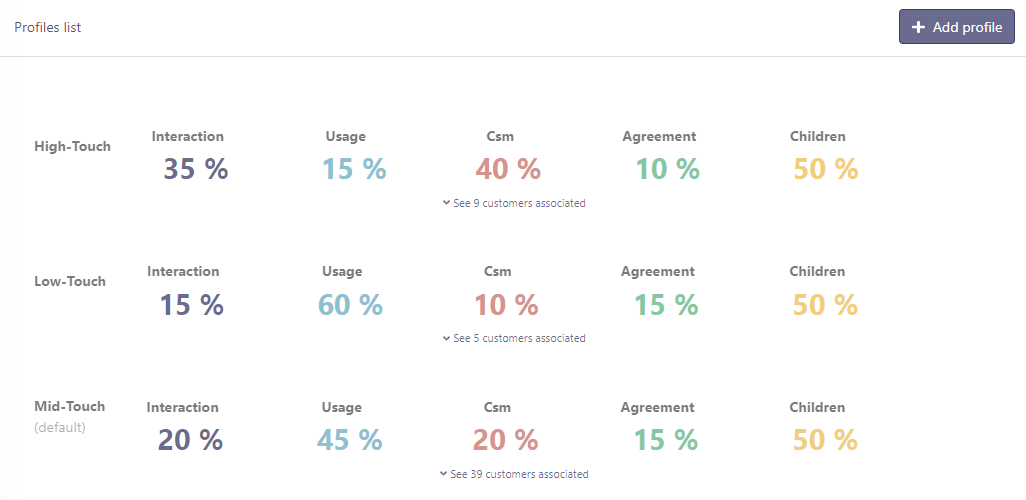
The example below shows a segmentation with 3 profiles (high-touch, mid-touch, low-touch), each with different weightings for each category of criteria:
# Assigning customers to a health profile
Once your profiles are defined, you need to assign each customer to the right profile. Two approaches are available:
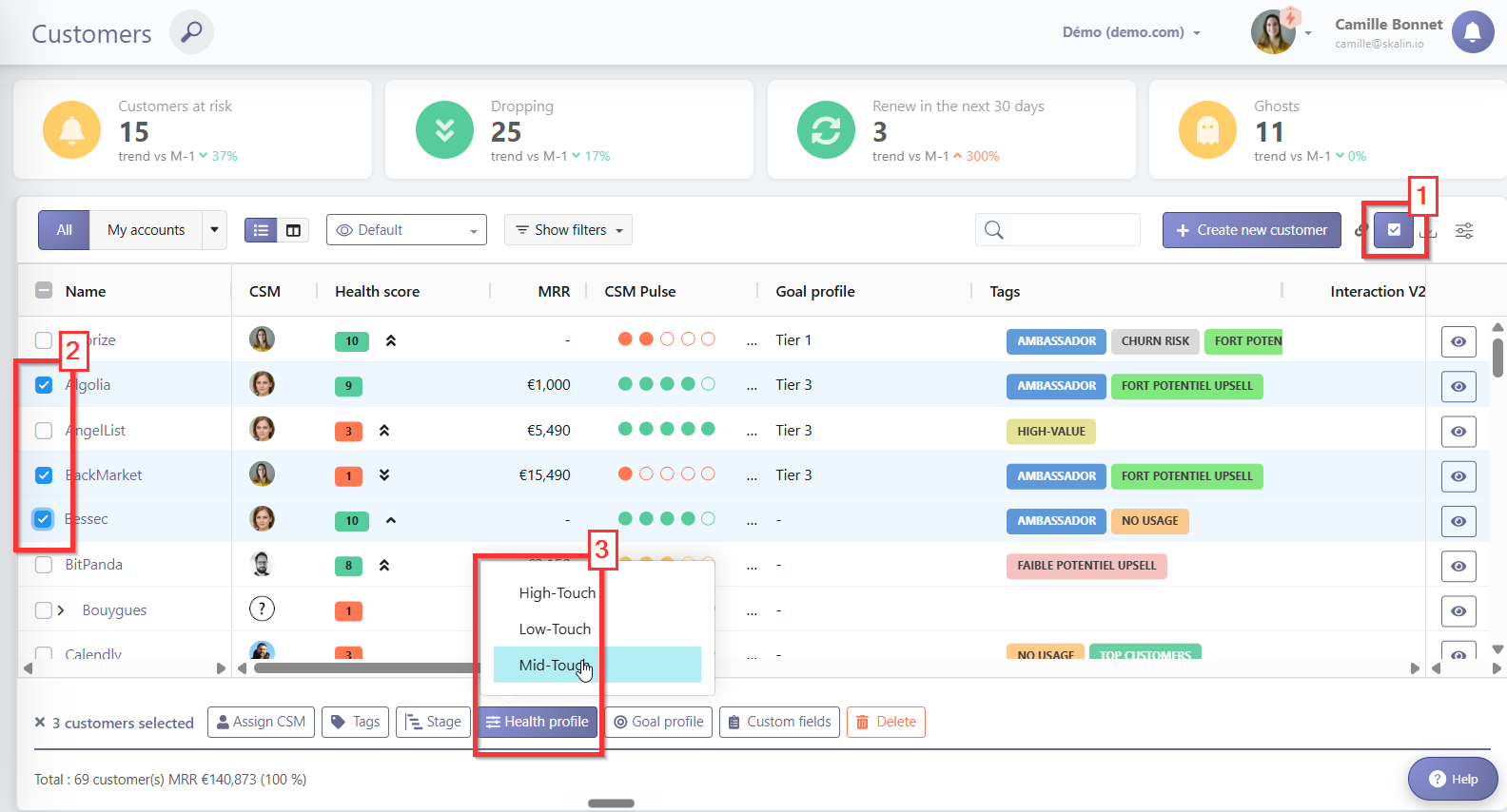
- In bulk from the customer list: go to Entities > Customers, check the multi-select checkbox to select all accounts you want to assign to a given profile, then apply the profile using the bulk actions menu.
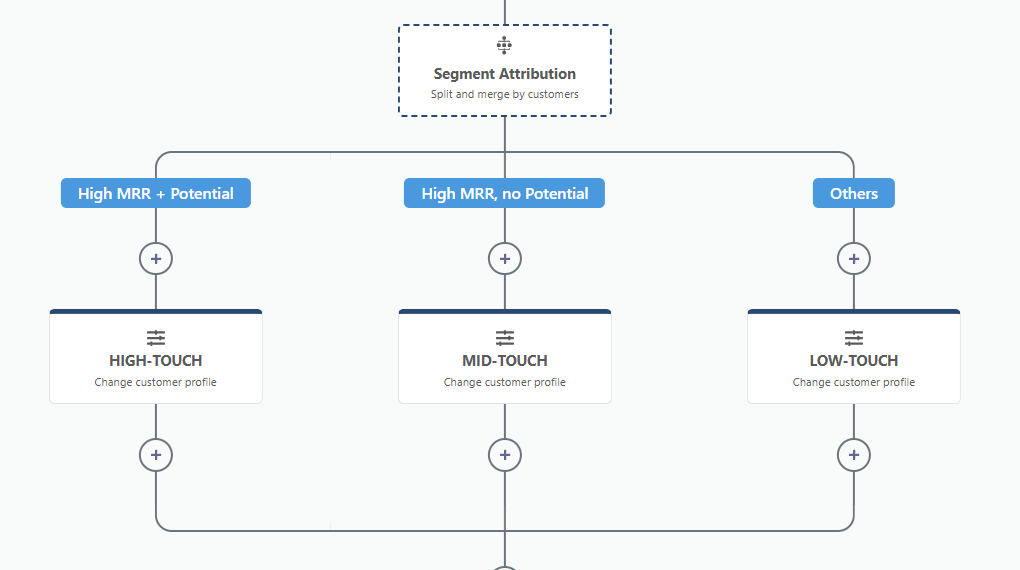
- Via a Playbook with a split & merge: build a Playbook where each branch corresponds to a health profile, with the conditions identifying which customers belong to that profile. At the end of each branch, an action assigns the customers to the correct profile. This approach is particularly useful for keeping assignments up to date over time: by setting up a scheduled Playbook that runs once a week, for example, you can automatically check whether customers have changed their subscription plan and move them to the right profile without any manual action. Learn more about split & merge.
# Custom metrics integration
Not all relevant metrics can be collected on your application via standard tracking. This is where Custom Metrics come in. They enable additional information to be sent to the algorithm, so that the score can be adjusted upwards or downwards.
Let's imagine you're selling a marketing activation solution: it's certainly important to know whether your users are logging on regularly and using your key features. But if they're not getting any ROI from it, then the relationship isn't likely to last. It is therefore possible to inject business criteria to enrich your health score (ROI, leads generated, credits consumed...).

# Custom score fields (recommended approach)
The recommended solution is to create a custom field of type score directly from the customer settings (see the documentation on custom fields). This field accepts a value from 1 to 5 and can be populated in two ways:
- Via the API: by sending the value directly from your system.
- Via a Playbook: by building a scenario that automatically calculates and assigns the value based on your own business rules.
# Example: populating a score field via a Playbook
You can create a Playbook triggered by a change in a custom metric, then define several branches based on the metric's value — each branch setting a different score (1 to 5) using the "Change customer custom score field" action.
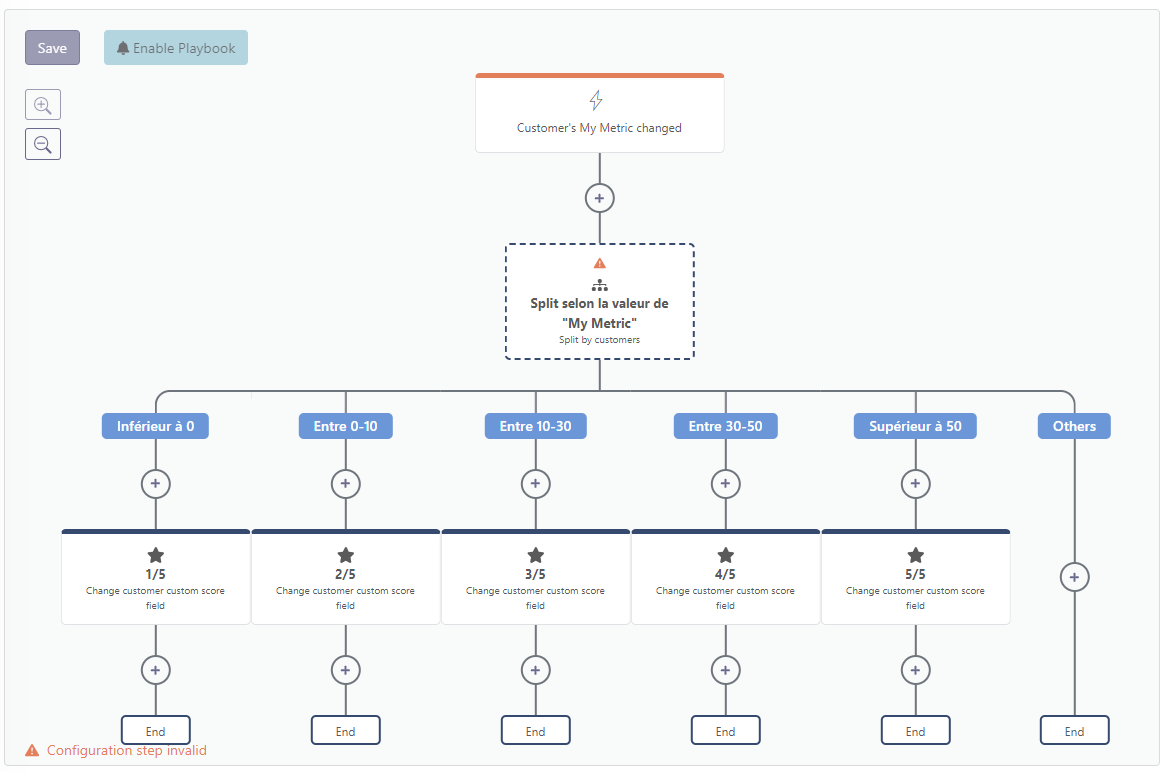
Once the field is created and populated, it automatically appears in the health score profile settings, where you can assign it a weight in the overall score calculation.
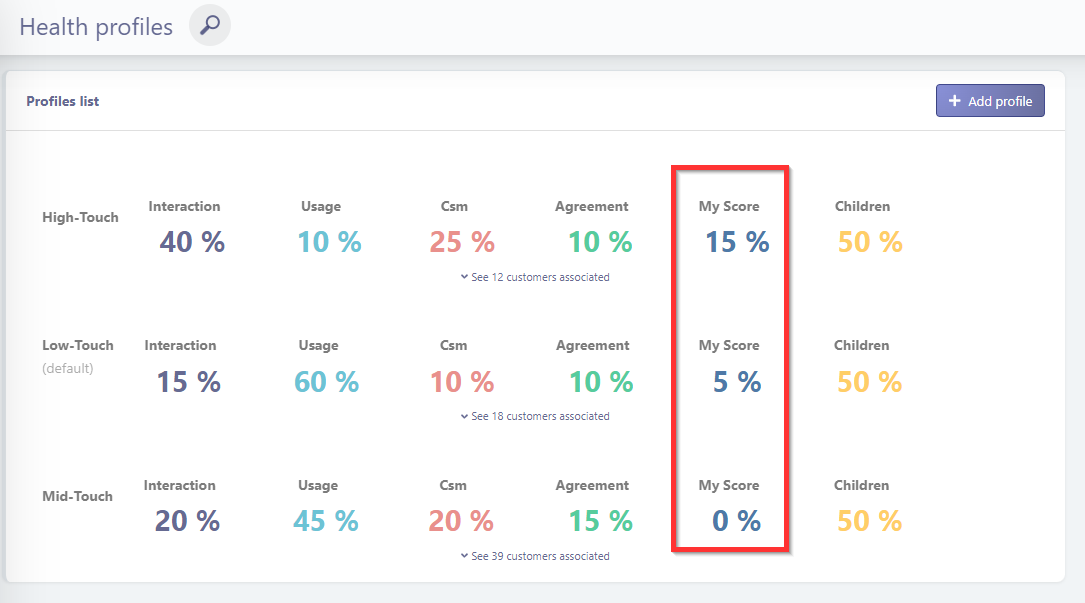
One of the most powerful ways to personalise your health score
This approach lets you move beyond usage-based indicators and base your health score on the actual outcomes your customers are achieving: ROI, adoption of a key feature, business activity levels... By feeding in the metrics that truly matter for your business, you get a health score that accurately reflects the value each customer is experiencing — and that helps you act at the right moment.
# Via webhook
It is also possible to send a Custom Metric via webhook. The idea is to send an already-interpreted variable with an associated score (from 1 to 5).
You need to define a rule calculated beforehand and sent to Skalin at regular intervals. For example, % credits consumed / % contract duration elapsed:
- If <0.2 then you send us the value "credits-conso = 1".
- If >0.2 and <0.4 then you send us the value "credits-conso = 2".
- If >0.4 and <0.6 then you send us the value "credits-conso = 3".
- If >0.6 and <0.8 then you send us the value "credits-conso = 4".
- If >0.8 then you send us the value "credits-conso = 5".
Unlike custom score fields, it is not possible to define a specific weight for this parameter in the health score profiles. The value sent is integrated into the usage score calculated by Skalin, where it applies a bonus or penalty of ±1 point on the initially calculated score.
For more information on webhooks, please refer to the technical documentation.