Concept
Interaction goals
# What is an interaction goal?
An interaction goal makes it possible to precisely define the number of interactions of each type to be carried out with customers in a given phase over a defined period. For example, you can define the number of QBRs, in-depth analyses, training sessions, or roadmap presentations that each customer in the Run phase must have over a year, or the number of training sessions for a customer in Onboarding.
Each CSM can then track whether they have reached their overall goals across all their customers (CSM Goals View) and then see the details for each individual customer (Customer Goals View).
The “Goals” feature, in Skalin terminology, is an additional module that must be activated on your account by your CSM. Do not hesitate to ask them to enable it.
# Configuration
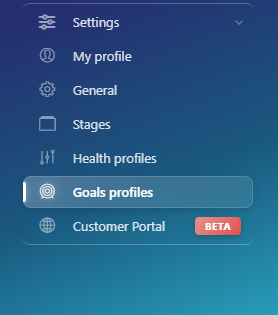
Once the module is activated on your account, open Settings > Goals profiles in the menu.
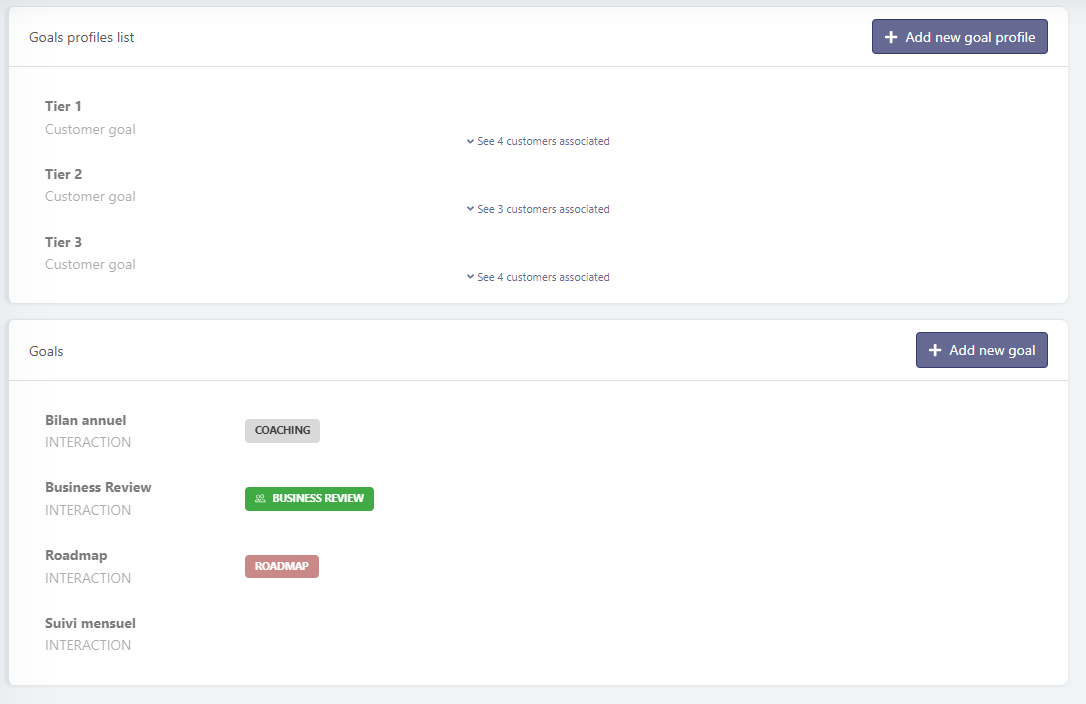
In the upper section are the goal profiles. Most of the time, these correspond to your customer segmentation: for example, you can define a different number of training sessions or QBRs for Tier 1, Tier 2, and Tier 3 customers. Goal profiles can be created to align with health score profiles, or they can apply to a different set of customers instead—it’s entirely up to you.
In the lower section are the goals. You start by creating the different goals, and then associate them with goal profiles.
# 1) Creating a goal
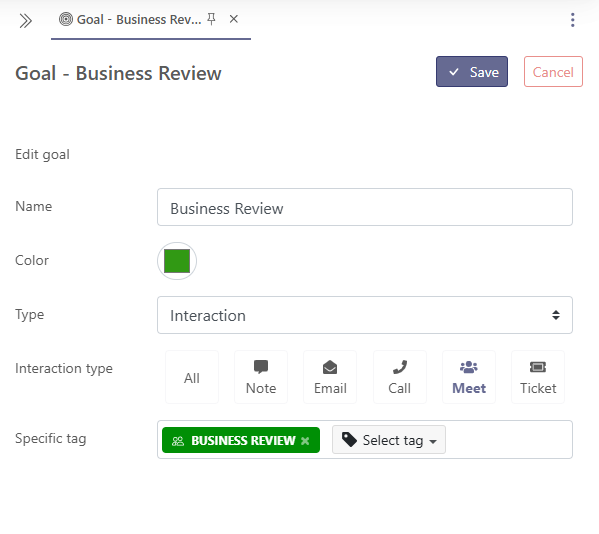
Click “Add a new goal”, then choose a name and a color for this goal, select the targeted interaction type (note, email, call, meeting, ticket, or all interactions), and optionally specify whether a specific tag must be present on the interaction for it to count toward the goal.
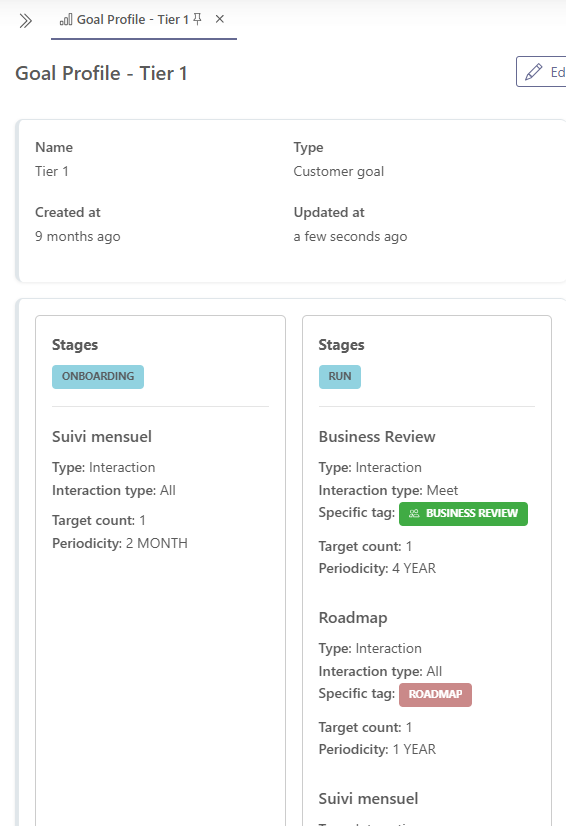
In the example below, Business Review meetings must be tagged “Business review” to be counted toward the goal.
# 2) Creating a goal profile
Click “Add a new goal profile”, give your goal profile a name (for example, “Gold” if you want to define the number of interactions to have with Gold customers), then select the lifecycle phase(s) for which the interactions should be counted, such as Onboarding. Finally, select one of the goals you previously created and the desired frequency.
Click “Add a target” to stack multiple goals.
For example, Gold customers in Onboarding will have one training session every two weeks and at least one standard email each week.
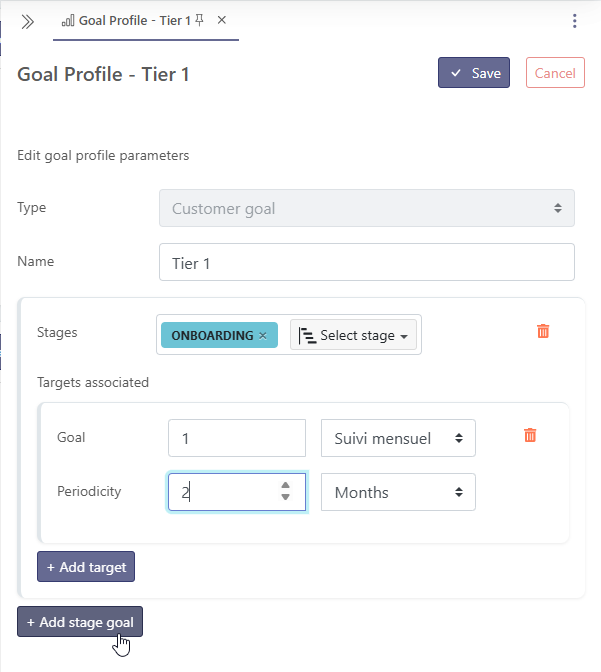
You can then “Add a phase goal” to define what should happen in terms of interactions during the Adoption phase, the Run phase, and even the Pre-churn phase (if you have added one), for example to do a post-mortem session to better understand the reasons for customer churn.
# 3) Assigning a goal profile to a customer
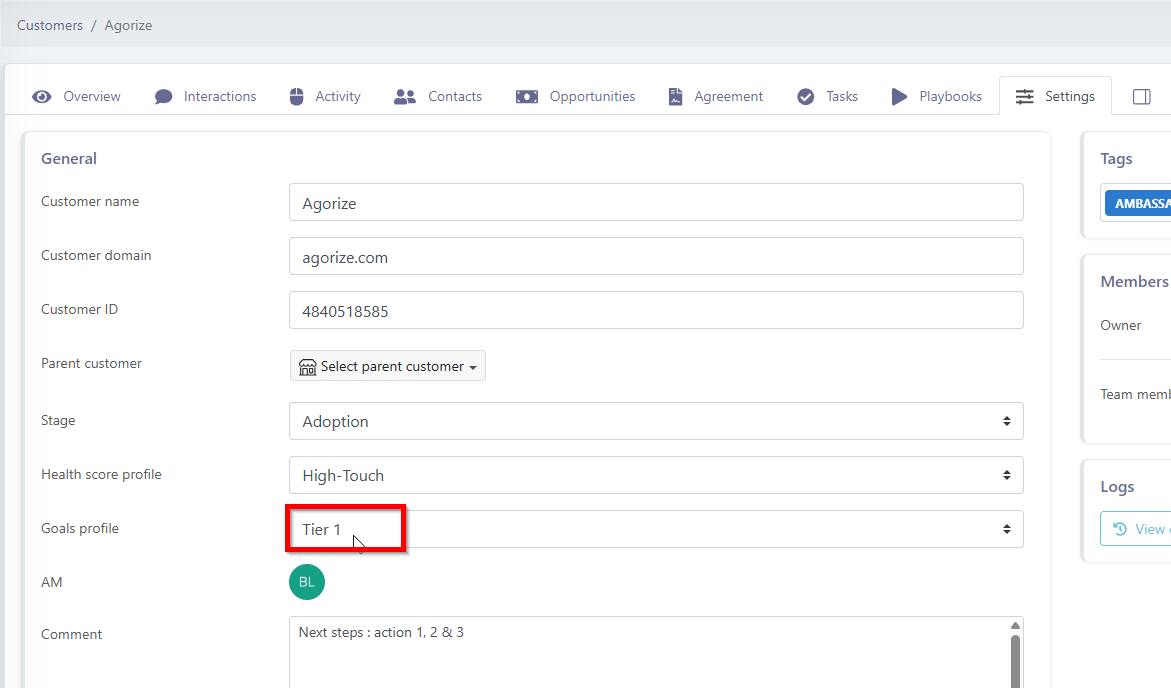
Once the goal profiles are defined, you need to assign them to customers so that these goals apply to them.
Open a customer record and, in Settings, fill in the goal profile.
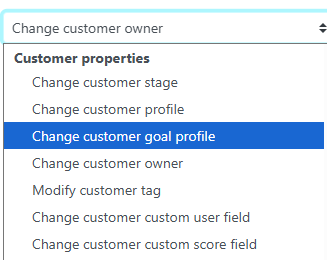
You can also automatically assign goal profiles to your customers via playbooks, in the same way you assign them a health score profile (under Customer Properties > Change customer goal profile).
The action to select in the playbook:
# 4) Tagging interactions
If some of your goals involve interactions with specific tags, do not forget to add these tags so that the interactions are counted.
On a customer record, in the Interactions tab, find the interaction and add a tag in the corresponding column.
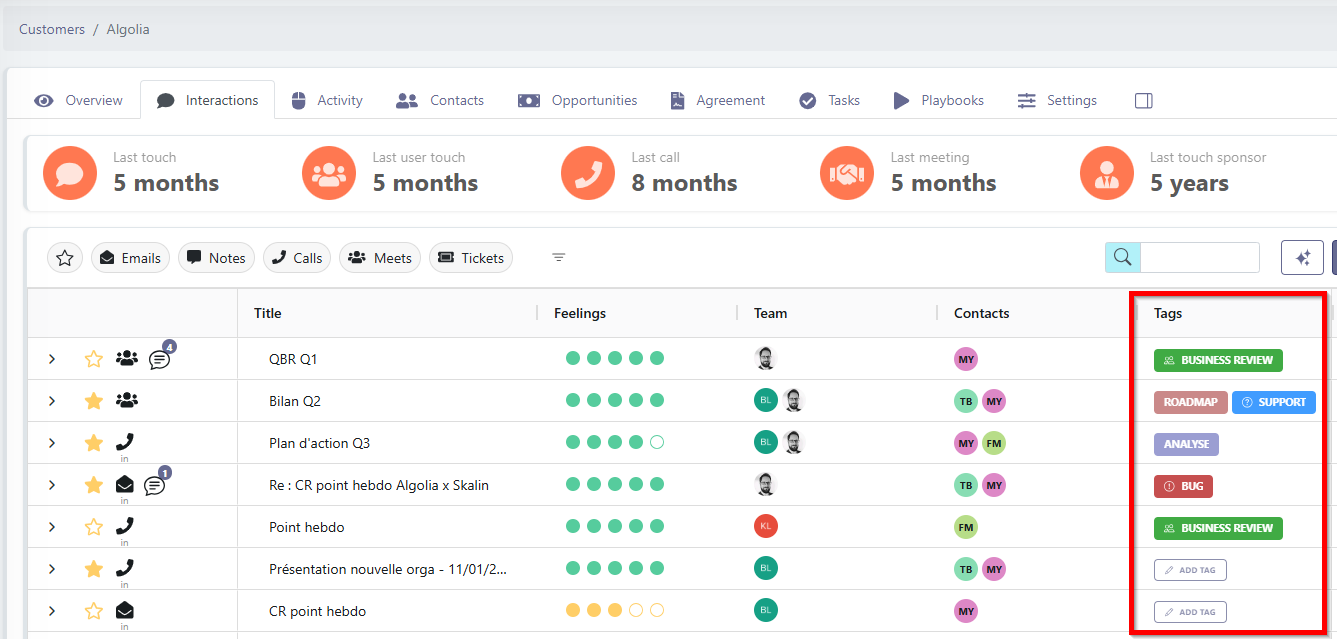
Referring back to the example above, only meetings with the “Business Review” tag count toward the goal. This means that the call titled “Point hebdo” (in this image) does not count toward the goal, because it is not a meeting.
A playbook trigger based on an interaction containing a specific label is planned in the roadmap, but is not yet available.
To view goal achievement, go to the next section.