Tracking & analytics integration
Tracking & analytics integration
# JS Tracking and Server-Side Tracking (SST)
To set up Skalin tracking, please refer to the technical documentation: https://docs.skalin.io/en/dev/tracking/
- For Tag JS: https://docs.skalin.io/en/dev/tracking/1.0.0/tagging/setup/
- For SST: https://docs.skalin.io/en/dev/tracking/1.0.0/sst/setup/
To check in real time that your browsing events are being tracked by Skalin, visit https://app.skalin.io/#/integration/tracking (opens new window)
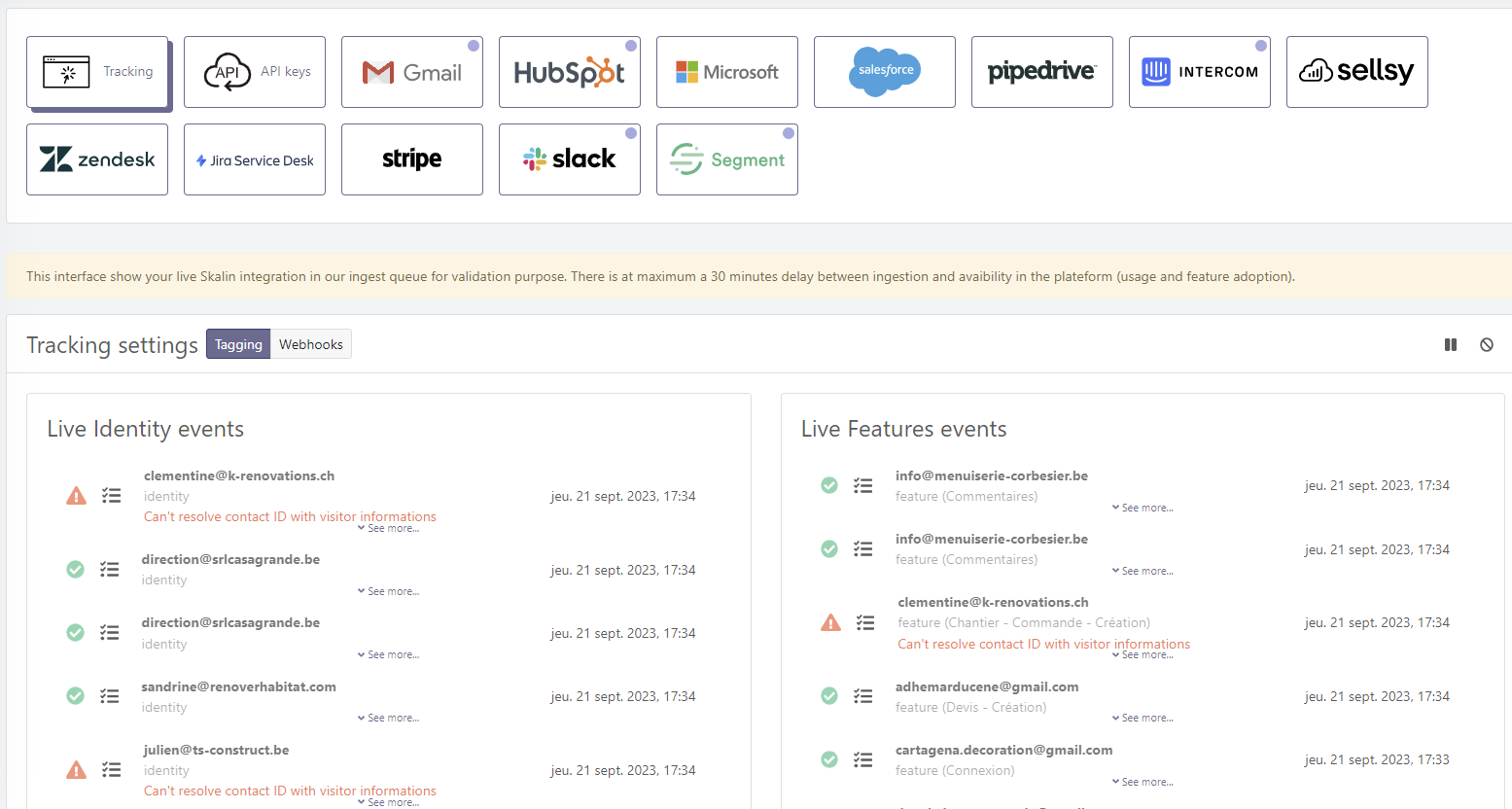
On the left, you'll see the connection events, on the right the details of the functions used. Three possibilities:
- If you see a small green tick, everything is OK: tracking has been matched with an existing contact in Skalin.
- If you see a warning with the message "Can't resolve contact ID with visitor informations", this means that the information doesn't match any contact in Skalin (either it's a problem with the ID, or the contact doesn't exist).
- If you don't see anything happening, it's probably a problem with your call, in which case please refer to the technical documentation.
# Segment
If you're using Segment, you can upload your navigation events to Skalin in just a few clicks. To do so, click on "Connect me".
An API key and your Skalin ID will appear. Just click on the "Install Skalin destination automatically" button to finalize your setup.
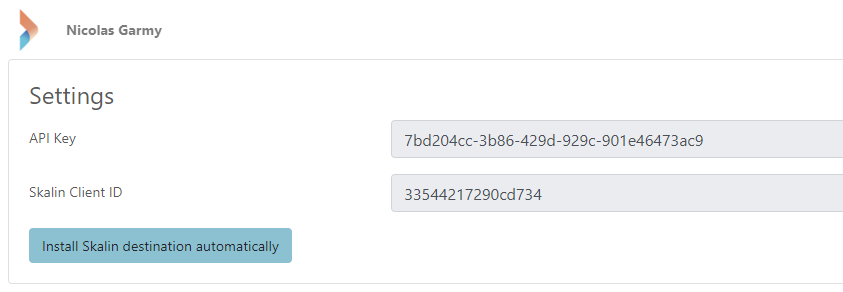
If automatic installation does not work, follow this procedure:
- In Segment > Destinations catalog > click on Add destination.
- Search for Skalin in the list, then follow the instructions in Segment.
Nota
Depending on your Segment offer, Skalin may or may not be able to retrieve browsing history. History retrieval is available from the Business plan.
# Pendo
If you're using Pendo, you can upload your navigation events to Skalin in just a few clicks. To do so, click on "Connect".
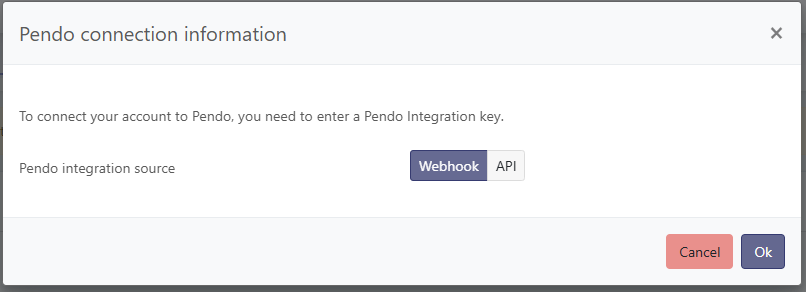
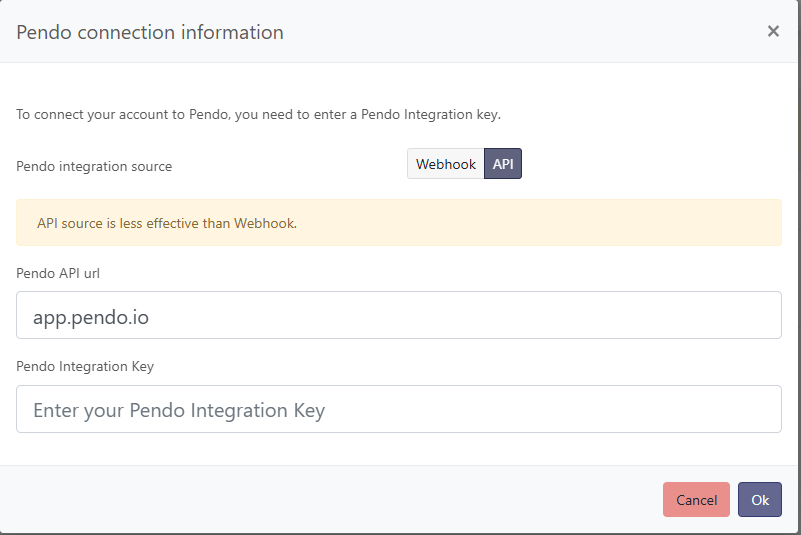
You can then choose to connect via a webhook or via the API (the latter being less efficient because it retrieves events only once a day when the webhook continuously retrieves them).
If you use the webhook method, you must create a new webhook on Pendo, using you API key and Skalin Client ID (which you can find in Settings > General).
If you use the API, you must enter your Pendo API integration key.
 Then activate the "Synchronise Pendo tracking events" option and choose "Track event" in Set identity event.
Finally, choose all events associated with a contact connecting to your platform:
Then activate the "Synchronise Pendo tracking events" option and choose "Track event" in Set identity event.
Finally, choose all events associated with a contact connecting to your platform:

# Mixpanel
If you're using Mixpanel, you can upload your navigation events to Skalin in just a few clicks.
In Mixpanel, you must create a service account (Organization Settings → Service Accounts → Create). You can choose roles/access for each project.
The account service name and key are then displayed.
The secret key is only displayed once, so make sure you save it in a safe space.
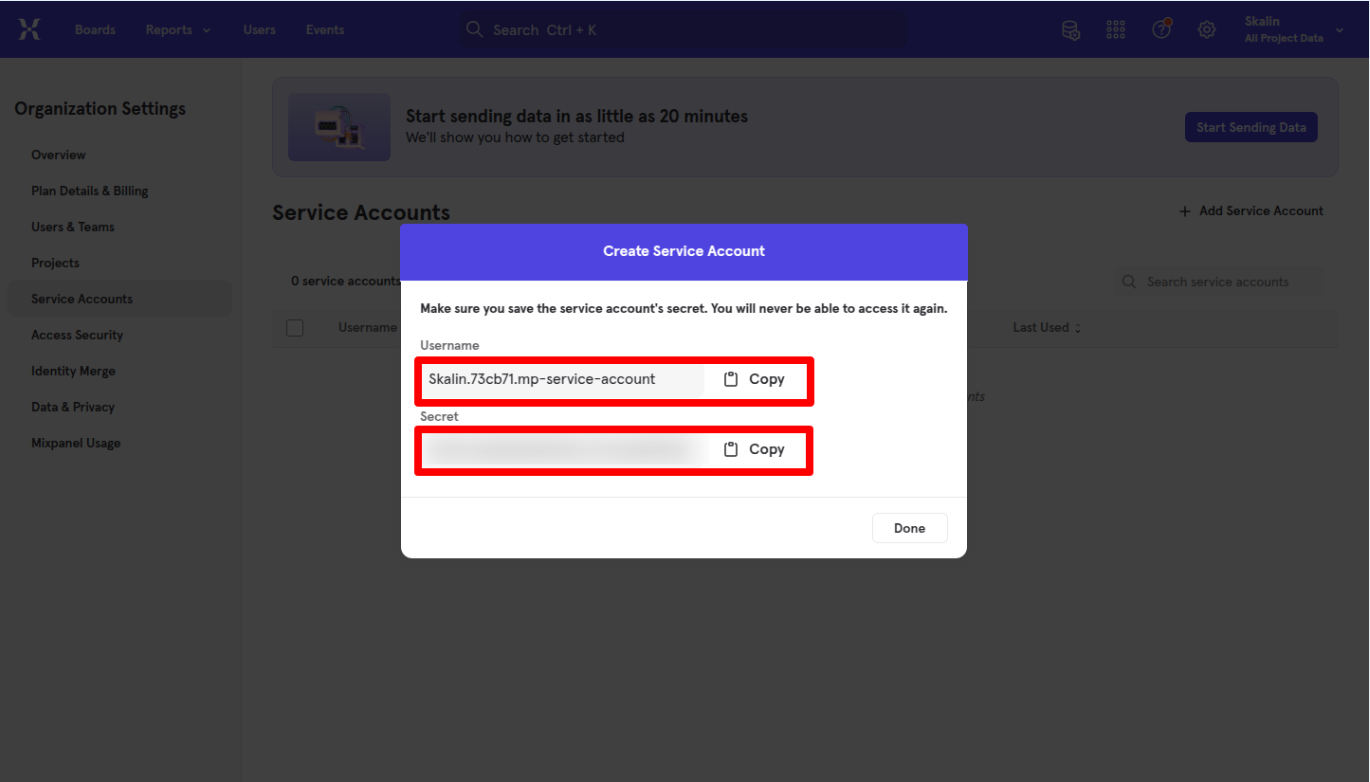
In Skalin, click on "Connect me" then paste the service account name and key you just created.
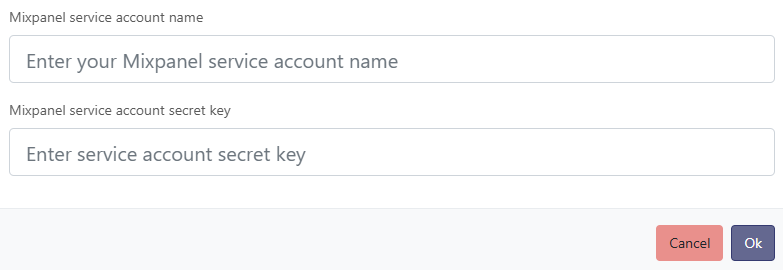
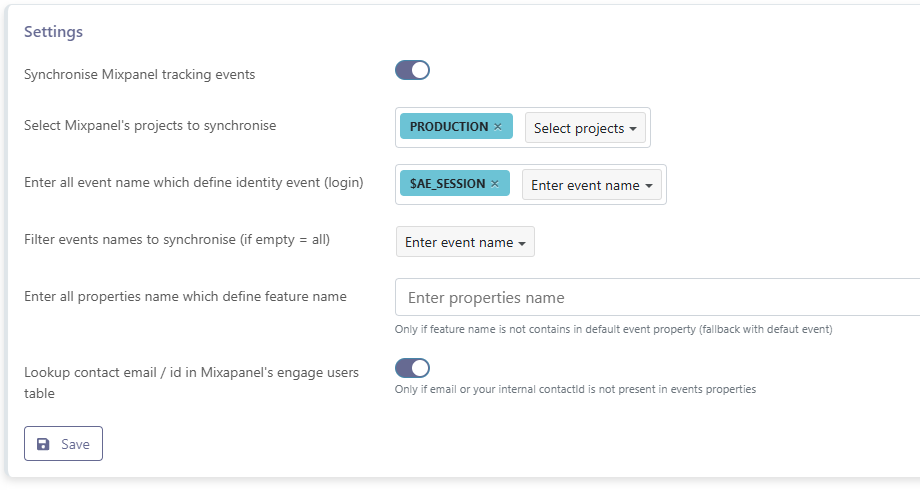
Then fill in the fields as follows :
- Synchronise Mixpanel tracking events: to be activated
- Select Mixpanel's projects to synchronise: choose at least one
- Enter all event name which define identity event (login) : one or more events which validate that a user connected
- Filter events names to synchronise (if empty = all): we advise you to only select events which are interesting CSM-wise, which means usable to interpret your product's adoption.
- Enter all properties name which define feature name : optional
- Lookup contact email / id in Mixpanel's engage users table: optionnel
Save those settings and go to the Tracking bloc at the top left of the screen to check whether you retrieved identity and feature events.