Integrating ticketing tools
Integrating ticketing tools
# Centralize your ticketing tool in Skalin
You can centralize messages exchanged with your customers via your ticketing tool in Skalin. Several native integrations are available.
Nota
Here's how Skalin will try to "match" information with a customer supplied by another system (CRM for example). In order:
- Skalin will look for a common ID between customers
- Then an identical account name
- Failing that, a common domain name.
At least one of these conditions must be met before a customer's tickets can be imported into Skalin via your ticketing tool.
# Zendesk
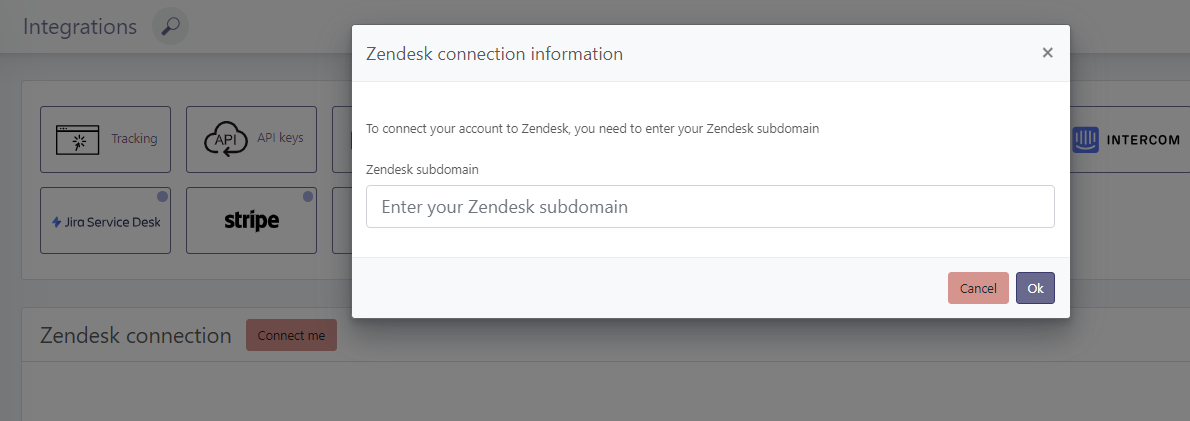
To connect your Zendesk account and centralize your tickets in Skalin, go to https://app.skalin.io/#/integration/zendesk (opens new window) and click on the "Connect me" button.
Then enter your Zendesk sub-domain and click OK :
Then select "Ticket sync mode" = "Input only".
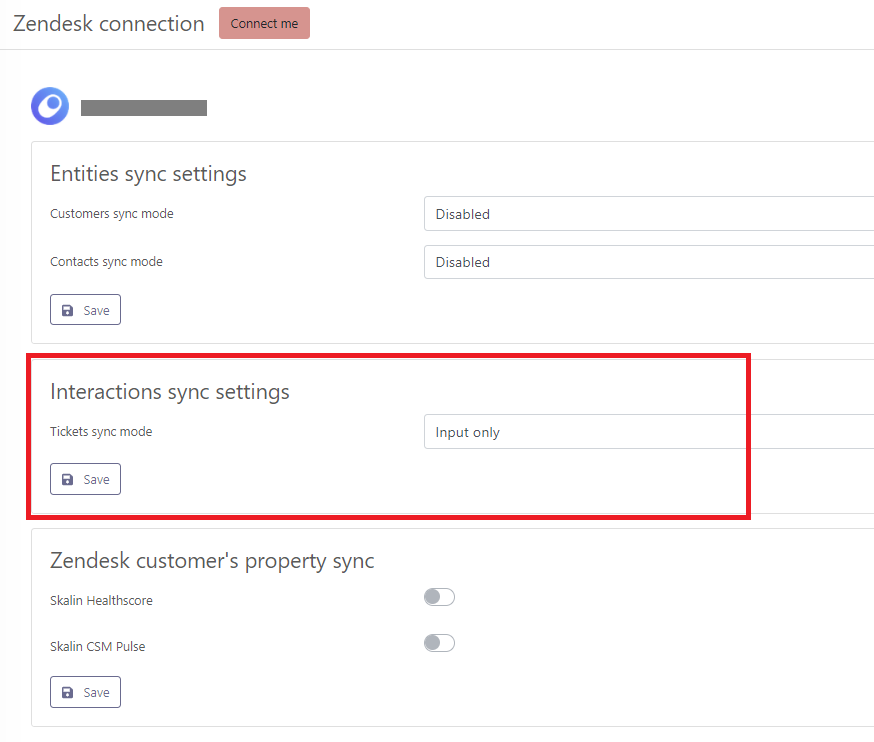
Save your configuration by clicking on the "Save" button.
# Jira
To connect your JIRA account and manage your tickets in Skalin, go to https://app.skalin.io/#/integration/jira (opens new window) and click on the "Connect me" button.
Then select your "Jira Cloud ID" and the "Service desk"(s) you wish to synchronize:

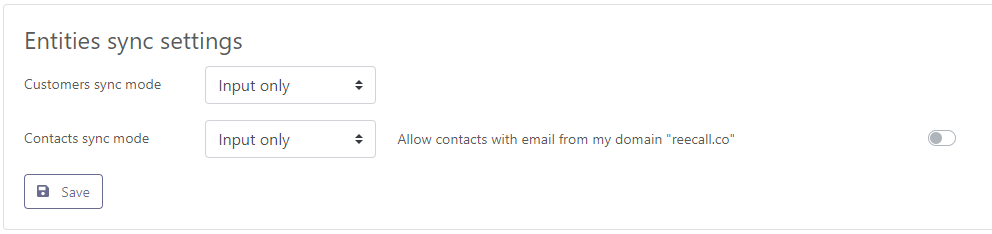
If you wish to make JIRA the main source for creating your customers and contacts in Skalin, complete "Customers sync mode" and "Contacts sync mode", selecting "Input only" for initialization. Otherwise, proceed directly to the next step.
Now select your ticket synchronization mode. Note that "Two ways" allows you to create "issues" in JIRA from Skalin, as well as reply to conversations from Skalin. We strongly recommend that you activate it!
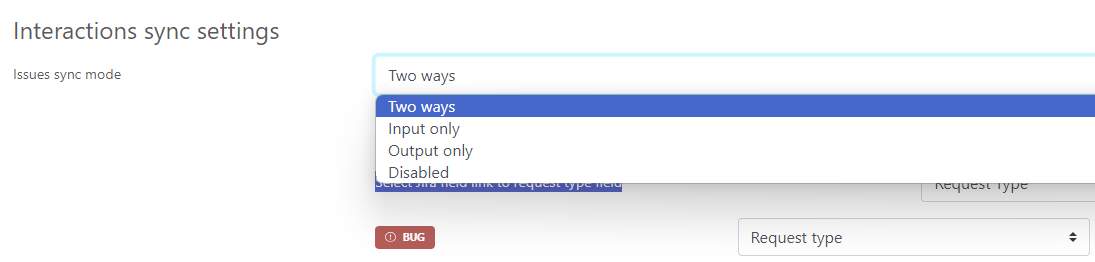
All that's left is to match the expected elements:
- Select Jira field link to oganisation field: ideally, you should use an account ID common to all your systems, if you have one. Otherwise, keep the default ID.
- Select Jira field link to request type field: indicates the field in which incoming requests are qualified. You can then match Skalin tags with information in a JIRA field.
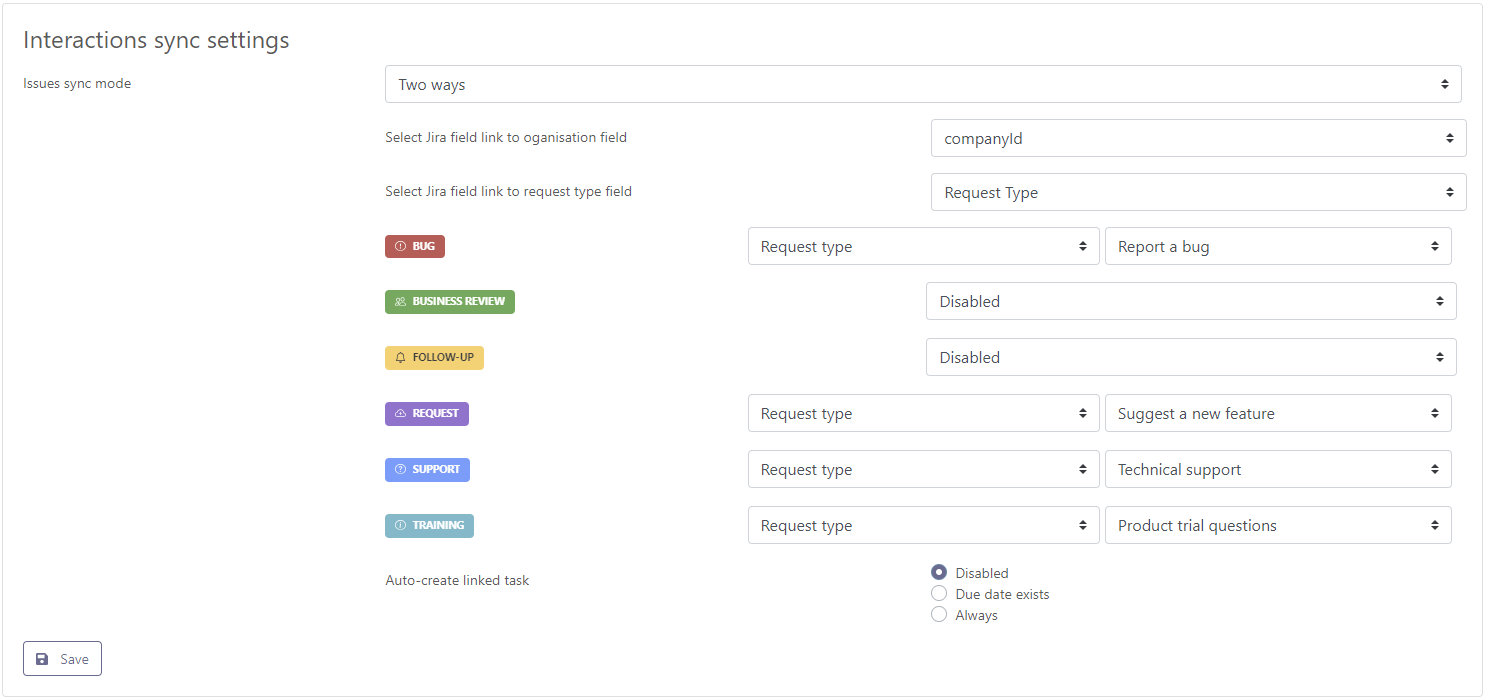
Save your configuration by clicking on the "Save" button.
# Intercom
# Connection with Skalin
To connect your Intercom account and centralize your tickets in Skalin, go to https://app.skalin.io/#/integration/intercom (opens new window) and click on the "Connect me" button.
Enter your credentials in the window that opens, check the authorizations required by Skalin, then validate. Your account is now connected!
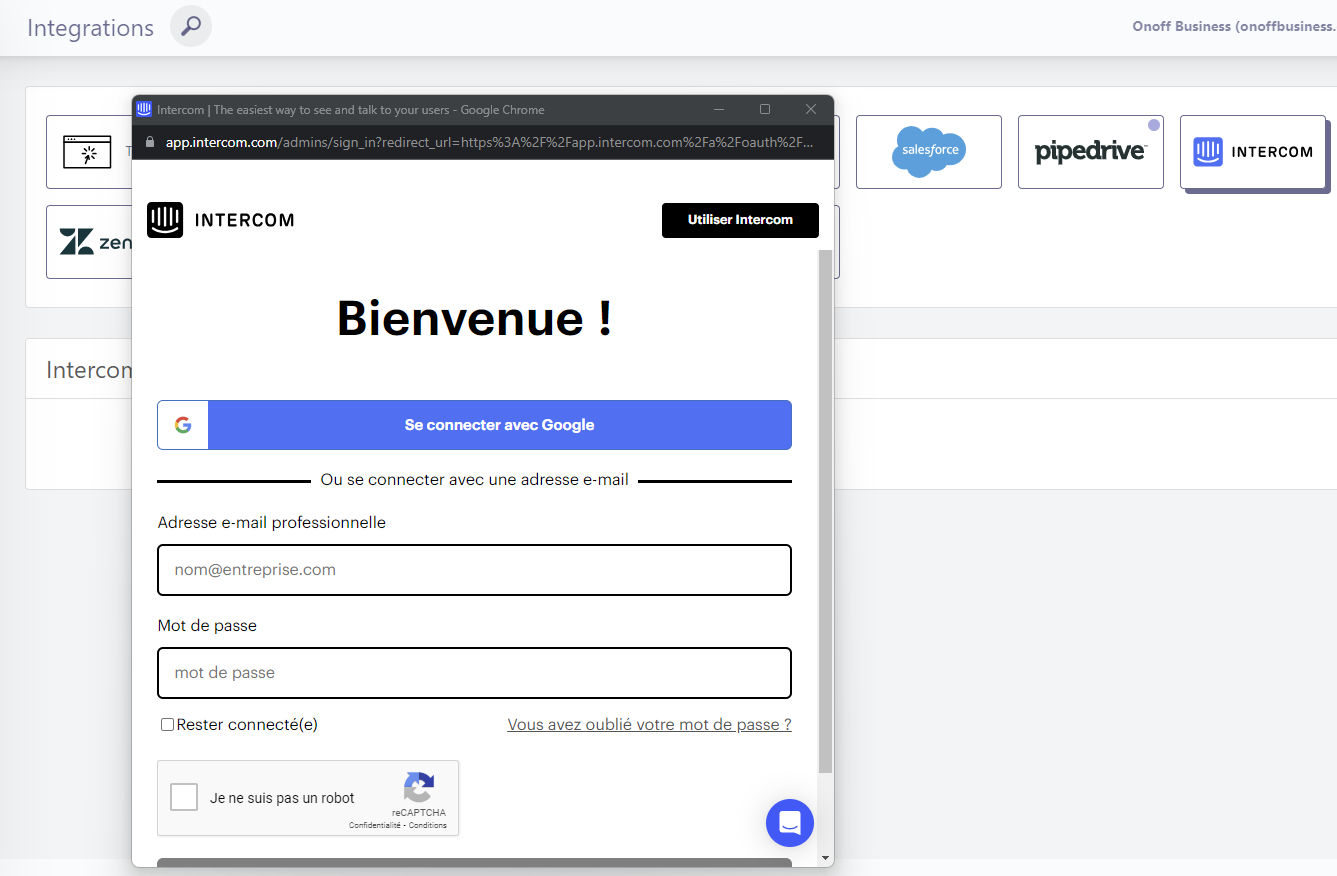
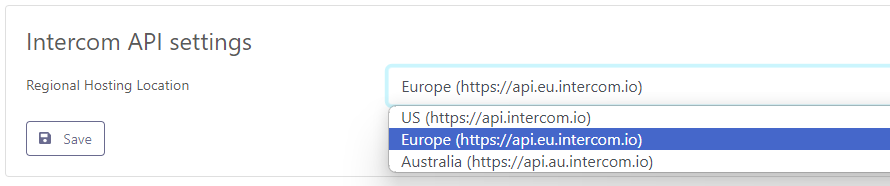
You must now specify which zone your Intercom account points to (check with Intercom). Click on "Save".
Some companies use Intercom as a CRM. In these cases, it may make sense to use Intercom as a channel for creating your accounts and contacts. Skalin then synchronizes all accounts in Intercom. Note that this is not the majority of cases. If you have chosen another source for creating your customers and contacts, go directly to the Ticket synchronization step.
To synchronize an item, you can choose between several synchronization modes:
- Input only: in this case, only your CRM can update information in Skalin. However, if you update information in Skalin, it will not appear in your CRM. Objects concerned: customers, contacts, interactions.
- Two-ways: a change in your CRM updates Skalin, and vice versa. Objects concerned: customers, contacts, interactions.
- Output only: only Skalin sends information back to the CRM. Objects concerned: customers, contacts.
- Disabled: the object concerned is not synchronized.

# Account synchronization
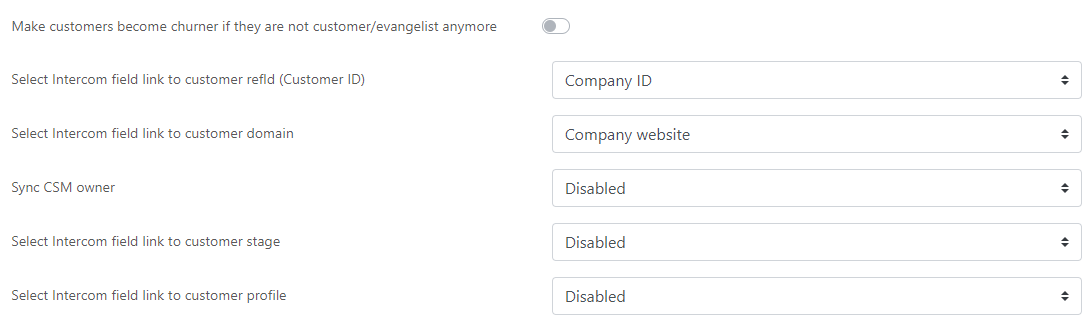
For initialization, select "Input only". All that's left is to match the expected information with the relevant fields in Intercom.
- Make customers become churners if they are not found anymore in view. When this option is activated, Skalin automatically churns an account that is no longer present in the view (customers with a stage = churn are not deleted and remain accessible from Skalin).
- Customer ID: ideally, you should use an account ID common to all your systems, if you have one. Otherwise, keep the default CRM ID.
- Customer domain: corresponds to the default Salesforce website value, but you can modify the correspondence if required.
- CSM owner: generally, the CSM in charge of the account is not the owner of the account at CRM level. You can therefore point to the corresponding field (works only with Salesforce user fields).
- Customer stage: corresponds to the phase in the customer's life cycle - or stage for Skalin. If this information already exists in your CRM, you can map it to the relevant field. Otherwise, leave it disabled.
- Customer profile: corresponds to the customer segment - or Healthscore profile for Skalin. If this information already exists in your CRM, you can map it to the relevant field. Otherwise leave disabled.
# Contact synchronization
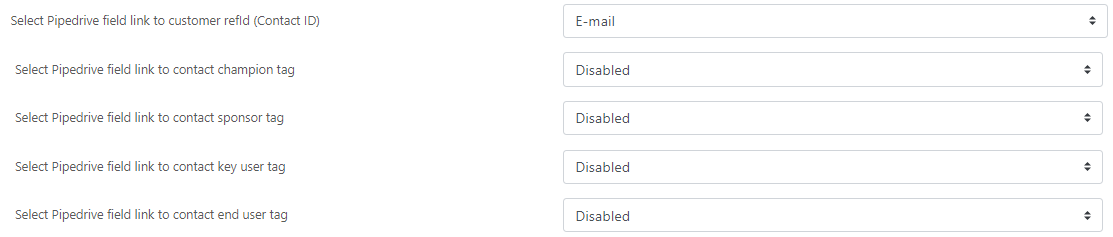
Skalin will synchronize all contacts present in Intercom.
All you have to do is match the required information with the relevant fields in Intercom.
- Contact ID: Ideally, you should use a contact ID common to all your systems, if you have one. Otherwise, keep the default CRM ID.
- Champion Tag: matches the "Champion" tag in Skalin with a field in your CRM.
- Sponsor Tag: matches the "Sponsor" tag in Skalin with a field in your CRM.
- Key user Tag: matches the "Key user" tag in Skalin with a field in your CRM.
- End user Tag: matches the "End user" tag in Skalin with a field in your CRM.
# Ticket synchronization
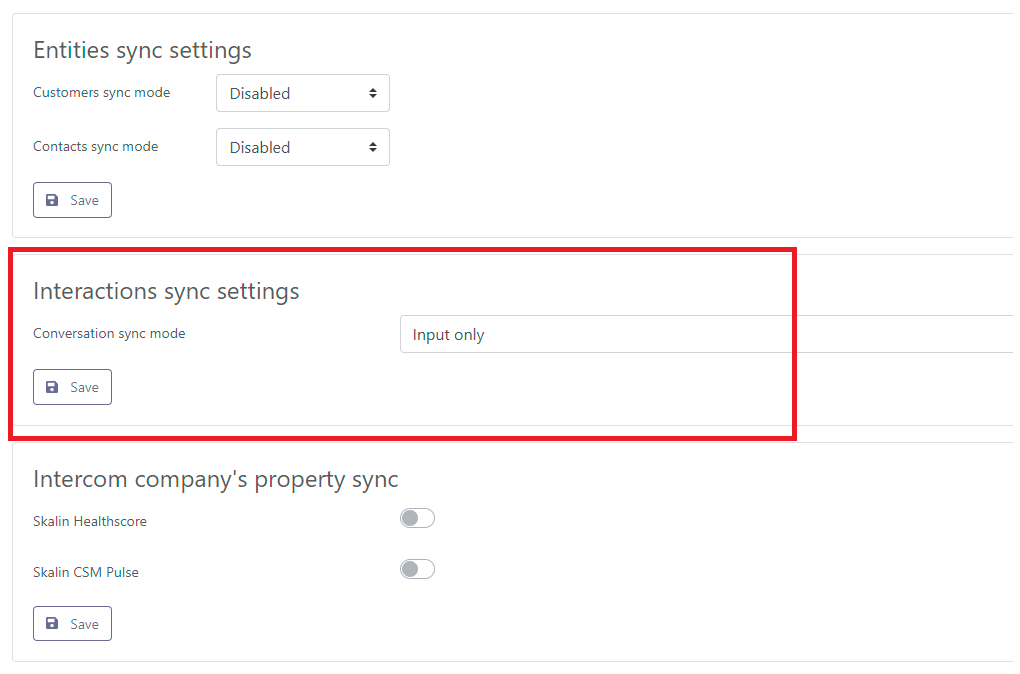
To synchronize your Intercom tickets in Skalin, simply select "Input only" and click on "Save".
# Data transfert from Skalin to Intercom
You can upload Healthscore and CSM Pulse to Intercom. If you activate this option, Skalin will automatically create the two corresponding fields.

# Freshdesk
Freshdesk (opens new window) is a customer support tool. The Skalin integration imports your Freshdesk tickets, with their replies and notes, into each customer's timeline.
# Get the API key
In Freshdesk, click your profile picture in the top right corner, then Profile settings: the key is shown with View API key.
Beware: a key is personal. It only gives access to the tickets the agent who owns it can see. Preferably use the key of an agent who sees every group, or of an administrator.
Also note your helpdesk domain: it is the first part of its address, for example acme for acme.freshdesk.com. If your helpdesk uses a custom domain (support.acme.com), the .freshdesk.com address is still shown under Admin → Helpdesk settings.
# Connect Freshdesk to Skalin
In Settings → Integrations → Freshdesk, click Connect, then enter the domain and the API key. Skalin checks the connection right away.
# What comes into Skalin
Each ticket becomes a ticket interaction on the customer page. A ticket is imported when:
- its Freshdesk company matches a Skalin customer, by name or by domain name;
- or its requester is a contact Skalin already knows.
Other tickets are ignored.
Freshdesk companies and contacts can be imported too: in the Companies and contacts card, set Customers sync mode and Contacts sync mode to Input only. Skalin then creates a customer for each Freshdesk company that matches no existing customer, and the contacts attached to a company under that customer. Leave these settings Disabled if your customers already come from your CRM: tickets are linked all the same.
# Imported content
- The ticket subject and description.
- Its status (open, pending, resolved, closed, and your custom statuses), its type and its SLA due date as long as the ticket is not resolved.
- The requester and the assigned agent.
- Every reply, as ticket comments, with its author.
- Your agents' private notes (optional, enabled by default). Beware: they become visible to your whole team once in Skalin.
- A link to the ticket in Freshdesk.
# Filters
Freshdesk groups: only import the tickets assigned to some groups (for instance customer support, without billing). Leave everything unchecked to import everything. The group list can only be read with a key that has enough rights; otherwise the filter is hidden.
# Good to know
- The import is one-way: tickets created in Skalin are not sent to Freshdesk, which would otherwise email the requester.
- On the first connection, Skalin imports the tickets updated over the last 12 months. After that, every change to a ticket (new reply, status change) is picked up on the next synchronisation.
- When a new customer or a new contact appears in Skalin, their tickets from the last 12 months are fetched automatically.
- Synchronisation is periodic: allow up to an hour between a reply in Freshdesk and its arrival in Skalin.
- Skalin uses part of your Freshdesk account's API quota, shared with your other integrations, and slows down by itself when the limit is reached.
# Alternative: email forwarding
Before the native connector, Freshdesk tickets could be sent to Skalin by email. This method still works, but tickets then appear as emails rather than tickets.
In Freshdesk, go to Automations (/a/admin/automations/ticket_creation) and forward all tickets to the Skalin forward address, which is composed of your Client ID (found under Settings > General > Account Information) followed by @forward.skalin.io — for example: c5622387554189f5@forward.skalin.io
Since a condition is required, the trick is to set it so that the sender is different from null@null.com.
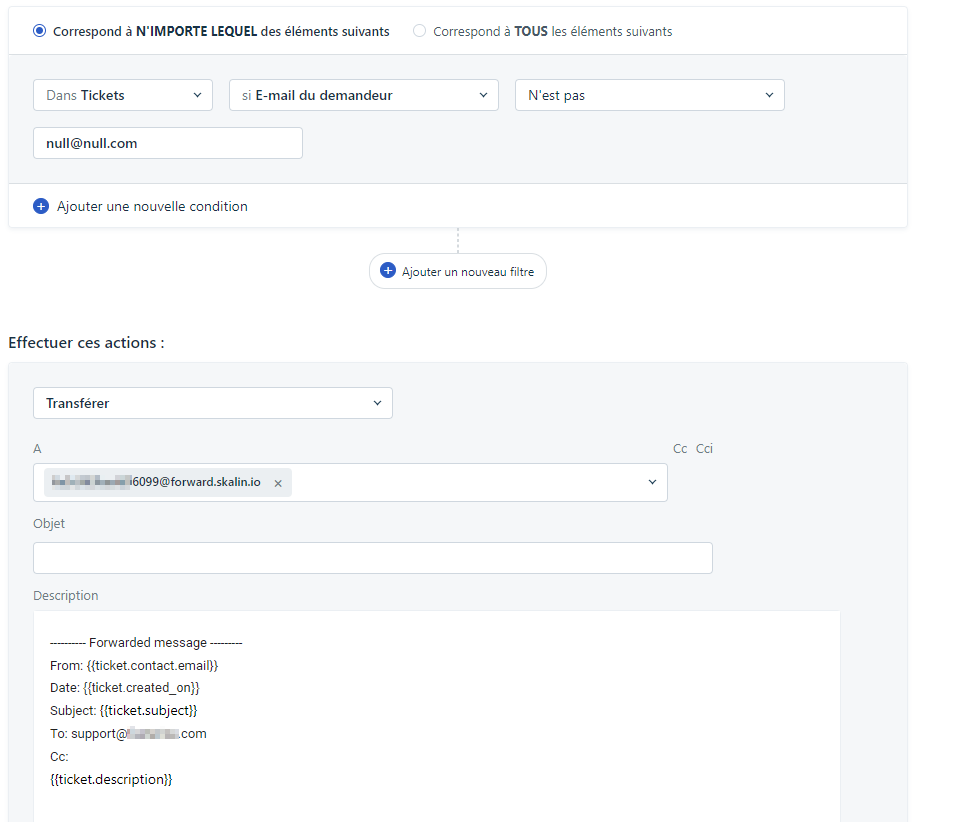
Then here is a text example of what you can add in the description:
---------- Forwarded message ---------

From: {{ticket.contact.email}}

Date: {{ticket.created_on}}

Subject: {{ticket.subject}}

To: <support@xxx.com>

Cc:

{{ticket.description}}
1
2
3
4
5
6
7
8
9
10
11
12
13
2
3
4
5
6
7
8
9
10
11
12
13
# Crisp
Crisp (opens new window) is a customer messaging tool: chat on your website, shared inbox (email, WhatsApp, Messenger…). The Skalin integration imports your Crisp conversations, with their messages, into each customer's timeline as tickets.
# Get the Website ID and the API token
You need three pieces of information, all in Crisp:
- The Website ID: Settings → Workspace Settings → Setup & Integrations, Copy button next to Website ID. It looks like
8c842203-7ed8-4e29-a608-7cf78a7d2fcc. - An API token: Settings → Workspace Settings → Advanced configuration → API Token, then Generate Token. Crisp shows an identifier and a key.
- Copy them right away: the key is shown only once. If you lose it, regenerate the token and reconnect Crisp in Skalin.
Beware: only an owner of the Crisp workspace can generate this token.
# Connect Crisp to Skalin
In Settings → Integrations → Crisp, click Connect, then enter the Website ID, the token identifier and the token key. Skalin checks the connection right away.
# What comes into Skalin
Each conversation becomes a ticket interaction on the customer page. A conversation is imported when the visitor email:
- is the email of a contact Skalin already knows;
- or belongs to the domain of one of your customers (for example
bob@acme.comfor the customer whose domain isacme.com). Webmails (gmail.com,outlook.com…) are never matched to a customer, and neither is a domain shared by several customers.
Other conversations are ignored, in particular anonymous conversations (the visitor left no email) and those of blocked visitors.
Crisp has no "company" object: the integration creates no customer or contact in Skalin, it links conversations to the ones that already exist.
# Imported content
- The visitor's first message, which opens the ticket (or the conversation subject when there is one).
- Its Crisp status: pending, unresolved, resolved.
- The visitor and the assigned operator.
- All the following messages, as ticket comments, with their author. Files show up as links.
- Your operators' private notes (optional, on by default). Beware: they become visible to your whole team once in Skalin.
- The conversation channel (chat, email, WhatsApp…) and a link to the conversation in Crisp.
# Good to know
- The import is one-way: nothing is written into Crisp, no message is ever sent to your visitors.
- On the first connection, Skalin imports the conversations updated over the last 12 months. After that, every new message is picked up on the next synchronisation.
- When a new customer or contact appears in Skalin, their conversations from the last 12 months are fetched automatically, at most once a day.
- The synchronisation is periodic: allow up to an hour between a message in Crisp and its arrival in Skalin.
- A Crisp token is limited to 10,000 API calls a day, shared with your other uses of that token. Skalin spends them sparingly; when it reaches the limit, it stops cleanly and resumes where it left off on the next synchronisation. A first synchronisation over a large volume of conversations may therefore spread over several days.