CRM integrations
CRM integrations
# Salesforce
You can synchronise several objects from Salesforce: customers, contacts, contract information, interactions, notes and comments.
To set up synchronisation, go to https://app.skalin.io/#/integration/salesforce (opens new window) then click on the "Connect me" button and enter your credentials in the window that opens.
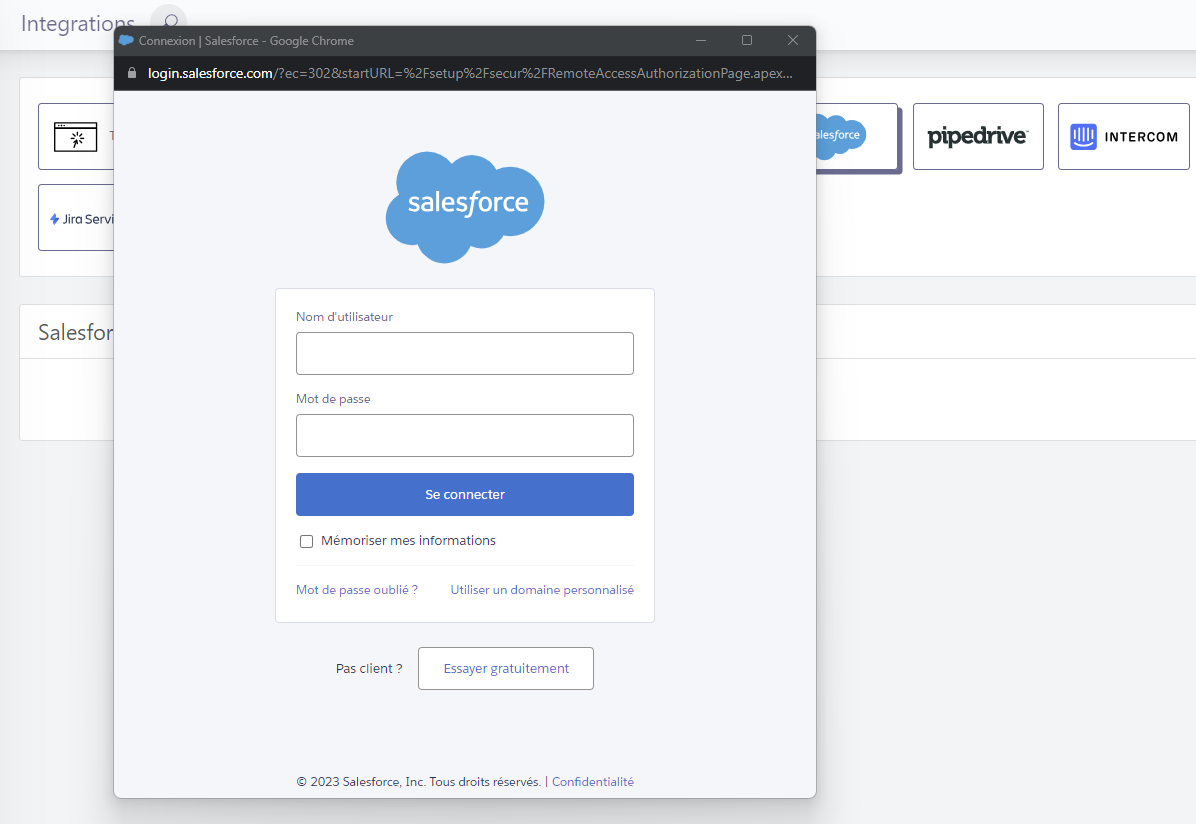
Autorization
You must have access rights to the Salesforce APIs to perform this operation.
To synchronise an item, you can choose between several synchronisation modes:
- Input only: in this case, only your CRM can update information in Skalin. However, if you update information in Skalin, it will not appear in your CRM. Objects concerned: customers, contacts, agreements, interactions.
- Two-ways: a change in your CRM updates Skalin, and vice versa. Objects concerned: customers, contacts, interactions.
- Output only: only Skalin sends information back to the CRM. Objects concerned: interactions.
- Disabled: the object concerned is not synchronised.

Tip
For the initial synchronisation, it is advisable to remain in "Input only" mode. Once your data is synchronised, you can switch to "Two ways" so that every change from Skalin updates your CRM and vice versa.
# Account synchronisation
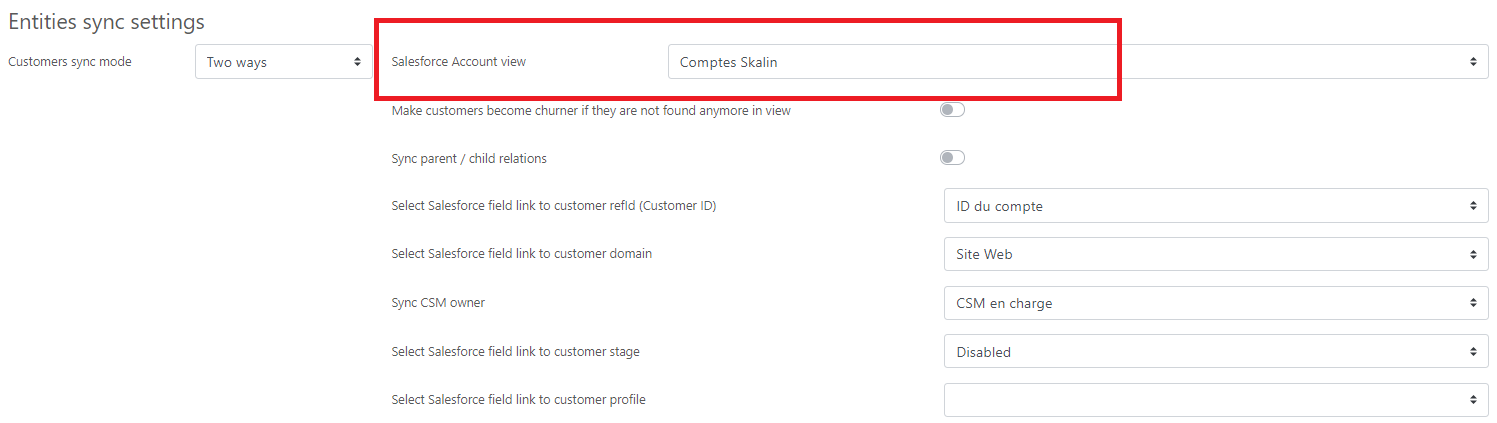
For Salesforce, everything starts with a 'view' of the accounts you want to synchronise. This view must contain all the accounts you will find in Skalin, generally your active customers. By default, the 'All Accounts' view contains only your customers (no prospects), but your Salesforce may be configured differently. In this case, you will need to create and select the appropriate view.
Tip
Choose a dynamic view that can only be modified by an administrator.
You then have two options:
- Make customers become churners if they are not found anymore in view. When this option is activated, Skalin automatically churns an account that is no longer present in the view (customers with a stage = churn are not deleted and remain accessible from Skalin).
- Sync parent / child relations. By ticking this option you keep the relationship between a parent account and its children already present in Salesforce (for example a group and its subsidiaries). Otherwise, all accounts will be synchronised but at the same level. Note that Skalin supports a maximum two-level hierarchy.
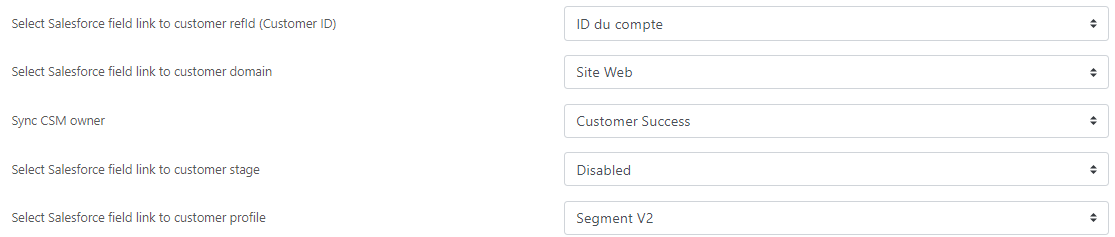
All that's left to do is to match the required information with the relevant fields in Salesforce.
- Customer ID: Ideally, you should use an account ID that is common to all your systems, if you have one. Otherwise, keep the default CRM ID.
- Customer domain: corresponds to the default Salesforce website value, you can change the correspondence if necessary.
- CSM owner: generally the CSM in charge of the account is not the owner of the account at CRM level. You can therefore point to the corresponding field (only works with Salesforce user type fields).
- Customer stage: corresponds to the phase in the customer lifecycle - or stage for Skalin. If this information already exists in your CRM, you can map it to the relevant field. Otherwise, leave it disabled.
- Customer profile: corresponds to the customer segment - or Healthscore profile for Skalin. If this information already exists in your CRM, you can match it with the relevant field. Otherwise leave disabled.
# Contact synchronisation
By default, Skalin will synchronise all contacts attached to accounts that are present in the Account view selected (see previous step): the "No view" option is selected by default, so there is no additional filter.
However, you can create a contact view to synchronise only specific contacts ("Skalin Contacts" in the example below):
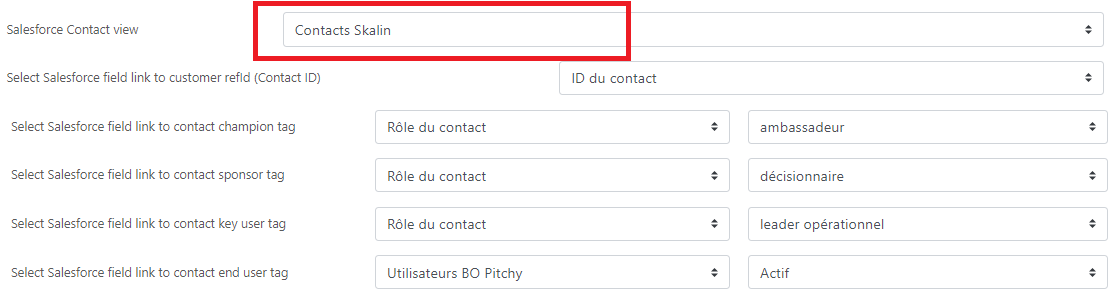
All that's left to do is match the required information with the relevant fields in Salesforce.
- Contact ID: Ideally, you should use a contact ID that is common to all your systems, if you have one. Otherwise, keep the default CRM ID.
- Champion Tag: matches the 'Champion' tag in Skalin with a field in your CRM (here: contact role = ambassador).
- Sponsor Tag: matches the 'Sponsor' tag in Skalin with a field in your CRM.
- Key user Tag: matches the 'Key user' tag in Skalin with a field in your CRM.
- End user Tag: matches the 'End user' tag in Skalin with a field in your CRM.

# Agreement synchronisation
Synchronisation is "Disabled" by default. To activate it, select "Input only" then choose the Salesforce object in which your contract information is located. This is usually at opportunity, account or contract level.
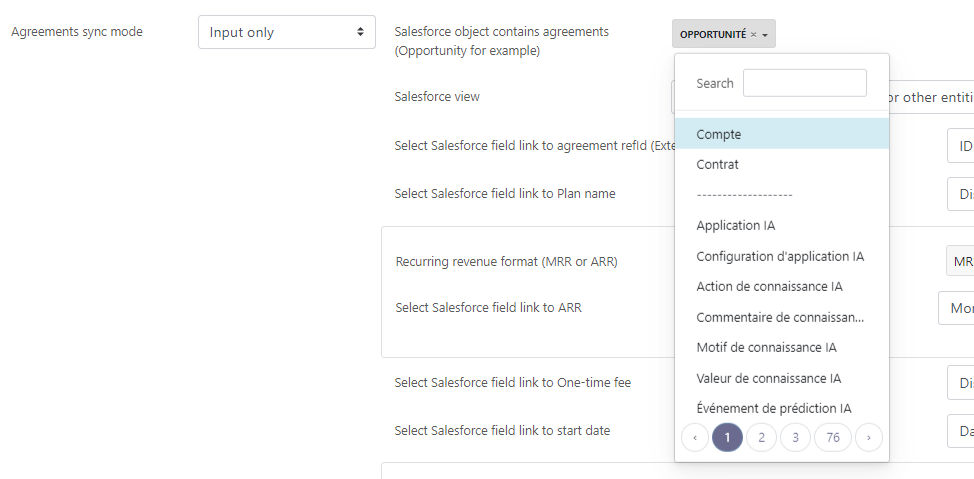 Once again, you can filter by view. Otherwise :
- For opportunities, Skalin will by default take all opportunities won linked to the accounts present in the selected Account view (see step 1 above)
- For other objects, Skalin will take into account all the information linked to the accounts in the selected Account view.

All that's left to do is match the required information with the relevant fields in Salesforce. Fields marked with an asterisk (*) are mandatory:
- Plan name (optional): to be matched with the name of the offer or plan subscribed to.
- Recurring revenue format (MRR or ARR)*: indicates whether the amounts are expressed in MRR or ARR in your CRM.
- Select Salesforce field link to (MRR or ARR)*: to be matched with the field corresponding to the contract amount, expressed in MRR or ARR as specified in the previous point. For opportunities, the opportunity amount is selected by default.
- One-time fee (optional): to be matched with the field corresponding to the setup fee, if applicable.
- Start date: match this with the contract start date. In most cases, the start date differs from the closing date of the opportunity.
This is followed by information relating to the end of the contract and any notice period. Note that this information can be expressed in 3 different ways:
- The "Duration" option indicates a duration - for example, a 12-month contract. It consists of a value (e.g. "12") and an interval (e.g. "month").
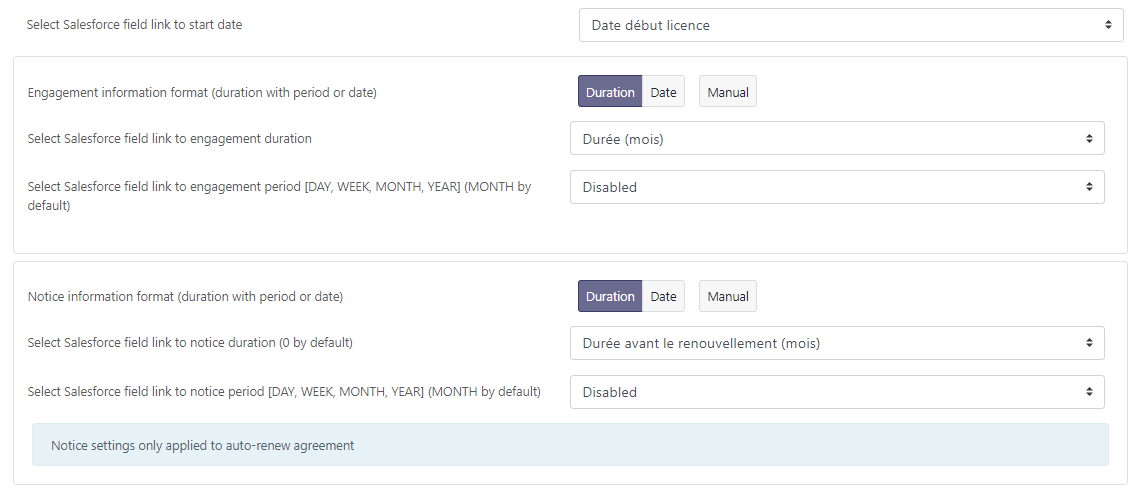
- The "Date" option specifies a date - for example, a contract end date of 31/12/2024.
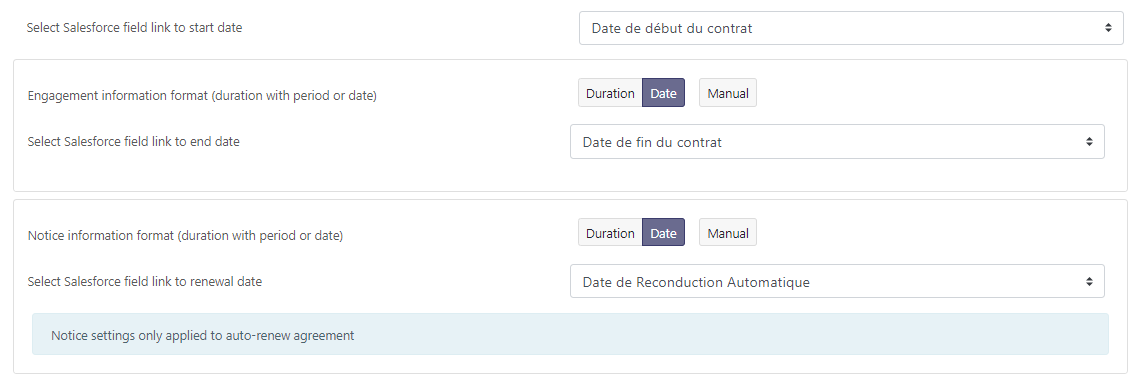
- The "Manual" option allows you to freeze a value, without it necessarily being present in your CRM. For example, if you know that your notice period is always 3 months, you can force this value to be the default.
Finally, you must indicate whether the contract is tacitly renewable. There are 3 options:
- Consider the contract to be tacitly renewed if a notice date or notice period is specified in the CRM.

- Match to a specific CRM value.

- Force a default value - always yes (= tacit renewal) or always no (= no tacit renewal).

# Synchronising interactions
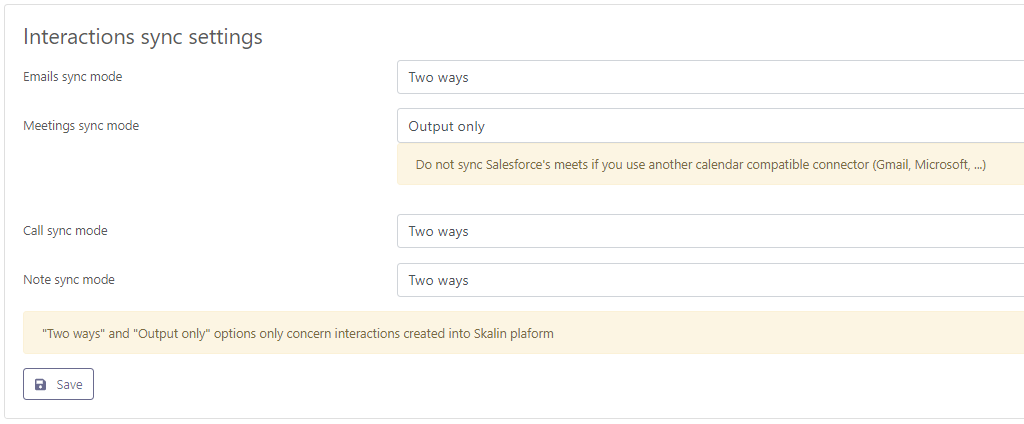
Then choose whether you wish to synchronise the interactions logged on your different systems: Emails, Meetings, Calls and Notes. If you select 'Two ways' or 'Output only', only the interactions entered manually in Skalin will show up in your CRM.
Nota
Salesforce does not keep the meeting IDs provided by Google or Microsoft. So don't activate Meetings synchronisation if you've already connected your calendar, or you risk creating duplicates in Skalin.
# Data transfer from Skalin to Salesforce
You can upload the Healthscore and CSM Pulse to your CRM. To do this, you first need to create a custom field in Salesforce, then match it in Skalin.

# HubSpot
You can synchronise several objects from HubSpot: customers, contacts, contract information, interactions, notes and comments.
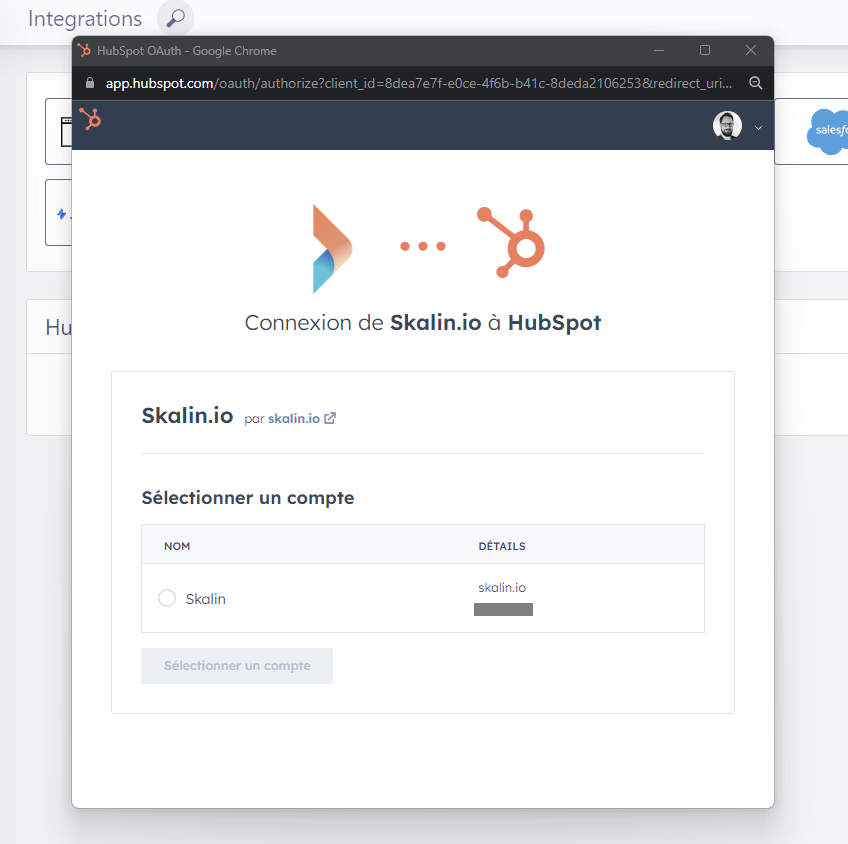
To set up synchronisation, go to https://app.skalin.io/#/integration/hubspot (opens new window) then click on the "Connect me" button and enter your credentials in the window that opens.
Authorization
You must have HubSpot Super-Admin status to perform this operation.
To synchronise an item, you can choose between several synchronisation modes:
- Input only: in this case, only your CRM can update information in Skalin. However, if you update information in Skalin, it will not appear in your CRM. Objects concerned: customers, contacts, agreements, interactions.
- Two-ways: a change in your CRM updates Skalin, and vice versa. Objects concerned: customers, contacts, interactions.
- Output only: only Skalin sends information back to the CRM. Objects concerned: interactions.
- Disabled: the object concerned is not synchronised.
<
Tip
For the initial synchronisation, it is advisable to remain in "Input only" mode. Once your data is synchronised, you can switch to "Two ways" so that every change from Skalin updates your CRM and vice versa.
# Account synchronisation
For HubSpot, Skalin synchronises by default all accounts whose "Customer Lifestage" is equal to "Customer" or "Evangelist".
You can filter the accounts to be synchronised in the advanced options - see below in the advanced settings.
Tip
Before setting up synchronisation, check that this information is up to date in HubSpot. Generally, customers are flagged as such - this is based on HubSpot's native behaviour when an opportunity is won, but it is possible that former customers have retained this status. Don't forget to update it!
You then need to match the expected information with the relevant fields in HubSpot.
- Customer ID: Ideally, you should use an account ID that is common to all your systems, if you have one. Otherwise, keep the default CRM ID.
- CSM owner: generally, the CSM in charge of the account is not the owner of the account at CRM level. You can therefore point to the corresponding field (only works with Salesforce user type fields).
- Customer stage: corresponds to the phase in the customer lifecycle - or stage for Skalin. If this information already exists in your CRM, you can map it to the relevant field. Otherwise, leave it disabled.
- Customer profile: corresponds to the customer segment - or Healthscore profile for Skalin. If this information already exists in your CRM, you can match it with the relevant field. Otherwise leave disabled.

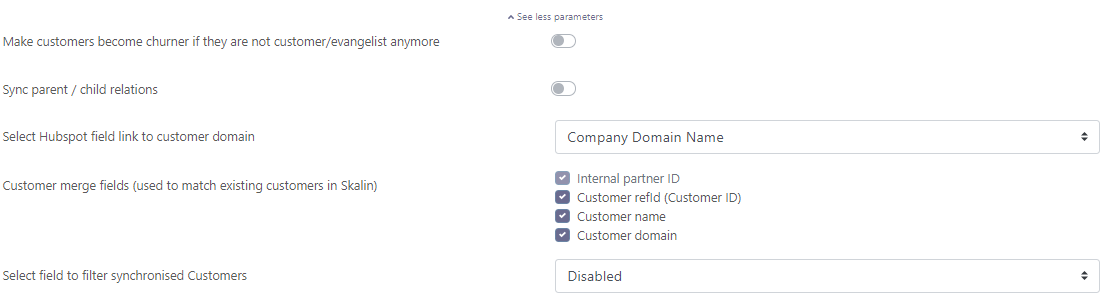
Click on "see more parameters" to access the advanced options:
- Make customers become churn if they are not found anymore in view. When this option is activated, Skalin automatically churns an account that no longer corresponds to the "Customer Lifestage" = "Customer" or "Evangelist". Note: customers with a stage = churn are not deleted and remain accessible from Skalin.
- Sync parent / child relations. By ticking this option you keep the relationship between a parent account and its children already present in HubSpot (for example a group and its subsidiaries). Otherwise, all accounts will be synchronised but at the same level. Note that Skalin supports a maximum two-level hierarchy.
- Customer domain: corresponds to the default Salesforce website value, you can modify the correspondence if necessary.
- Merge fields: indicates the fields used to identify a pre-existing customer. Uncheck the domain name, for example, if your customers don't have a website and are attached to a generic domain in HubSpot such as Gmail.
- Filter synchronized customers: to synchronise only those accounts that match a specific condition in a HubSpot field.
# Contact synchronisation
Skalin will synchronise all the contacts attached to accounts whose "Customer Lifestage" in HubSpot is equal to "Customer" or "Evangelist".
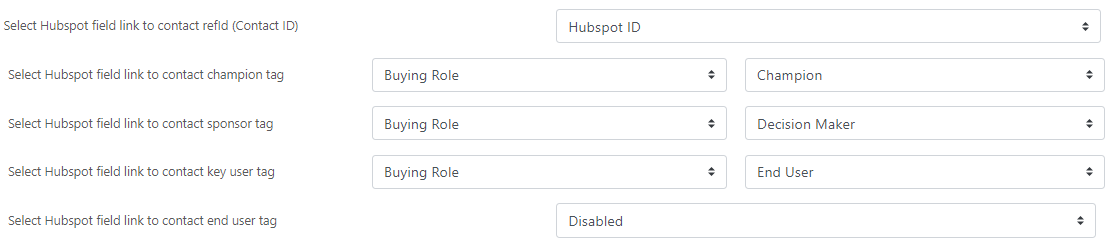
All that's left to do is to match the required information with the relevant fields in HubSpot ("Buying role" in particular).
- Contact ID: Ideally, you should use a contact ID that is common to all your systems, if you have one. Otherwise, keep the default CRM ID.
- Champion Tag: matches the 'Champion' tag in Skalin with a field in your CRM (here: buying role = champion).
- Sponsor Tag: matches the 'Sponsor' tag in Skalin with a field in your CRM.
- Key user Tag: matches the "Key user" tag in Skalin with a field in your CRM.
- End user Tag: matches the 'End user' tag in Skalin with a field in your CRM.
# Agreement synchronisation
Synchronisation is "Disabled" by default. To activate it, select "Input only" then choose the HubSpot object in which your contract information is located. This is usually at opportunity or account level.

For opportunities, by default Skalin will take all the opportunities won, linked to the synchronised accounts (see step 1 above), in the selected pipeline(s).

All that's left to do is match the required information with the relevant fields in HubSpot. Fields marked with an asterisk (*) are mandatory:
- Plan name (optional): to be matched with the name of the offer or plan subscribed to.
- Recurring revenue format (MRR or ARR)*: indicates whether the amounts are expressed in MRR or ARR in your CRM.
- Select HubSpot field link to (MRR or ARR)*: to be matched with the field corresponding to the contract amount, expressed in MRR or ARR as specified in the previous point. For opportunities, the opportunity amount is selected by default.
- One-time fee (optional): to be matched with the field corresponding to the setup fee, if applicable.
- Start date: match this with the contract start date. In most cases, the start date is different from the closing date of the opportunity.
This is followed by information relating to the end of the contract and any notice period. Note that this information can be expressed in 3 different ways:
The "Duration" option indicates a duration - for example, a 12-month contract. It consists of a value (e.g. "12") and an interval (e.g. "month").
The "Date" option specifies a date - for example, a contract end date of 31/12/2024.
The "Manual" option allows you to freeze a value, without it necessarily being present in your CRM. For example, if you know that your notice period is always 3 months, you can force this value to be the default.
Finally, you must indicate whether the contract is tacitly renewable. There are 3 options:
Consider the contract to be tacitly renewed if a notice date or notice period is specified in the CRM.
Match to a specific CRM value.
Force a default value - always yes (= tacit renewal) or always no (= no tacit renewal).
# Synchronising interactions
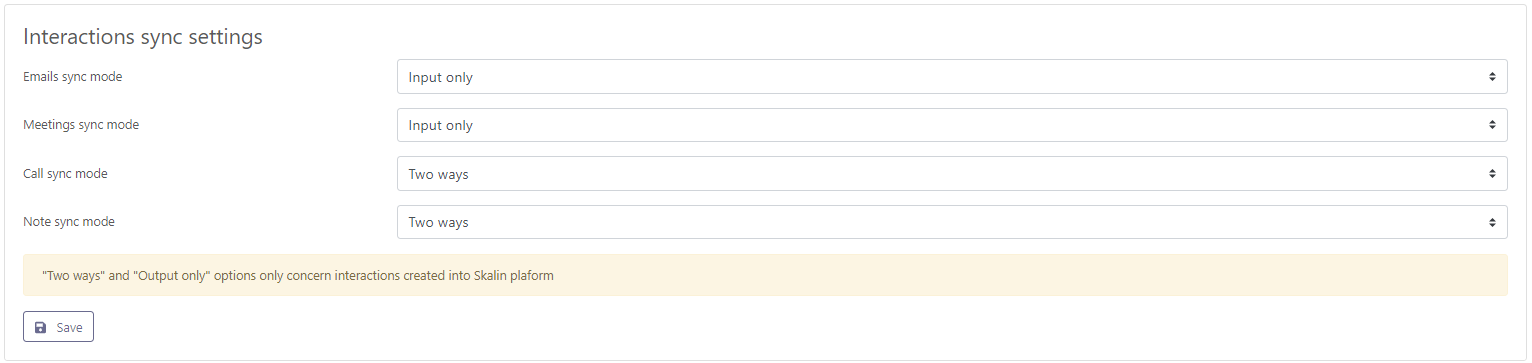
Then choose whether you wish to synchronise the interactions logged on your different systems: Emails, Meetings, Calls and Notes. If you select 'Two ways' or 'Output only', only the interactions entered manually in Skalin will show up in your CRM.
# Data transfert from Skalin to HubSpot
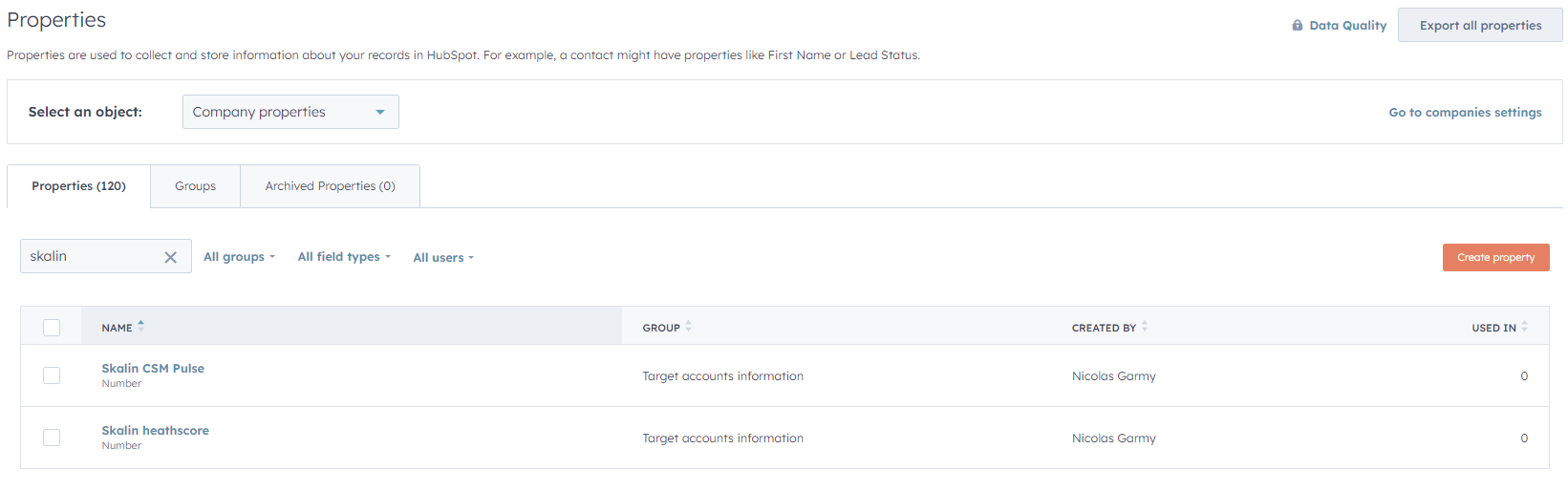
You can upload the Healthscore and CSM Pulse to your HubSpot CRM.
If you activate this option, Skalin will automatically create two custom fields in HubSpot: Skalin CSM Pulse and Skalin Healthscore :
# Pipedrive
You can synchronise several objects from Pipedrive: customers, contacts, contract information, interactions, notes and comments.
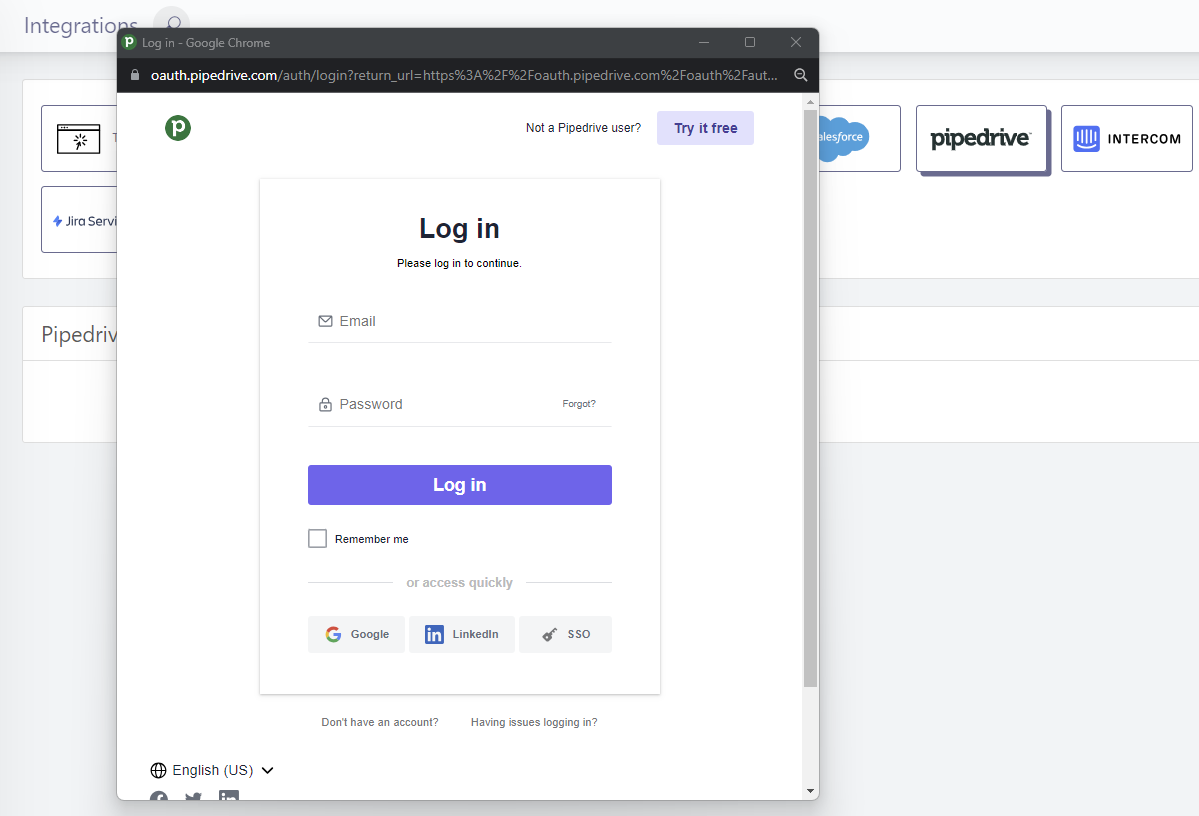
To set up synchronisation, go to https://app.skalin.io/#/integration/pipedrive (opens new window) then click on the "Connect me" button and enter your login details in the window that opens.
Authorization
You must have sufficient rights to carry out this operation.
To synchronise an item, you can choose between several synchronisation modes:
- Input only: in this case, only your CRM can update information in Skalin. However, if you update information in Skalin, it will not appear in your CRM. Objects concerned: customers, contacts, agreements, interactions.
- Two-ways: a change in your CRM updates Skalin, and vice versa. Objects concerned: customers, contacts, interactions.
- Output only: only Skalin sends information back to the CRM. Objects concerned: interactions.
- Disabled: the object concerned is not synchronised.
Tip
For the initial synchronisation, it is advisable to remain in "Input only" mode. Once your data is synchronised, you can switch to "Two ways" so that every change from Skalin updates your CRM and vice versa.
# Account synchronisation
For Pipedrive, Skalin synchronises by default all accounts that have at least one earned opportunity attached to them.
You then have two options:
- Make customers become churner if they are not found anymore in view. When this option is activated, Skalin automatically churns an account that is no longer present in the view (customers with a stage = churn are not deleted and remain accessible from Skalin).
- Sync parent / child relations. By ticking this option you keep the relationship between a parent account and its children already present in Salesforce (for example a group and its subsidiaries). Otherwise, all accounts will be synchronised but at the same level. Note that Skalin supports a maximum two-level hierarchy.
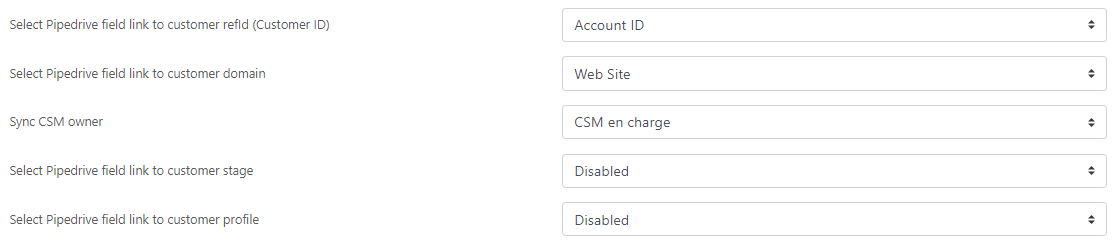
All that's left to do is to match the required information with the relevant fields in Salesforce.
- Customer ID: Ideally, you should use an account ID that is common to all your systems, if you have one. Otherwise, keep the default CRM ID.
- Customer domain: corresponds to the default Salesforce website value, you can change the correspondence if necessary.
- CSM owner: generally the CSM in charge of the account is not the owner of the account at CRM level. You can therefore point to the corresponding field (only works with Salesforce user type fields).
- Customer stage: corresponds to the phase in the customer lifecycle - or stage for Skalin. If this information already exists in your CRM, you can map it to the relevant field. Otherwise, leave it disabled.
- Customer profile: corresponds to the customer segment - or Healthscore profile for Skalin. If this information already exists in your CRM, you can match it with the relevant field. Otherwise leave disabled.
# Contact synchronisation
Skalin will synchronise all the contacts attached to the accounts that are synchronised.
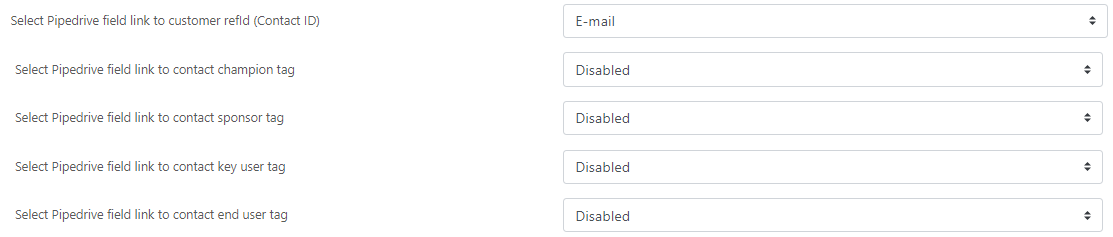
All that remains is for you to match the expected information with the relevant fields in Pipedrive.
- Contact ID: Ideally, you should use a contact ID that is common to all your systems, if you have one. Otherwise, keep the default CRM ID.
- Champion Tag: matches the 'Champion' tag in Skalin with a field in your CRM.
- Sponsor Tag: matches the 'Sponsor' tag in Skalin with a field in your CRM.
- Key user Tag: matches the 'Key user' tag in Skalin with a field in your CRM.
- End user Tag: matches the 'End user' tag in Skalin with a field in your CRM.
# Agreement synchronisation
Synchronisation is 'Disabled' by default. To activate it, select "Input only" and then choose whether you wish to synchronise contracts via one or more pipelines ("Deals") or via properties linked to the company ("Companies").
For opportunities, by default Skalin will take all the opportunities won, linked to the synchronised accounts (see step 1 above), in the selected pipeline(s).
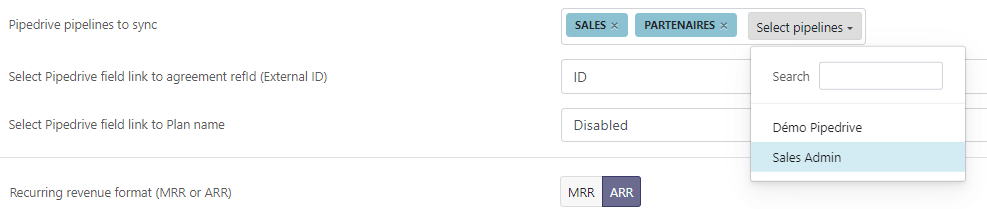
All that's left is to match the required information with the relevant fields in Pipedrive. Fields marked with an asterisk (*) are mandatory:
- Plan name (optional): to be matched with the name of the offer or plan subscribed to.
- Recurring revenue format (MRR or ARR)* : indicates whether amounts are expressed in MRR or ARR in your CRM.
- Select Pipedrive field link to (MRR or ARR)*: to be matched with the field corresponding to the contract amount, expressed in MRR or ARR as specified in the previous point. The opportunity amount is selected by default.
- One-time fee (optional): to be matched with the field corresponding to the setup fee, if applicable.
- Start date: to be matched with the contract start date. In most cases, the start date differs from the opportunity closing date.
This is followed by information about the end of the contract and any notice period. Note that this information can be expressed in 3 different ways:
The "Duration" option indicates a duration - for example, a 12-month contract. It consists of a value (e.g. "12") and an interval (e.g. "month").
The "Date" option specifies a date - for example, a contract end date of 12/31/2024.
The "Manual" option allows you to freeze a value, without it necessarily being present in your CRM. For example, if you know that your notice period is always 3 months, you can force this value to be the default.
Finally, you must indicate whether the contract is tacitly renewable. 3 options:
Consider that the contract is tacitly renewed as soon as a notice date or notice period is mentioned in the CRM.
Match to a specific CRM value.

Force default value: always yes (= tacit renewal) or always no (= no tacit renewal)
# Synchronizing interactions
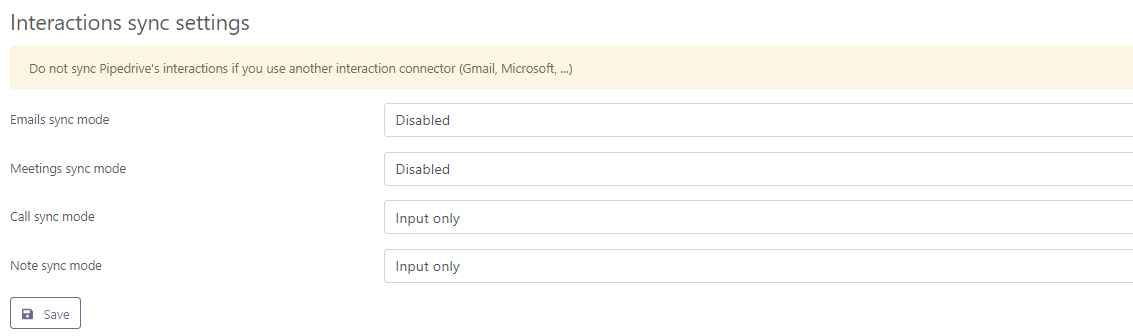
Then choose whether you wish to synchronize the interactions logged on your different systems: Emails, Meetings, Calls and Notes. If you select "Two ways" or "Output only", only the interactions entered manually in Skalin will show up in your CRM.
Nota
Pipedrive does not store the message and meeting IDs provided by Google or Microsoft. So don't enable synchronization of Emails and Meetings if you've already connected your e-mail account to Skalin, or you risk creating duplicates.
# Data transfer from Skalin to Pipedrive
You can upload Healthscore and CSM Pulse to your Pipedrive CRM.
If you activate this option, Skalin will automatically create two custom fields in Pipedrive: Skalin CSM Pulse and Skalin Healthscore.
# Zoho CRM
You can synchronise several objects from Zoho: customers, contacts, contract information, interactions, notes and comments.
To set up synchronisation, go to https://app.skalin.io/#/integration/zoho (opens new window) then click on the "Connect me" button and enter your credentials in the window that opens.
To synchronise an item, you can choose between several synchronisation modes:
- Input only: in this case, only your CRM can update information in Skalin. However, if you update information in Skalin, it will not appear in your CRM. Objects concerned: customers, contacts, agreements, interactions.
- Two-ways: a change in your CRM updates Skalin, and vice versa. Concerned objects: customers, contacts, interactions.
- Output only: only Skalin sends information back to the CRM. Concerned objects: interactions.
- Disabled: the object concerned is not synchronised.
Tip
For the initial synchronisation, it is advisable to remain in "Input only" mode. Once your data is synchronised, you can switch to "Two ways" so that every change from Skalin updates your CRM and vice versa.
# Account synchronisation
Start by choosing the type of account you want to synchronize in Skalin. If you don't choose anything, Skalin will pick all types by default.
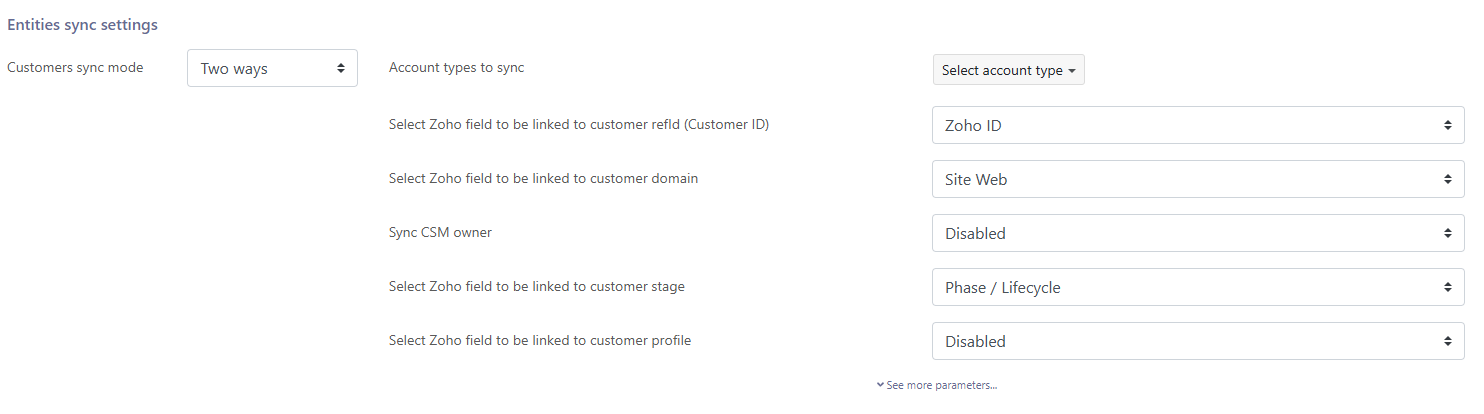 You can filter the accounts to be synchronised in the advanced options - see below in the advanced settings.
You then need to match the expected information with the relevant fields in Zoho.
- Customer ID: Ideally, you should use an account ID that is common to all your systems, if you have one. Otherwise, keep the default CRM ID.
- Customer domain: corresponds to the default Zoho website value, you can modify the correspondence if necessary.
- CSM owner: generally, the CSM in charge of the account is not the owner of the account at CRM level. You can therefore point to the corresponding field.
- Customer stage: corresponds to the phase in the customer lifecycle - or stage for Skalin. If this information already exists in your CRM, you can map it to the relevant field. Otherwise, leave it disabled.
- Customer profile: corresponds to the customer segment - or Healthscore profile for Skalin. If this information already exists in your CRM, you can match it with the relevant field. Otherwise leave disabled.
Click on "see more parameters" to access the advanced options:
- Make customers become churn if they are not present in Zoho accounts to sync anymore. When this option is activated, Skalin automatically churns an account that is no longer in the selected account type (either because it has been deleted or because it is in a type which is not synchronized). Note: customers with a stage = churn are not deleted and remain accessible from Skalin.
- Sync parent / child relations. By ticking this option you keep the relationship between a parent account and its children already present in Zoho (for example a group and its subsidiaries). Otherwise, all accounts will be synchronised but at the same level. Note that Skalin supports a maximum two-level hierarchy.
- Filter synchronized customers: indicate the value for the accounts that you want to see in Skalin. If you map a multi-value field, indicate all values to synchronize with Skalin.
- Customer tag synchronization : select Skalin tags to be synchronized with Zoho, then corresponding Zoho fields.
- Custom fields synchronisation : map Skalin customer custom fields with corresponding Zoho fields.
- Customer merge fields : matches pre-existing customers in Skalin. Uncheck the domain name for instance if your customers don't have a website and are linked to a generic domain in Zoho.
# Contact synchronisation
Skalin will synchronise all the contacts attached to accounts whose type has been selected in the first section.
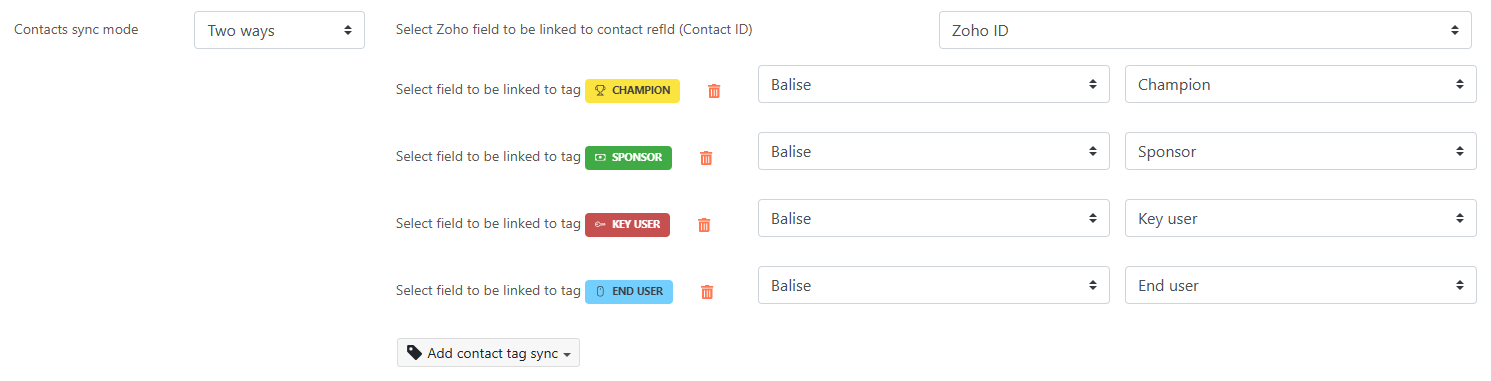
All that's left to do is to match the required information with the relevant fields in Zoho.
- Contact ID: Ideally, you should use a contact ID that is common to all your systems, if you have one. Otherwise, keep the default CRM ID.
- Champion Tag: matches the 'Champion' tag in Skalin with a field in your CRM.
- Sponsor Tag: matches the 'Sponsor' tag in Skalin with a field in your CRM.
- Key user Tag: matches the "Key user" tag in Skalin with a field in your CRM.
- End user Tag: matches the 'End user' tag in Skalin with a field in your CRM.
# Agreement synchronisation
Synchronisation is "Disabled" by default. To activate it, select "Input only" then choose the Zoho field containing the contract's refId. By default, Skalin will take all contracts linked to synchronised accounts (see step 1 above).

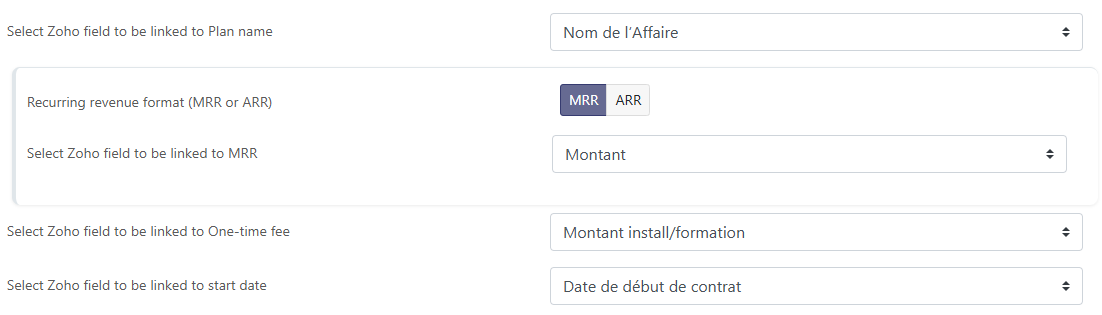
All that's left to do is match the required information with the relevant fields in Zoho. Fields marked with an asterisk (*) are mandatory:
Plan name (optional): to be matched with the name of the offer or plan subscribed to.
Recurring revenue format (MRR or ARR)*: indicates whether the amounts are expressed in MRR or ARR in your CRM.
Select Zoho field link to (MRR or ARR)*: to be matched with the field corresponding to the contract amount, expressed in MRR or ARR as specified in the previous point.
One-time fee (optional): to be matched with the field corresponding to the setup fee, if applicable.
Start date: match this with the contract start date. In most cases, the start date is different from the closing date of the opportunity.
 This is followed by information related to the end of the contract and any notice period. Note that this information can be expressed in 3 different ways:
The "Duration" option indicates a duration - for example, a 12-month contract. It consists of a value (e.g. "12") and an interval (e.g. "month").
The "Date" option specifies a date - for example, a contract end date of 31/12/2024.
The "Manual" option allows you to freeze a value, without it necessarily being present in your CRM. For example, if you know that your notice period is always 3 months, you can force this value to be the default.
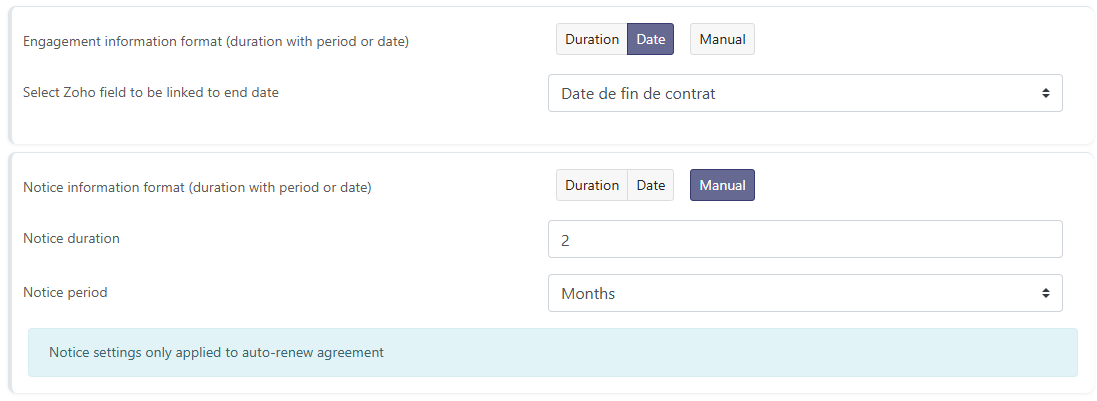
Finally, you must indicate whether the contract is tacitly renewable. There are 3 options:
- Consider the contract to be tacitly renewed if a notice date or notice period is specified in the CRM.
- Match to a specific CRM value.
- Force a default value - always yes (= tacit renewal) or always no (= no tacit renewal).
# Synchronising interactions
Then choose whether you wish to synchronise the interactions logged on your different systems: Emails, Meetings, Calls and Notes. If you select 'Two ways' or 'Output only', only the interactions entered manually in Skalin will show up in your CRM.
# Data transfert from Skalin to Zoho
You can upload the Healthscore and CSM Pulse to your Zoho CRM.

# Sellsy
You can synchronise several objects from Sellsy: customers, contacts, contract information, interactions, notes and comments.
To set up synchronisation, go to https://app.skalin.io/#/integration/Sellsy (opens new window) then click on the "Connect me" button and enter your credentials in the window that opens.
To synchronise an item, you can choose between several synchronisation modes:
- Input only: in this case, only your CRM can update information in Skalin. However, if you update information in Skalin, it will not appear in your CRM. Objects concerned: customers, contacts, agreements, interactions.
- Disabled: the object concerned is not synchronised.
# Account synchronisation
You need to match the expected information with the relevant fields in Sellsy.
Customer ID: Ideally, you should use an account ID that is common to all your systems, if you have one. Otherwise, keep the default CRM ID.
Customer domain: corresponds to the default website value, you can modify the correspondence if necessary.
CSM owner: generally, the CSM in charge of the account is not the owner of the account at CRM level. You can therefore point to the corresponding field (only works with Salesforce user type fields).
Customer stage: corresponds to the phase in the customer lifecycle - or stage for Skalin. If this information already exists in your CRM, you can map it to the relevant field. Otherwise, leave it disabled.
Customer profile: corresponds to the customer segment - or Healthscore profile for Skalin. If this information already exists in your CRM, you can match it with the relevant field. Otherwise leave disabled.
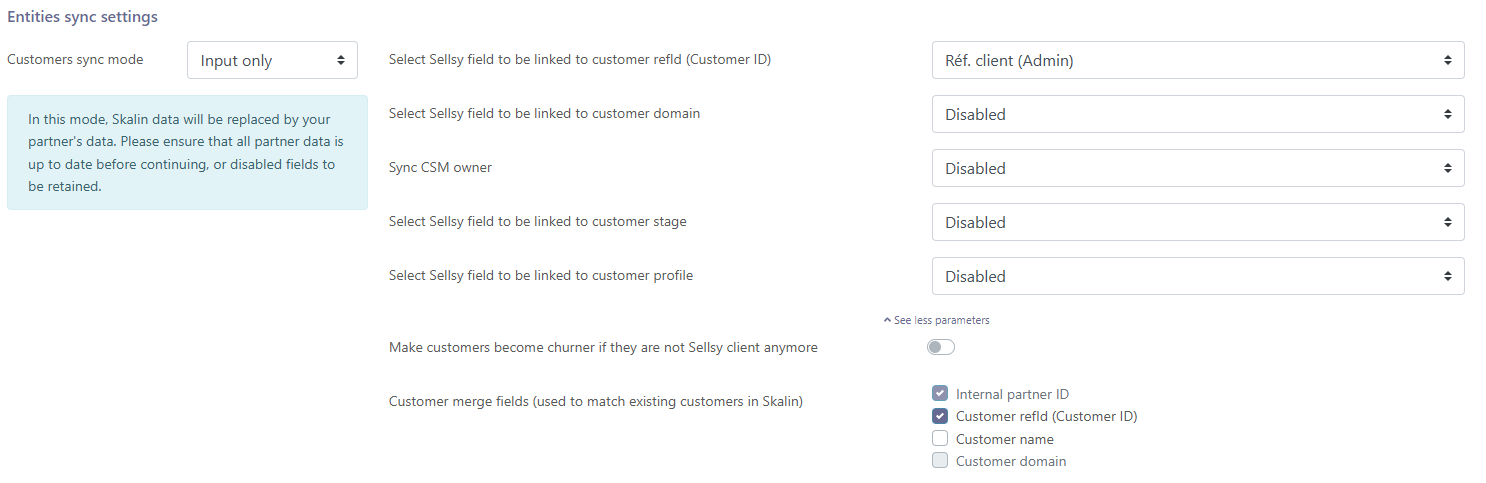 Click on "see more parameters" to access the advanced options:
"Make customers become churner if they are not Sellsy clients anymore": When this option is activated, Skalin automatically churns an account that no longer exists in Sellsy. Note: customers with a stage = churn are not deleted and remain accessible from Skalin.
Merge fields: indicates the fields used to identify a pre-existing customer. Uncheck the domain name, for example, if your customers don't have a website and are attached to a generic domain in Sellsy such as Gmail.
# Contact synchronisation
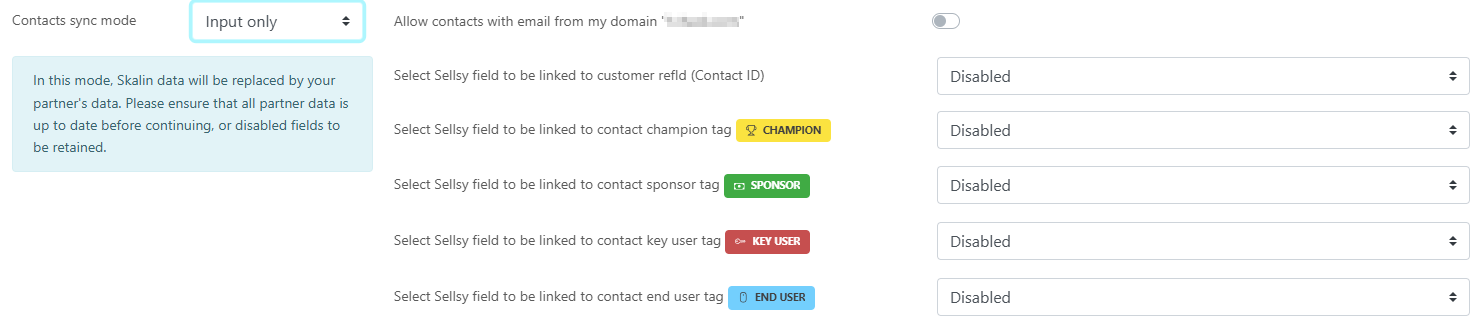
Skalin will synchronise all the contacts attached to Sellsy clients. You can choose to automatically exclude contacts whose email address belongs to your own domain by checking or unchecking the first option in this section.
All that's left to do is to match the required information with the relevant fields in Sellsy.
- Contact ID: Ideally, you should use a contact ID that is common to all your systems, if you have one. Otherwise, keep the default CRM ID.
- Champion Tag: matches the 'Champion' tag in Skalin with a field in your CRM.
- Sponsor Tag: matches the 'Sponsor' tag in Skalin with a field in your CRM.
- Key user Tag: matches the "Key user" tag in Skalin with a field in your CRM.
- End user Tag: matches the 'End user' tag in Skalin with a field in your CRM.
# Agreement synchronisation
Synchronisation is "Disabled" by default. To activate it, select "Input only" then choose Sellsy pipeline(s) to synchronize.

All that's left to do is match the required information with the relevant fields in Sellsy. Fields marked with an asterisk (*) are mandatory:
- Plan name (optional): to be matched with the name of the offer or plan subscribed to.
- Recurring revenue format (MRR or ARR)*: indicates whether the amounts are expressed in MRR or ARR in your CRM.
- Select Sellsy field link to (MRR or ARR)*: to be matched with the field corresponding to the contract amount, expressed in MRR or ARR as specified in the previous point. For opportunities, the opportunity amount is selected by default.
- One-time fee (optional): to be matched with the field corresponding to the setup fee, if applicable.
- Start date: match this with the contract start date. In most cases, the start date is different from the closing date of the opportunity.
This is followed by information related to the end of the contract and any notice period. Note that this information can be expressed in 3 different ways:
- The "Duration" option indicates a duration - for example, a 12-month contract. It consists of a value (e.g. "12") and an interval (e.g. "month").
- The "Date" option specifies a date - for example, a contract end date of 31/12/2024.
- The "Manual" option allows you to freeze a value, without it necessarily being present in your CRM. For example, if you know that your notice period is always 3 months, you can force this value to be the default.
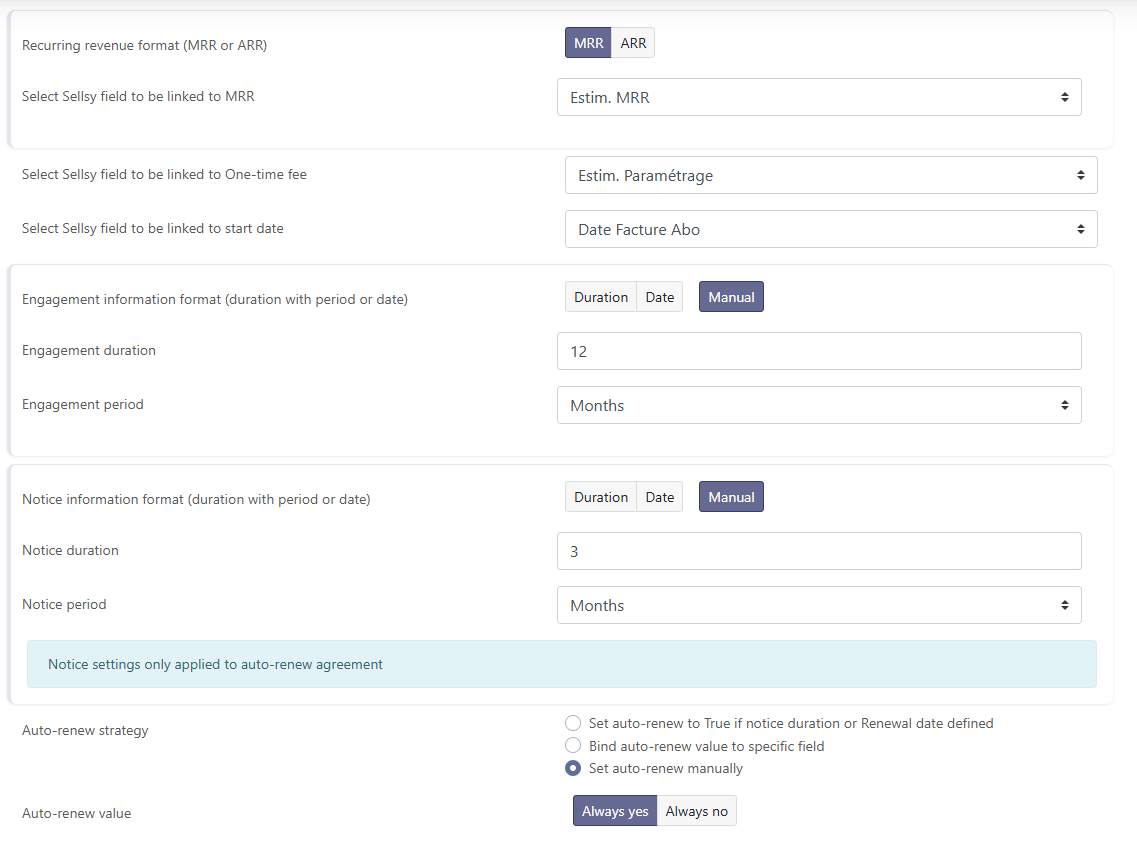
Finally, you must indicate whether the contract is tacitly renewable. There are 3 options:
- Consider the contract to be tacitly renewed if a notice date or notice period is specified in the CRM.
- Match to a specific CRM value.
- Force a default value - always yes (= tacit renewal) or always no (= no tacit renewal).
# Synchronising interactions
Then choose whether you wish to synchronise the interactions logged on your different systems: Emails, Meetings, Calls and Notes. If you select 'Two ways' or 'Output only', only the interactions entered manually in Skalin will show up in your CRM.
# Data transfert from Skalin to Sellsy
You can upload the Healthscore and CSM Pulse to your Sellsy CRM.
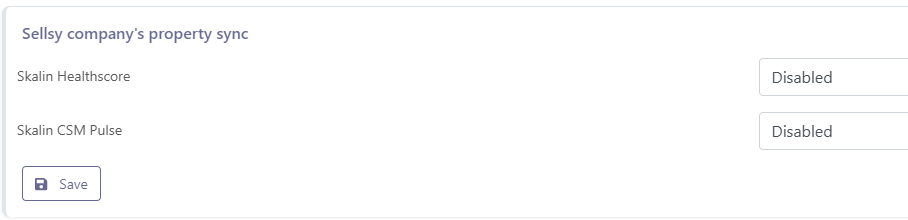
If you activate this option, Skalin will automatically create two custom fields in Sellsy: Skalin CSM Pulse and Skalin Healthscore :
# Migrating from a CRM to Hubspot sync
This page describes the steps and key considerations to anticipate when migrating your Skalin sync from an existing CRM (Pipedrive, Salesforce, etc.) to HubSpot.
Migrating your CRM in Skalin is not simply a matter of "reconnecting" an integration. It involves managing customer ID consistency, contact continuity, sync filter configuration, field sync direction, and where applicable, updating matching keys in third-party tools (Stripe, Intercom, etc.).
The goal is that, once the migration is complete:
- existing customers in Skalin are found and re-synced without creating duplicates,
- new customers created in HubSpot arrive correctly in Skalin,
- data already qualified in Skalin is not overwritten during the first sync,
- third-party integrations continue to work without interruption.
# Migration checklist
# 1. HubSpot preparation
- [ ] Identify the HubSpot Super Admin account that will carry the Skalin connection — this role is required to connect the integration and must be maintained permanently. If this role raises security or access concerns in your organization, discuss with your IT team who the right person should be.
- [ ] Transfer customer data from the old CRM to HubSpot (fields, contacts, opportunities).
- [ ] Preserve the old CRM ID on each HubSpot company: create a custom property of the same type as in the old CRM (e.g.
Salesforce ID,Pipedrive ID) and store the original identifier there. This is what will allow Skalin to find existing customers without creating duplicates (Skalin could match on customer name, but if you're not certain names match character-for-character, it's safer to rely on the ID). - [ ] Define the sync filter for Skalin: which HubSpot lifecycle stage (default
Customer) or which custom boolean field determines that a company should be synced to Skalin. - [ ] Check that the lifecycle stage is correctly set on all customers to be synced — a HubSpot company without the right lifecycle stage will not be picked up.
- [ ] Check that the HubSpot workflow moving a company to
Customerupon a won deal is in place (or create it).
# 2. Skalin preparation
The goal here is to retrieve and store the old CRM ID on each Skalin customer record, so it can later be used as a merge key when connecting HubSpot.
- [ ] Create a custom field
Old CRM ID(of the same type as in the old CRM) in Skalin — via Settings > General > Custom Fields. - [ ] Map this field in the old CRM integration configuration (Customers block), so that Skalin automatically populates it on each customer record.
- [ ] Let one sync run and verify that the field is correctly populated on a sample of customers before proceeding.
# 3. Disabling the old CRM connection
Before connecting HubSpot, disable all syncs from the old integration (Customers, Contacts, Notes, Calls…) to avoid any conflict between the two sources.
- [ ] In Integrations > Hub > [Old CRM], set all blocks to Disabled and save.
- [ ] Delete the connection to the old CRM once all syncs are disabled. This prevents the old CRM from continuing to write its IDs in parallel with HubSpot.
Failing to delete the old connection can cause ID conflicts if both integrations run simultaneously, even with syncs disabled. Deletion is preferable to simply disabling.
# 4. Configuring the HubSpot integration in Skalin
The configuration is done in three stages to secure the matching process and avoid any data overwrite.
Step A — Initial sync (Input only, minimal fields)
[ ] Go to Integrations > Hub > HubSpot and click Connect.
[ ] In the Customers block, configure only:
- The Customer ID (Ref ID): set to the HubSpot Record ID.
- The filter field if needed (e.g. boolean
Is To Synchronize = true) to sync only a subset of HubSpot companies. - Under Show more settings, the customer merge fields: enter the
Old CRM IDfield, and optionally the customer name and domain. These keys allow Skalin to find existing customers without creating duplicates. - Sync direction: Input only (HubSpot → Skalin).
[ ] In the Contacts block, configure:
- The Contact ID (Ref ID): set to the HubSpot contact ID.
- Contact matching is done on email.
[ ] Save and let one sync run.
[ ] Check the result before continuing: expected number of customers, no duplicates, in Skalin, customers' refIDs should now contain Hubspot IDs (see section 7).
Step B — Additional field sync (Output only)
Once matching is confirmed, map the additional fields and set them to Output only (Skalin → HubSpot) to preserve data already qualified in Skalin:
- [ ] In the customer merge fields, select the HubSpot Record ID and remove the
Old CRM ID, now the sync is done on Hubspot IDs only. - [ ] In the Customers block, add field mappings for: HubSpot lifecycle stages, CSM Owner, customer stage, health score profile, tags, and any custom fields.
- [ ] Set these fields to Output only.
- [ ] Save and let one sync run.
Step C — Switch to two-way sync
- [ ] Once the Step B sync has run and data has been verified in HubSpot, switch the relevant fields to Two-way.
# 5. Field sync direction — key warning
Risk of data overwrite
When a new configuration is saved, Skalin treats HubSpot as the master source by default. If a field is mapped and its value exists in Skalin but not in HubSpot, HubSpot will overwrite the Skalin value at the next sync. This is why it is important to follow the three-step process described in section 4.
Reminder of the three available directions:
- Input (HubSpot → Skalin): HubSpot is the source of truth. Use for the initial sync with a minimal set of fields.
- Output only (Skalin → HubSpot): Skalin is the source of truth. Use to push data already qualified in Skalin to HubSpot (lifecycle stage, CSM Owner, customer stage, tags, custom fields…) without risk of overwrite.
- Two-way: activate only once both systems hold consistent data for a given field.
# 6. Updating third-party integrations
For Skalin to correctly map customers and contacts between HubSpot and third-party tools, the HubSpot ID must be set in those applications beforehand. Without this, Skalin will not be able to link a HubSpot customer to its equivalent in the third-party tool.
# Stripe
The Stripe ID is stored directly on the Skalin customer record, independently of the CRM. If the matching between Skalin and Stripe was already in place before the migration, it remains valid after the CRM change — no action is required.
- [ ] Still verify that a common ID between Stripe and Skalin exists (e.g. a
Customer IDStripe field populated on the Skalin customer record) to ensure the matching has not been affected by the migration.
# Intercom
Even if the Customers and Contacts blocks are disabled in the Intercom connection (only interactions being synced), the Ref IDs must still be filled in for matching to work correctly:
- [ ] In the Customers block of the Intercom connection, set the Customer ID (Ref ID) to the HubSpot customer ID.
- [ ] In the Contacts block of the Intercom connection, set the Contact ID (Ref ID) to the HubSpot contact ID.
- [ ] These HubSpot IDs must therefore have been transferred to Intercom beforehand (via import or sync) to be available at configuration time.
# Other tools (VoIP, ticketing…)
- [ ] Check whether any other tools connected to Skalin were using the old CRM ID as a reference key, and update them with the HubSpot ID before reconfiguring the corresponding connections.
# 7. Validation after the first sync
The first sync may take longer than subsequent ones (up to 1–2 hours depending on the volume of your HubSpot account). To verify everything went well:
- [ ] Count the synced customers: the number of customers in Skalin should match what was expected. An abnormally high number indicates that unwanted accounts (e.g. partners, former customers with
Former Customerlifecycle stage) have been synced — check their lifecycle stage in HubSpot. - [ ] Check for duplicates: existing customers should have been matched, not recreated.
- [ ] Check the Customer IDs: in the Customers view, click the eye icon on the far right of a record to open the preview — the customer ID should now be the Hubspot ID and the HubSpot logo should appear there with the date of the last sync. If the logo is present on existing accounts, matching was successful.
- [ ] Verify key data on a sample of customers (MRR, contacts, interactions) to ensure nothing has been overwritten.
- [ ] Confirm with the CSM team that everything looks correct.
- [ ] If too many accounts were created: contact Skalin support by email to request a bulk deletion (
hard delete) and start fresh from a clean base.
# Additional notes
Permissions in Skalin to edit the configuration
Only users with the Admin role in Skalin can create or modify a CRM integration. Managers and CSMs cannot edit the HubSpot configuration.
Changing the HubSpot connection owner
If the HubSpot Super Admin account used for the connection needs to change (e.g. for security reasons), it is possible to transfer the existing configuration without reconfiguring everything manually. First disable all syncs, then contact Skalin support indicating the new connection — the team will replicate the previous configuration onto the new account.
Filtering accounts
If you only want to sync a subset of your HubSpot accounts (e.g. a specific business unit or customer type), two approaches are available:
- Use distinct lifecycle stages for each population.
- Create a custom boolean field (e.g.
Is To Synchronize) and populate it on the relevant accounts. This field can then be used as a filter in the Skalin configuration. :::
Historical backfill
If accounts were created in HubSpot before the Skalin connection was activated, they will be backfilled during the first sync — provided they have the right lifecycle stage or filter value.
# Recommended process (summary)
- Prepare HubSpot: import data, preserve old CRM IDs, check lifecycle stages, identify the Super Admin owner.
- Create the custom field in Skalin to store the old CRM ID.
- Disable then delete the old CRM connection in Skalin.
- Configure the HubSpot connection in Skalin with both merge keys (old ID + HubSpot ID) and the correct sync direction per field.
- Save and wait for the first sync.
- Check the result: customer count, no duplicates, data integrity.
- Map additional fields in Output only mode, then switch to two-way once verified.
- Update third-party integrations (Stripe, Intercom…).
Need help?
For any CRM to HubSpot migration, it is recommended to schedule a joint configuration session with the Skalin team, ideally on or just before the migration day, to configure and test the switch together.