Parent/Child Management
Managing an account hierarchy (Parent/Child)
You can create an account hierarchy in Skalin. This makes it easy to manage subsidiaries, brands, countries, or even business units, while allowing each of them to have their own contacts, projects, playbooks, scores, and more.
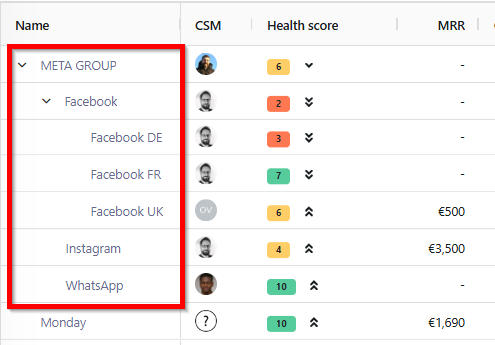
In the accounts view, you can easily identify parent accounts (if you have any): a chevron lets you expand the list of child accounts.
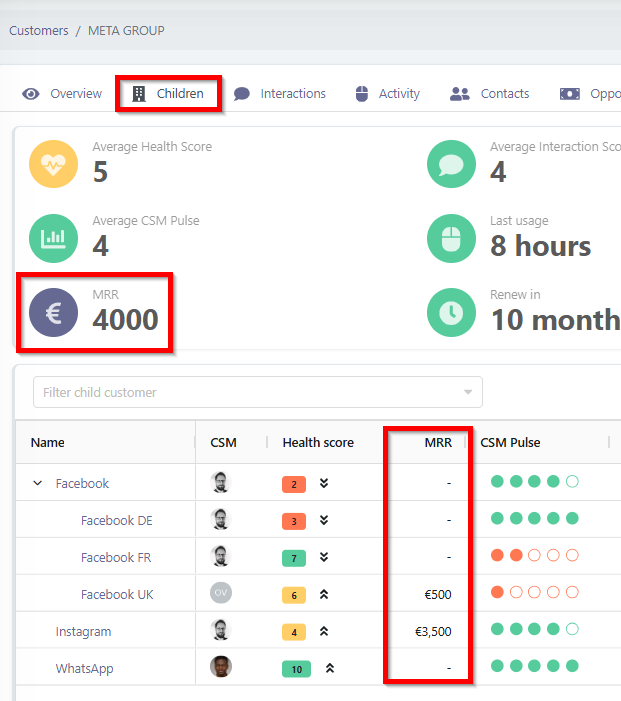
For example below, the Meta Group account has Facebook, Instagram, and WhatsApp as children.
The Facebook account itself is also a parent group, containing child accounts.
Expanded by default
To see all child accounts immediately without manually expanding each chevron, enable the Expanded by default option in the column selector. All levels of the hierarchy will then be visible as soon as you open the view.
Configuration:
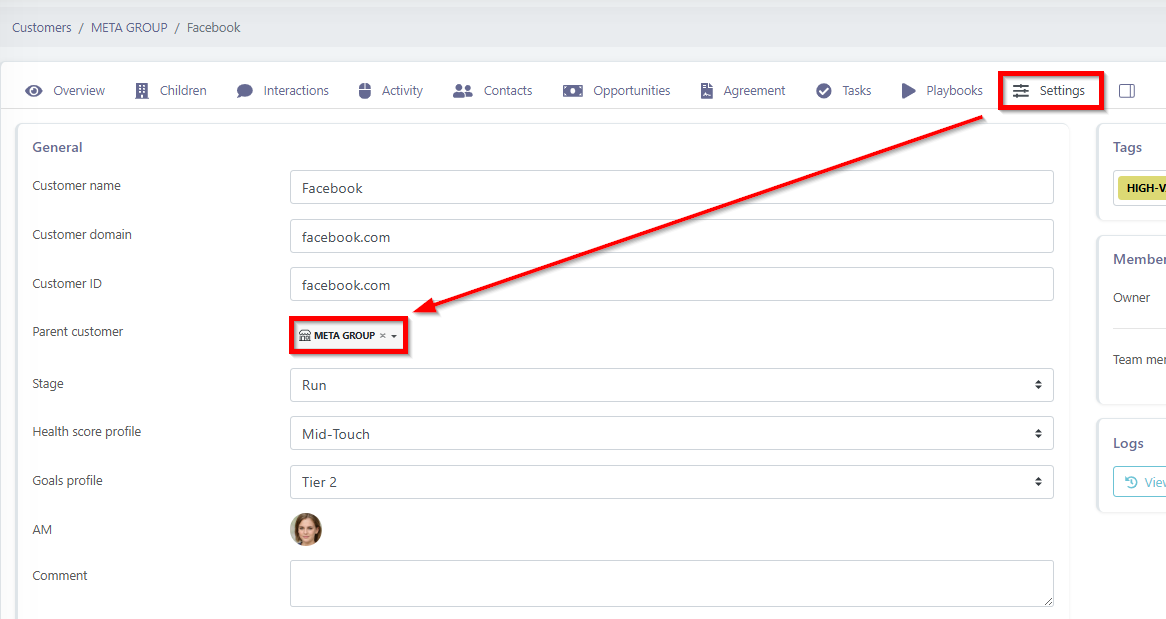
You can create an account hierarchy either in your CRM (which Skalin will retrieve through synchronization), or by filling in the Parent account field in an account’s settings.
Parent/child account management has specific behaviors related to:
- the MRR of each account,
- the health score of parent accounts,
- the detailed view of a parent account,
- how user usage and interactions are taken into account depending on whether they belong to a parent or a child account,
- projects and playbooks.
Let’s go through each of these points.
# Parent account MRR
If a contract was negotiated at the group level, the MRR will appear on the parent account row.
On the other hand, if each child account has its own contract and there is no contract at the parent level, it is normal for the parent account not to display any MRR in the accounts view (as shown above for Meta and Facebook).
➡️ To see the sum of the child accounts’ MRRs, you need to open the detailed view of a parent account.
# Parent account health score
The parent account health score can be calculated independently from the children’s scores, or on the contrary, be influenced by the children’s scores, proportionally to the MRR each one represents.
Example:
- if Facebook FR represents 50% of Facebook Global’s MRR,
- and Facebook DE represents 25%,
- then the health score of Facebook FR will have twice as much impact at the group level as the score of Facebook DE.
If a child account has no MRR while other child accounts do, then its health score does not impact the parent account.
If none of the child accounts have MRR, then they all impact the parent’s health score equally.
Configuration:
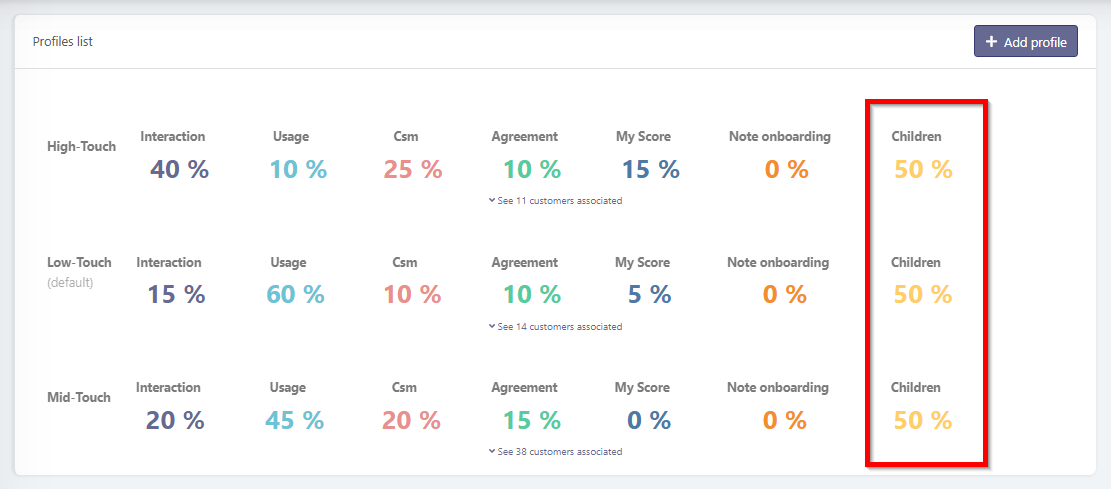
For the parent account health score to be calculated independently from the children’s scores, the yellow score in the Health profiles menu must be set to 0.
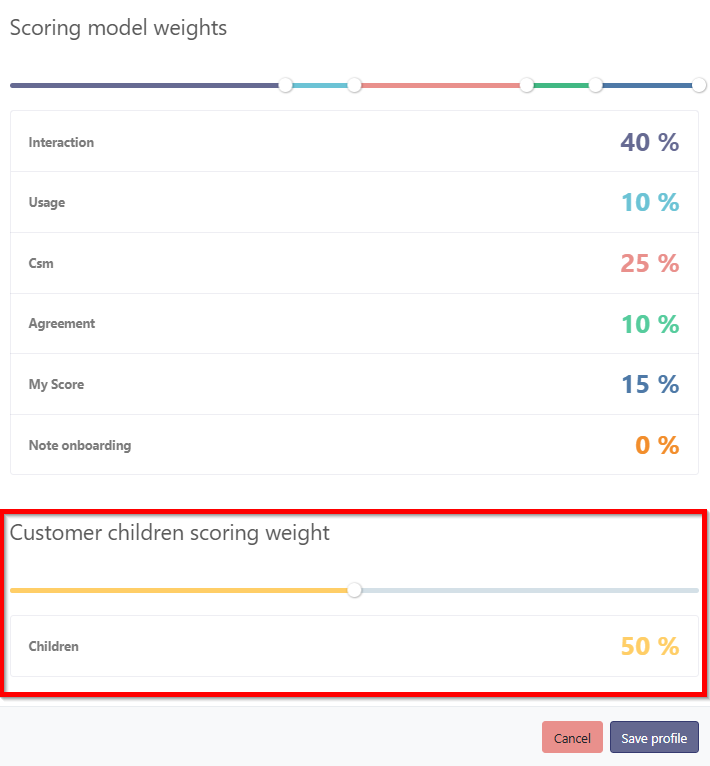
If, on the contrary, you want the children’s scores to count for example for half of the parent score, then the sub-score related to children should be set to 50%.
Reminder
Change this percentage by hovering over the relevant row and clicking the edit button.

Then adjust the slider at the very bottom of the page.
💡If parent accounts never have contracts while child accounts do, you could consider creating a Parent health score profile and a Child health score profile, setting Contract score = 0% for the parent profile.
# Detailed view of a parent account
Inside a parent account record, an additional tab is available: “Child accounts”.
At the top, you’ll find a set of aggregated KPIs, which depend on the child accounts selected in the table below.
For example, the sum of the child accounts’ MRR is shown here:
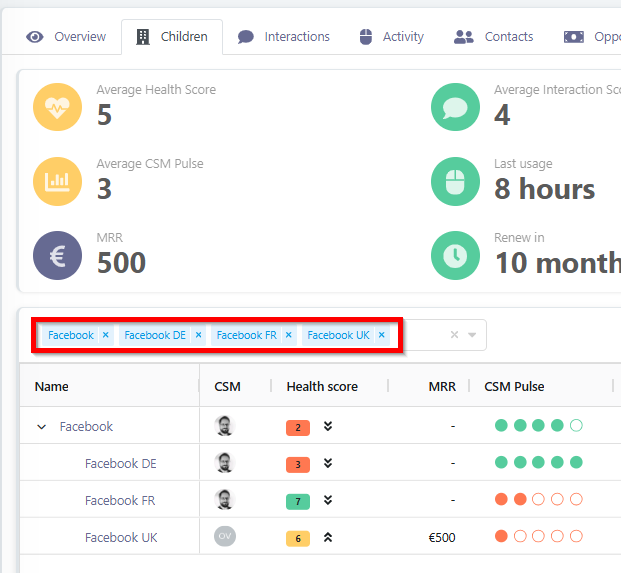
If you apply a filter to the child accounts, the overall MRR displayed at the top will adjust accordingly and will only sum the MRR of the selected children.
It is also possible to choose to visualize child account data within each tab of the parent account.
For example, in the Contacts tab of a parent account, all parent account contacts are displayed. By clicking on the “Children” filter, you can also see the child accounts’ contacts (with their associated account):
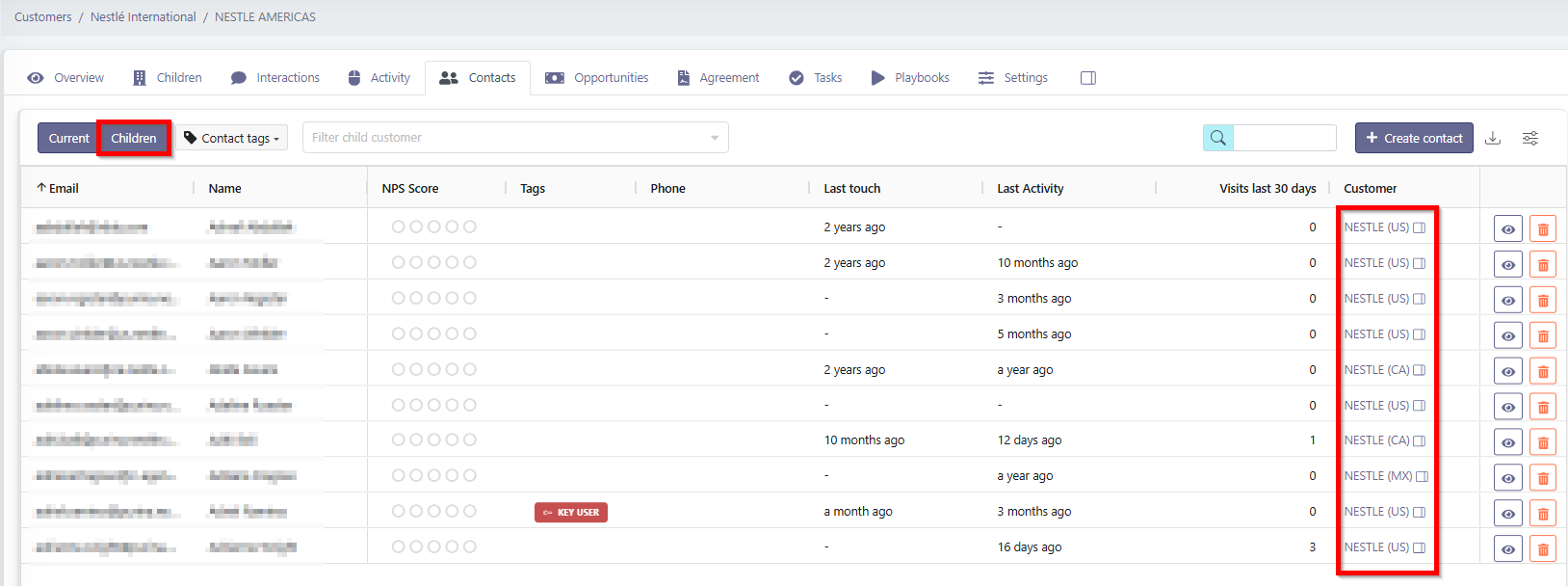
You can do the same for the Contracts, Activities, Tasks, Opportunities, and Playbooks tabs.
# Visualizing usage and interactions of “parent” contacts
This section explains how Skalin handles contacts associated with a “parent account”.
# Usage of parent contacts
Usage from users linked to the parent account is sent to Skalin via tracking.
It includes the contact’s email and the account identifier (customer ID) of the account (parent or child) they logged into.
If the child account used is not sent to Skalin, then activities are counted at the parent account level.
If a parent contact logs into the parent account, the activity is counted at the parent level.
If the contact logs into a child account, the activity is logged at that child account level.
➡️ Skalin records a contact’s activity based on the account they logged into, rather than on whether they belong to a parent or child account.
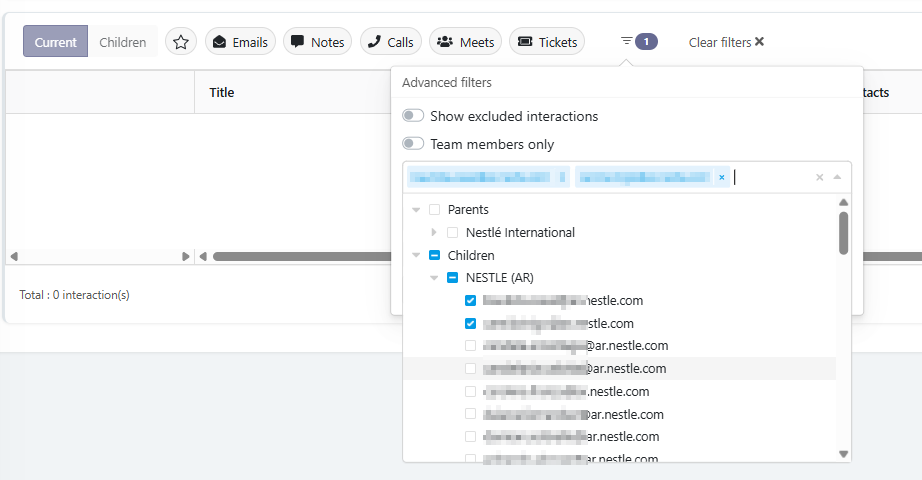
If you need to analyze user usage on a child account, with or without parent contacts, you can use the filters:
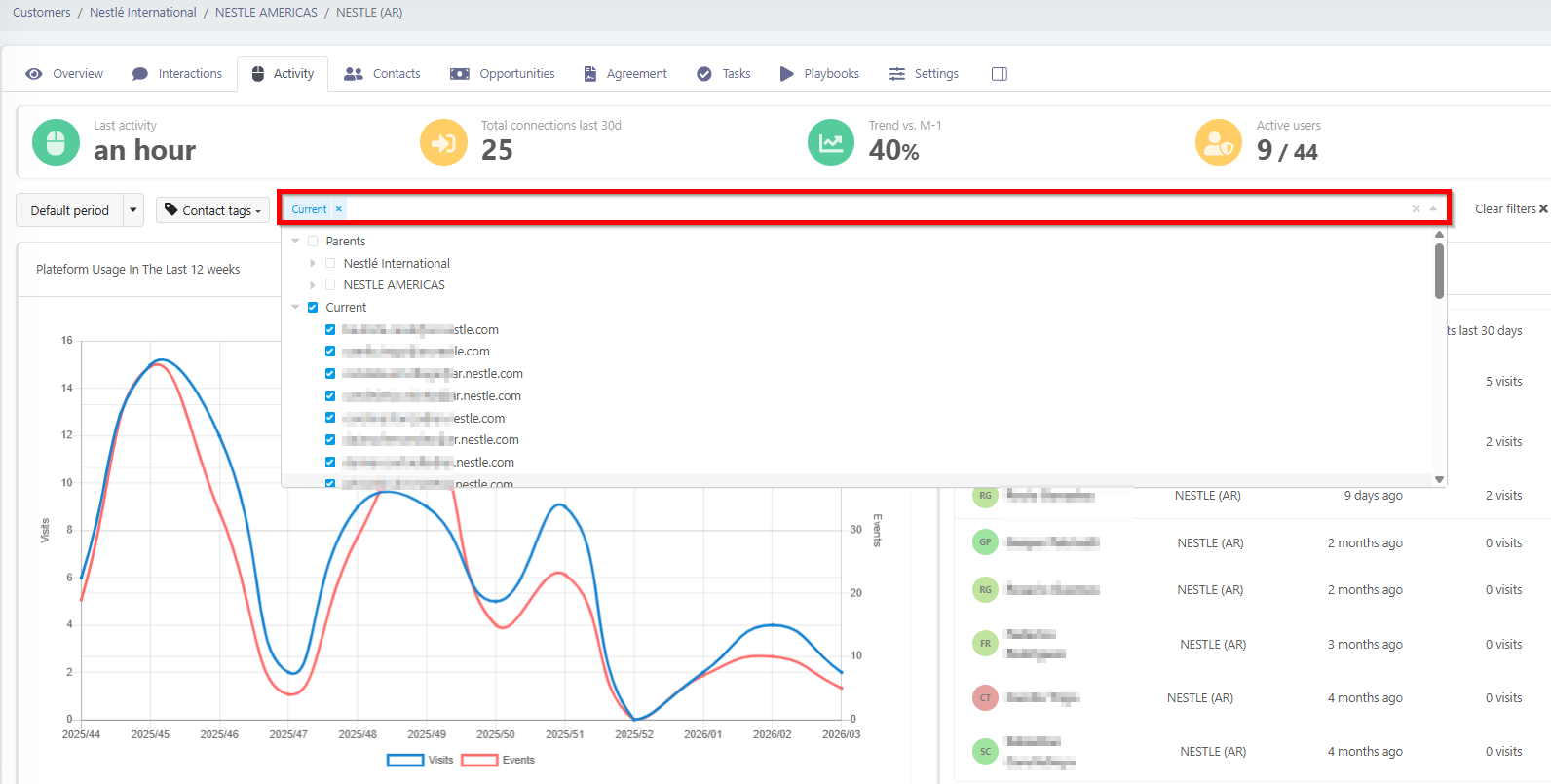
The filter allows you to select all parent account contacts, or more precisely choose which people to include in the analysis.
A user from a parent account who has access to your application for all child accounts is therefore correctly counted for each activity on the child account where it occurred (e.g. they logged in 10 times, including 3 times on child account A → there will be 3 activities on child account A).
Usage from parent account users is therefore taken into account in the Health Score of each child account, in the same way as all other users of that child account.
By default, Skalin displays in the Activity tab the usage of contacts from the selected account.
To display usage from users at other levels (parent or child), you need to select the “Children” filter:
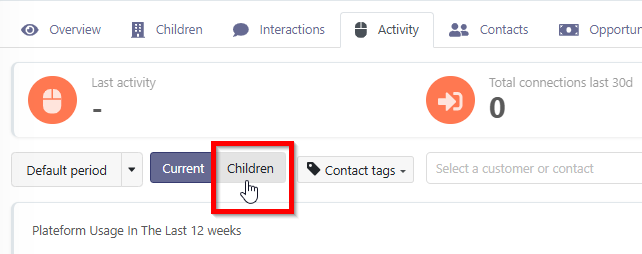
If a parent account has no associated contacts (because all contacts are either at a higher parent level or in its child accounts), selecting this filter becomes essential to see the activity recorded at that level of the hierarchy.
# Interactions of parent contacts
Skalin’s logic for interactions is as follows: interactions are always attached to the most granular level possible.
An interaction (email, meeting) with a parent contact only is recorded at the parent account level.
An interaction with child contacts (even if a parent contact is included) is recorded on each relevant child account.
A contact can be duplicated across multiple child accounts if this reflects the customer’s operational reality.
Example:
If a contact works with child accounts A, B, and C of a parent account that contains A, B, C, and D, then you can duplicate this contact on child accounts A, B, and C. Conversations with that contact will be duplicated across the three child accounts and will therefore count in the interaction scores of all three.
If the contact were to work with all four child accounts, you could place them at the parent account level. Interactions with this contact would then only count at the child level if a child contact is included in the discussion.
Finding interactions with a set of contacts
In the Interactions tab, if you filter on a set of contacts, all interactions involving any of those contacts will be returned. This is therefore an OR filter by default.
# Managing account hierarchies in playbooks
In playbook trigger filters, you can more precisely specify whether you want to target only parent accounts or only child accounts.
By default, all accounts—parent or child—are targeted by the playbook.
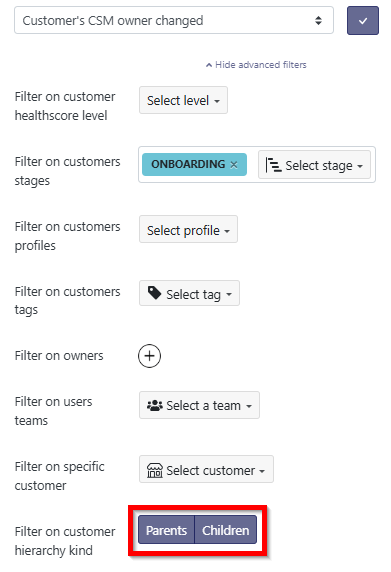
When filtering on Parents, this includes all customers that have at least one child. If there are multi-level hierarchies, this includes all intermediate levels and the top level. It does not include the lowest level, where there are no children.
When filtering on Children, this includes all accounts that do not have any children below them. If an account stands alone and has no children, it is included when filtering on Children.