Agreements
Agreements
This page covers two key aspects of agreements in Skalin: the agreement lifecycle (creation, modification, renewal) and the different statuses an agreement can have over time.
Info
Any contract with the status PENDING will appear on the My Actions page.
# Creating an Agreement
To create a new agreement, simply go to the Customers > Agreement tab and select Create a new agreement.
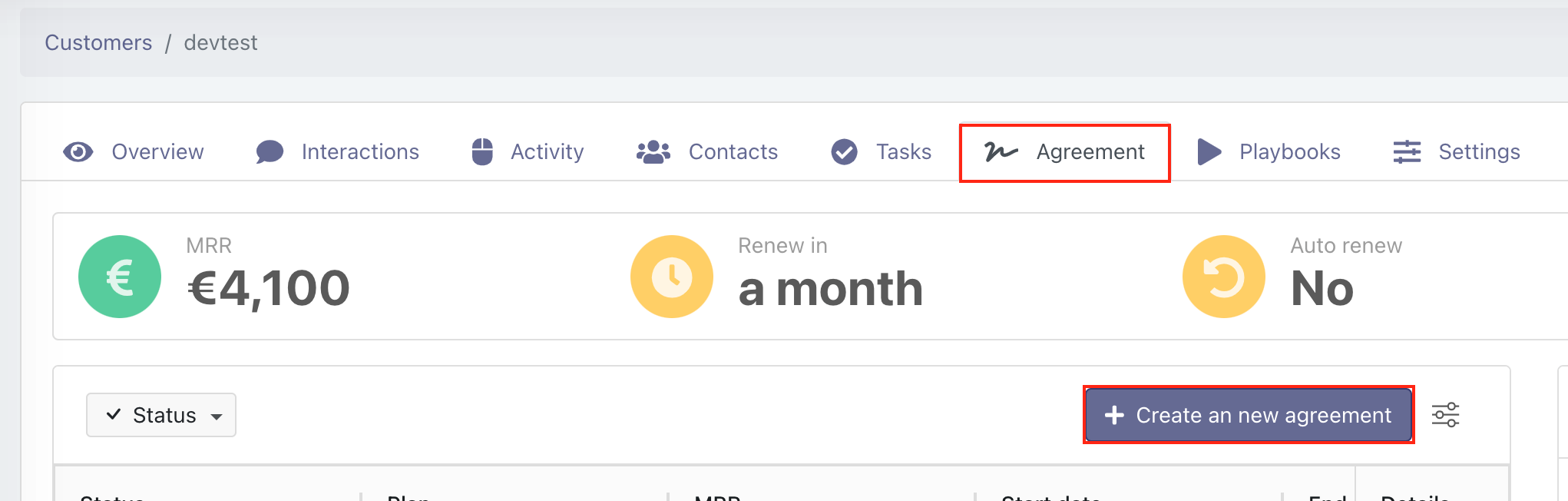
By default, an agreement will be created with the ACTIVE or VALIDATED status, depending on the start date. It is also possible, at the time of creation, to assign it at status PENDING.
Warning
Any other status than ACTIVE or VALIDATED may result the disappearance of MRR and statistics in certain reports.
# Modifying an Agreement
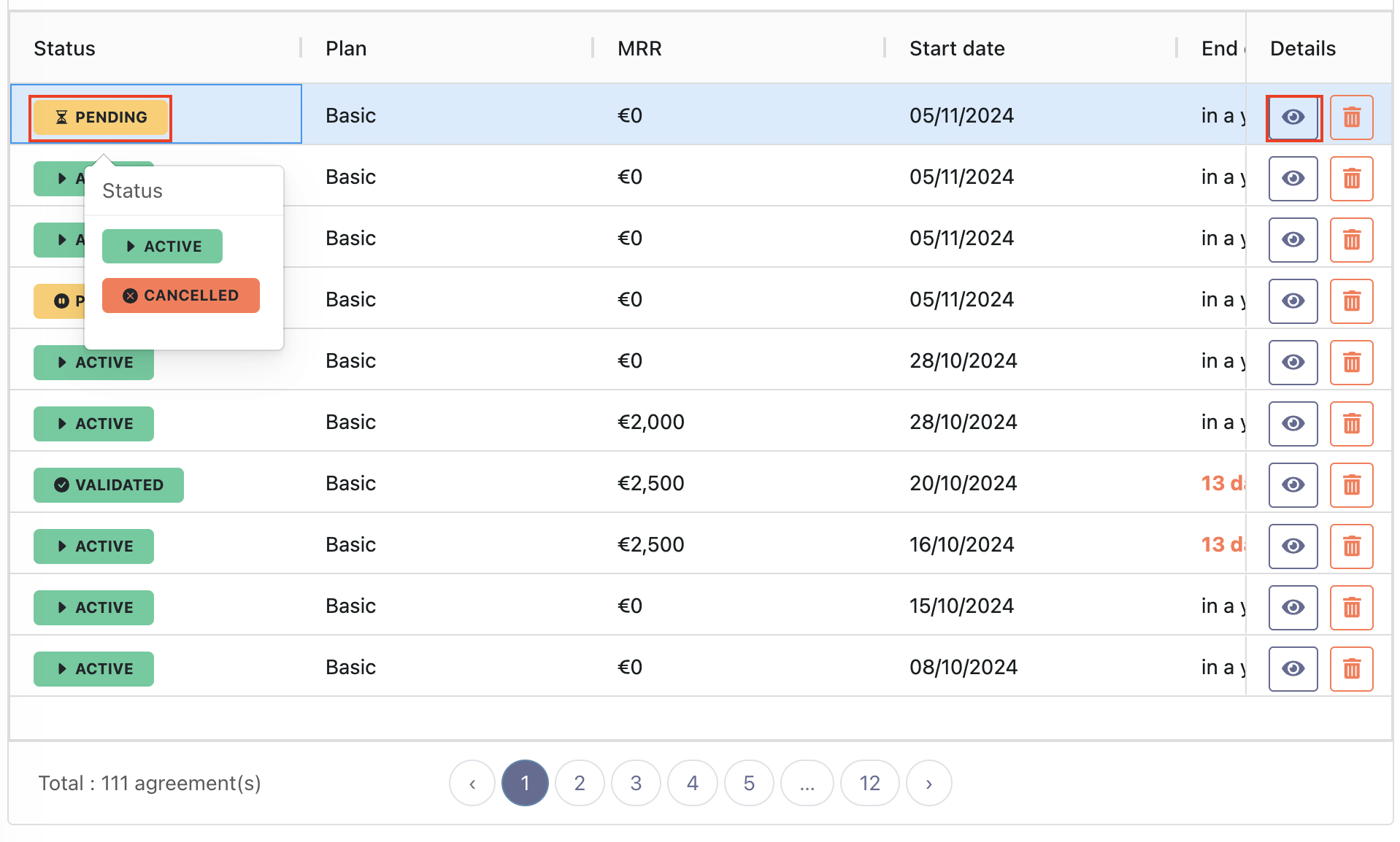
You can modify an agreement in two ways: either via the details window, represented by an eye icon, or directly within the table.
If the contract was created through a system integrated with Skalin (Hubspot, Salesforce, Stripe, etc.), any changes you make may be overwritten during the next sync, since the external source controls the values. In this case, it's better to update the contract directly in the external tool.
Note
Not all fields can be modified directly from the table.
# Upsell and Downsell
If a client makes an upsell before the end of their contract, it is recommended to create an additional contract line reflecting the extra amount, with a duration that runs until the end of the original contract. This approach is preferred over modifying the original contract amount, as doing so would lose the record of the MRR increase from a specific date. At the end of the contract, a new line reflecting the total MRR (initial amount + upsell) can be created.
For a downsell, the same principle applies: to retain the record of the exact downsell date, it is recommended to adjust the end date of the current contract and create a new contract with the updated amount.
# Professional Services and One-Time Fees
It is possible in Skalin to create agreement lines corresponding to one-time fees (professional services, one-time fees) billed to customers. Since these are not recurring, they are not included in the MRR or ARR, and are therefore not counted in the Renewals view or in the MRR report. They can, however, be useful for analyzing one-time revenue or for having a complete overview of all amounts billed to a given customer.
These agreement lines can be created manually in Skalin or from a CRM such as HubSpot. In the latter case, the connector configuration must specify which field contains the one-time fee amount — this field must be different from the one used for MRR or ARR. When creating an agreement line with only one-time fees, you must still enter 0 in the MRR/ARR field.
# End of Agreement and Renewal
When an agreement reaches its end date and if its status was VALIDATED or ACTIVE then its status is automatically changed to FINISHED.
Contract renewals can be managed either in Skalin or in your billing tool or CRM. In the latter case, the parameter in Settings > General > Agreements settings > Auto-renewal creation is unchecked).
If Skalin manages contract renewals and the completed contract had automatic renewal enabled, the status of the new contract will be:
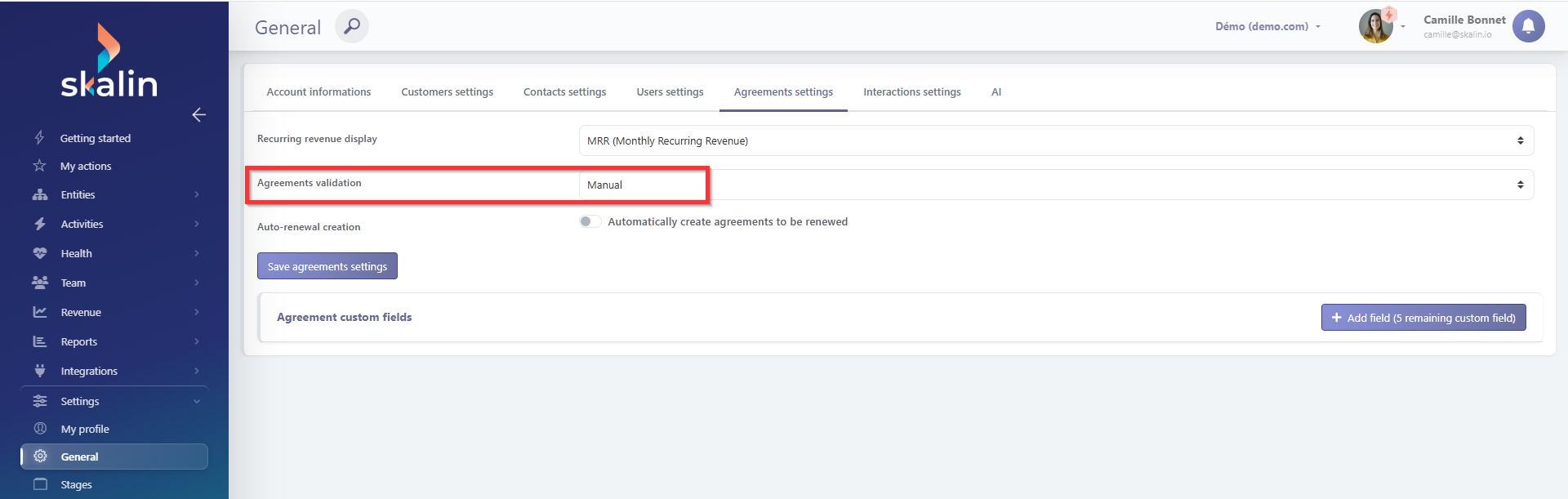
PENDING (to be validated in My Actions) if the contract setting in Settings > General is set to Manual
ACTIVE if the contract setting in Settings > General is set to Automatic
This setting is available under Settings > General > Agreement Settings
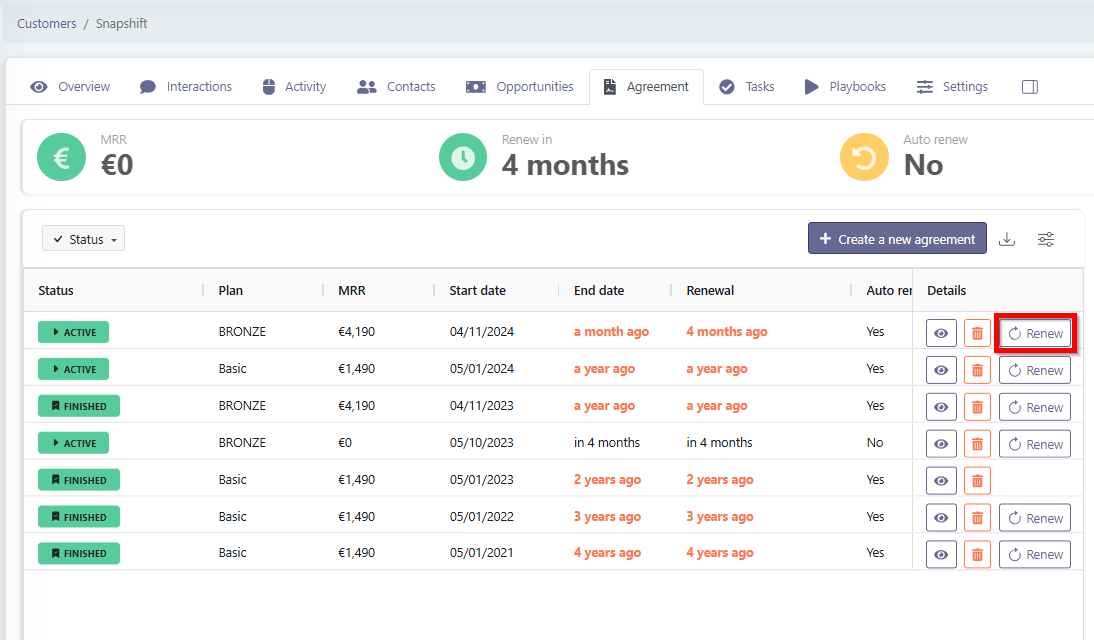
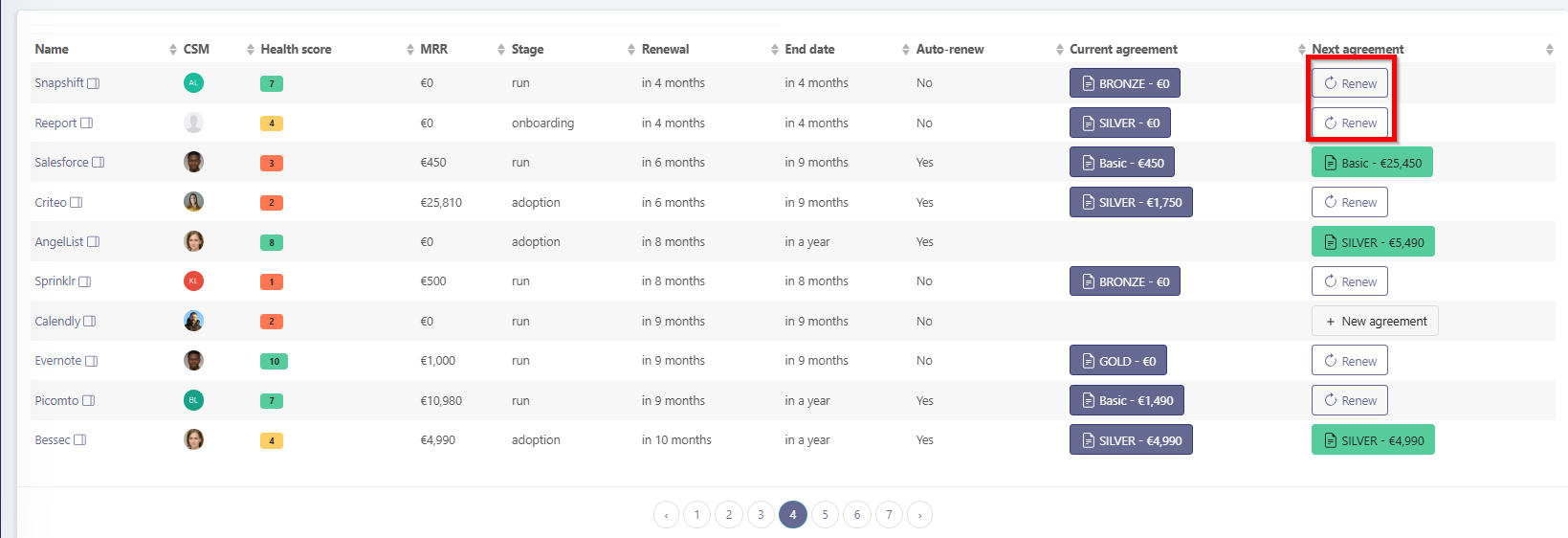
You can also choose to manually renew a contract by clicking the Renewal button (if the agreement was not in auto-renew mode and you agreed with the customer on renewing it), available either in the client's Contracts tab or in the Renewals view. Skalin automatically pre-fills the new contract form with the same duration, plan, and amount as the previous contract.
This button is not available when a renewal contract already exists based on the contract you are viewing.
Note
If a contract is deleted in the CRM (or in the data source for contracts), it is not automatically deleted in Skalin: it must be deleted manually in Skalin.
# Finding the Origin of an Agreement Line
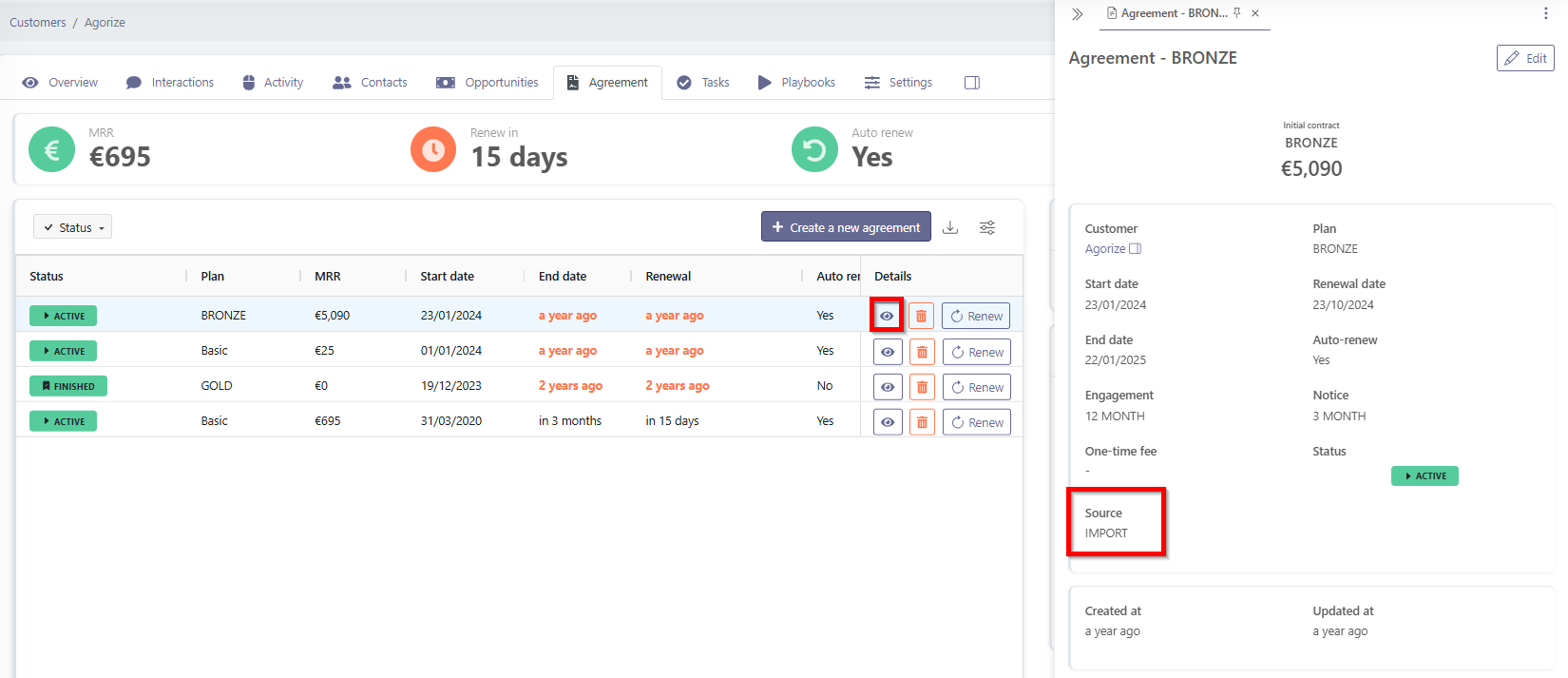
From the Agreements tab of a customer or from the Agreements page in the entities view, click the eye icon next to an agreement line to open its details.
In this panel, the Source field indicates how the agreement was created:
- UI: the agreement was created manually by a user
- SYSTEM: the agreement was created automatically by Skalin (e.g. automatic renewal)
- API: the agreement was created via the API
- Tool name (e.g. Hubspot, Stripe…): the agreement was sent by an integrated CRM or billing tool — the source displays the name of that tool directly
You can also view the creation date and the last modification date of the agreement.
# Matching Rules When Changing Data Source
If the data source for contracts changes (for example, from contracts added manually or via CSV import to contracts imported from a CRM or Stripe) the following rules apply to match contracts and avoid duplicates (in particular, to determine whether a contract already exists and should be updated with data from the new source, rather than creating a new one):
- We retrieve the agreement with the same ID as the new data source (this assumes the contract ID was properly included in the initial contract data import).
- If not found, we look for the agreement with the same
refId(as defined by the connector configuration). - If not found, we look for an agreement of type RENEW whose start date matches.
- If not found, we look for an agreement with the same MRR or ARR whose start date matches.
If a match is made using options 2 through 4, the contract ID from the new data source is saved in Skalin to simplify future matching.
# Bulk actions (multi-selection)
The first column of the table contains a checkbox in the header row. Checking it displays a checkbox next to each agreement, allowing you to select individual lines or select all at once. An action bar then appears at the bottom of the screen with the following actions:
- Change status: move the selected agreements to a given status
- Delete: delete the selected agreements
Editing or deleting in bulk beyond these actions
To edit or delete agreements in bulk beyond the actions above (for example via a CSV file import), see the FAQ: Can I edit or delete customers, contacts or agreements in bulk?
# Agreement Statuses
| Status Name | Description |
|---|---|
| PENDING | A pending contract is created by Skalin when a previous contract with auto-renewal reaches its notice date (and if the agreement parameter to renew contracts is set to manual). The contract is awaiting validation. It will appear in the "My Actions" page. It will not be included in the MRR calculation until it has been validated. If the end date is exceeded, it will remain in the "PENDING" status. |
| VALIDATED | The contract is validated but has not started yet. Once its start date is reached, the contract's status is automatically changed to ACTIVE. It will be included in the MRR calculation when it will start. |
| ACTIVE | The contract is active and ongoing. If the contract end date is exceeded, it will automatically change to the FINISHED status. It is included in the MRR calculation. |
| PAUSED | The contract has been suspended. The only way to change this status is through a manual modification. It is not included in the MRR calculation. |
| CANCELLED | The contract has been cancelled. The only way to change this status is through a manual modification. It is not included in the MRR calculation. |
| FINISHED | The contract has reached its end date and is now completed. It is not included anymore in the MRR calculation. |
If a contract is deleted from the CRM or the billing tool, it is not removed from Skalin; it must be deleted manually.
# Going further: automation via the API
The Skalin API makes it possible to automate certain contract operations that are not natively covered by the interface. For example, when a customer switches from a monthly to an annual contract, it may be necessary to delete the monthly contract pre-created by Skalin and disable auto-renewal on the last active monthly contract — two actions that can be orchestrated automatically using a tool like n8n or Make.