Opportunities
Opportunities
# Overview
The CSM role is evolving: beyond retention, CSMs are increasingly expected to identify upsell opportunities and contribute directly to revenue. In that context, tracking commercial opportunities in the same tool as your customers' health and usage data isn't just a matter of convenience — it's what allows you to act at the right time.
Unlike a generic CRM, Skalin gives you a combined view: you know that a customer is heavily using a feature, that their budget cycle is approaching, and that their health score is strong. That context is exactly what lets you propose an add-on when it makes sense for the customer, not based on an arbitrary calendar.
Availability
The Opportunities module is available on the Lead plan or as an add-on for the Scale plan. Scale users can try it free for one month.
# Creating and configuring a pipeline
Before creating your first opportunity, you need to set up at least one pipeline. A pipeline represents a type of commercial opportunity — for example, one pipeline per sellable add-on, or one per geographic expansion type.
Two approaches are possible: create one pipeline per topic or add-on, or create a single global pipeline covering all your opportunities. The per-topic approach is recommended if you plan to automate email sequences via Playbooks: each pipeline can then have its own communication logic, tailored to the relevant add-on. A global pipeline can make it difficult to build a consistent messaging flow across all opportunity types. If you don't plan to automate email sequences, a global pipeline is perfectly fine.
Go to Entities > Opportunities, then click "Create a pipeline".
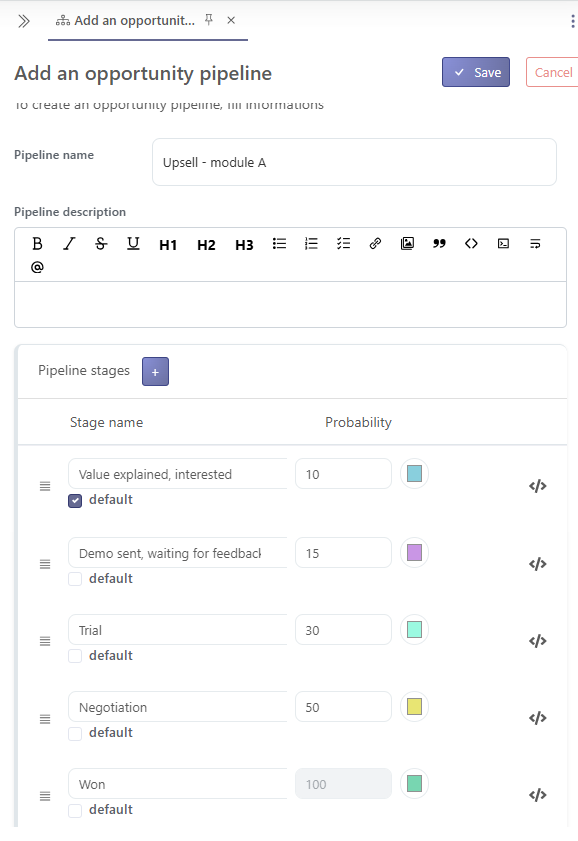
When creating a pipeline, you can fill in:
- A name: choose a clear name, such as "Upsell Analytics Module", "Expansion New Countries", etc.
- A description: use this field to give your team context about the pipeline's goal or the broad outlines of the associated sales approach.
# Configuring stages
Each pipeline is made up of stages. Four stages are provided by default:
- Open
- In progress
- Won
- Lost
Each stage is associated with a probability percentage, which is used to weight the estimated pipeline amount in your KPIs.
You can rename these stages, add new ones, and reorder them using the horizontal-bar button (drag and drop up or down).
Best practice
Only set 100% probability for the stage that corresponds to a truly signed deal. This keeps your pipeline KPIs accurate.
# Pipeline overview
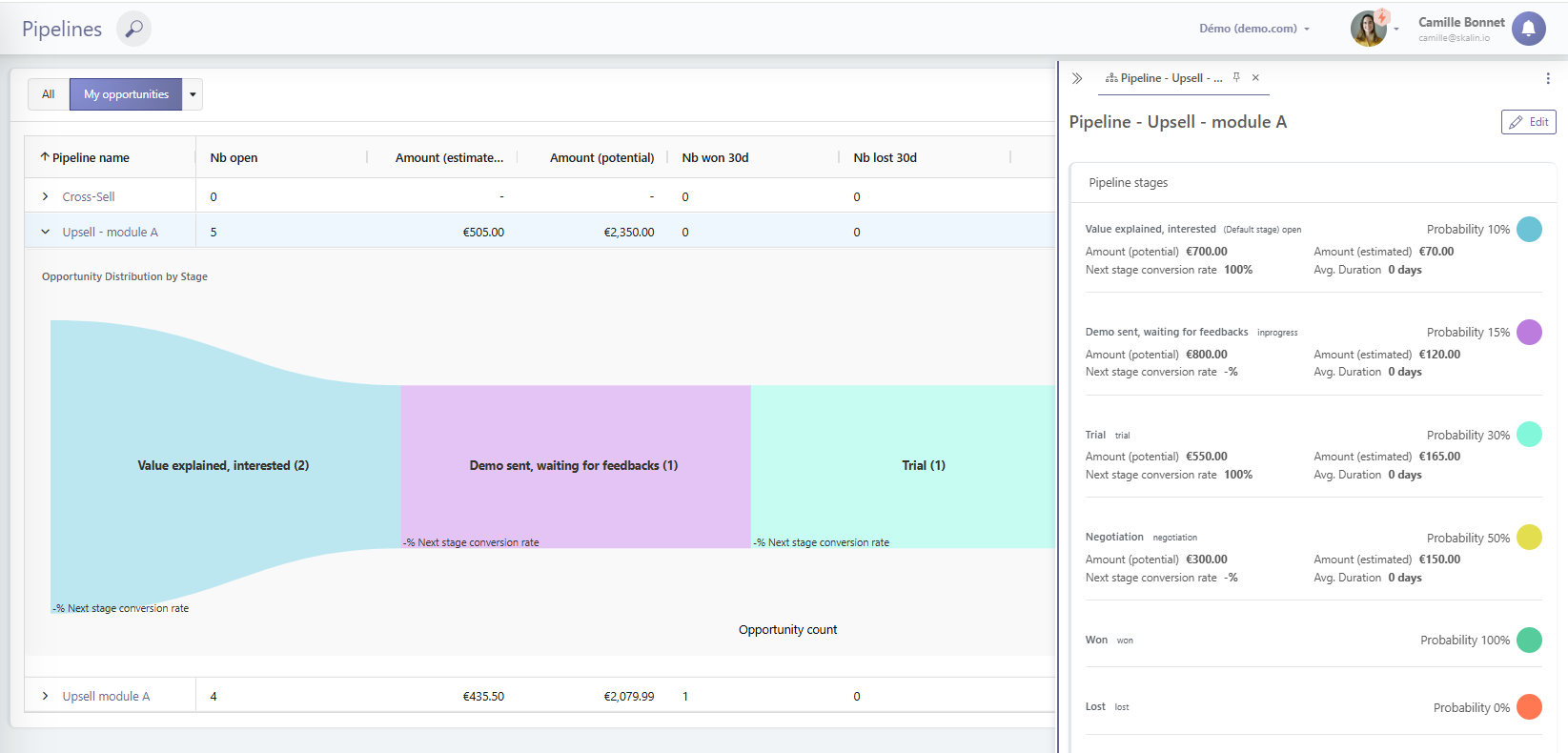
The overview displays, for each pipeline:
- The estimated amount, weighted by each stage's probability
- The total amount (gross pipeline potential)
- The number of opportunities won and lost in the last 30 days
- A conversion funnel between stages
# Pipeline detail view
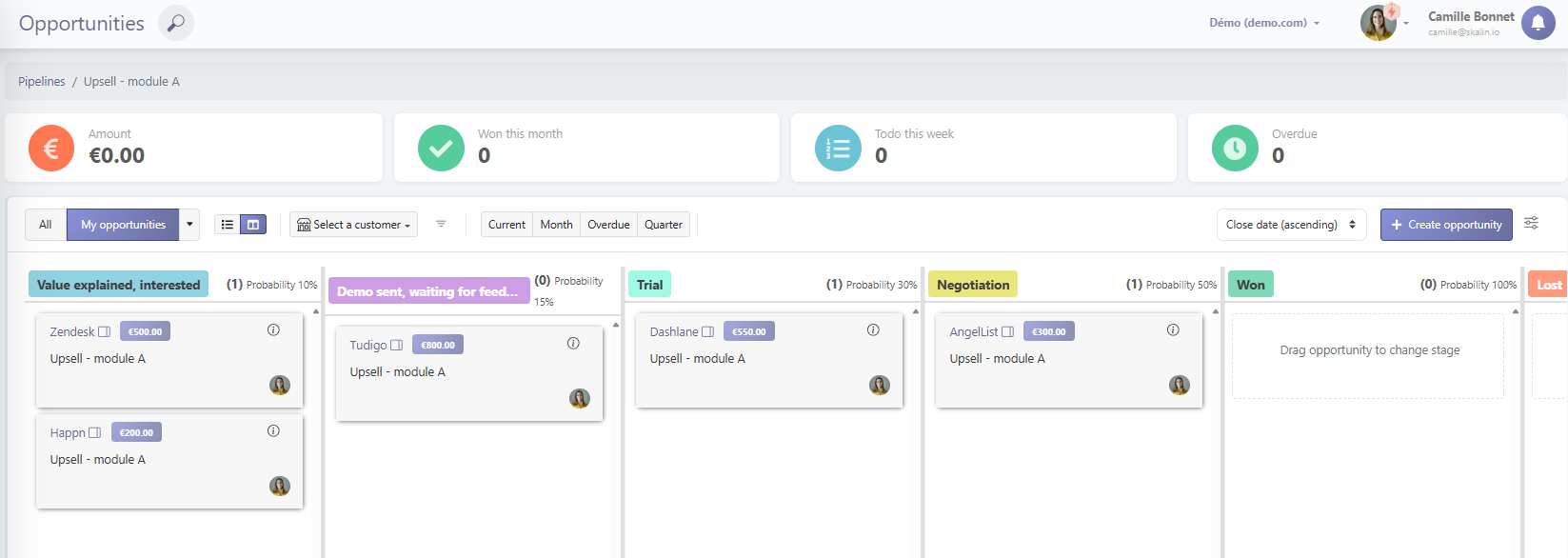
Click on a pipeline name to open its detail view. At the top, you'll find the key KPIs:
- Total pipeline amount
- Opportunities won this month
- Actions to complete this week
- Overdue items
Below, opportunities are displayed in a Kanban view with their amounts. You can drag and drop them between stages directly from this view.
To create a new opportunity, click "Create an opportunity".
# Editing an opportunity
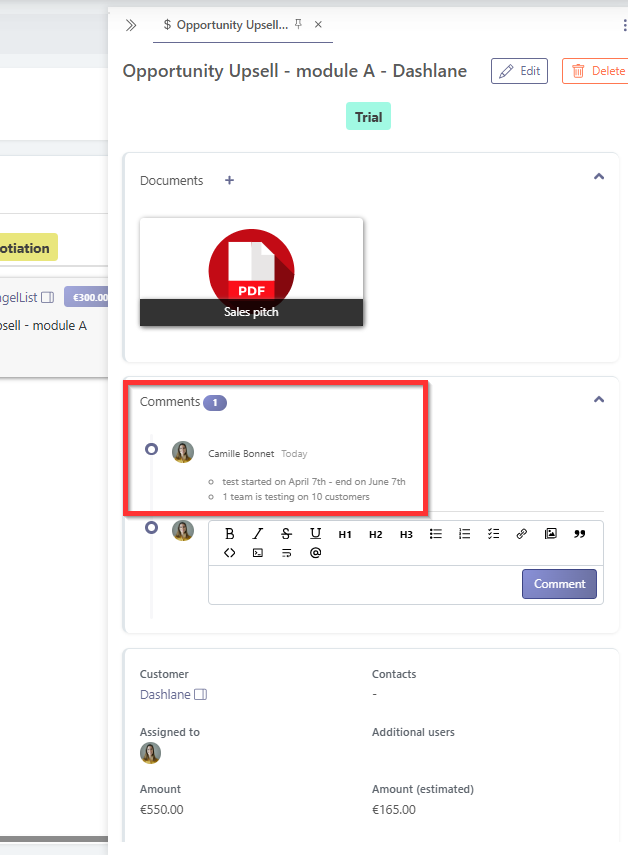
Click on an opportunity to edit it. You can update:
- The associated contacts
- Additional users: team members who are not the account owner but are involved in this opportunity, such as an Account Manager or a Sales rep
- The amount
- The due date
You can also:
- Add comments to track the progression history of the opportunity
- Attach documents
- Notify a colleague by mentioning them in a comment: if they have access to Skalin, they can collaborate on the opportunity directly. Notifications appear in the notification center.
# Automating with Playbooks
The best way to get the most out of Opportunities is to combine them with Playbooks.
# Creating an opportunity from a Playbook
You can automatically create an opportunity from a Playbook, in response to any available trigger. The opportunity will be placed in the pipeline's default stage ("Open" by default, configurable in the pipeline settings).
Documents in opportunities
If you want each opportunity created via a Playbook to include sales documents or templates, add them at the level of the opportunity creation action in the Playbook, not in the pipeline configuration.
# Triggering a Playbook based on opportunity progress
Available opportunity-related triggers are:
- Stage change: trigger actions as soon as an opportunity moves to a new stage
- Opportunity won or lost
- Due date approaching
- Opportunity stalled: trigger a follow-up if an opportunity stays too long in a given stage
# Detecting opportunities upstream
There is no single method for identifying when a customer is ready for an upsell. Here are the approaches you can combine in Skalin:
- Via the AI assistant: ask it directly to identify customers showing signals of interest for a given module.
- Via Playbooks: set up precise rules, such as "if a custom metric exceeds value X, automatically create an opportunity".
- Via a custom field: a field filled in manually by the CSM, or populated automatically from another tool, can serve as a playbook trigger.
Example scenario: automated upsell
- The AI assistant or a usage rule detects a signal of interest
- The CSM adds a tag or fills in a custom field to confirm the opportunity
- A playbook creates the opportunity and sends a first email to the customer (feature walkthrough)
- Automatic follow-ups if the customer doesn't respond
- Proposal for a deep-dive session, then a module trial
This scenario ensures every upsell opportunity follows the same standard process, with nothing left to chance.
# Bulk actions (multi-selection)
In the pipeline detail view, the first column of the table contains a checkbox in the header row. Checking it displays a checkbox next to each opportunity, allowing you to select individual opportunities or select all at once. An action bar then appears at the bottom of the screen with the following actions:
- Change owner: reassign the selected opportunities to another CSM
- Change associated user: update the additional team member involved in the selected opportunities
- Change stage: move the selected opportunities forward or backward in the pipeline
- Change priority: update the priority level of the selected opportunities
- Change amount: update the estimated amount in a single operation
- Change closing date: update the deadline of the selected opportunities
- Delete: delete the selected opportunities
# Best practices summary
- Create one pipeline per opportunity type (one per add-on, one per expansion type, etc.)
- Combine opportunities with Playbooks to automate follow-ups and standardize your sales cycles
- Add your templates and sales materials at the level of the opportunity creation action in the Playbook, so they're available as soon as an opportunity is opened
- Collaborate on opportunities by notifying colleagues directly in the comments