Playbook trigger conditions
Playbook trigger conditions
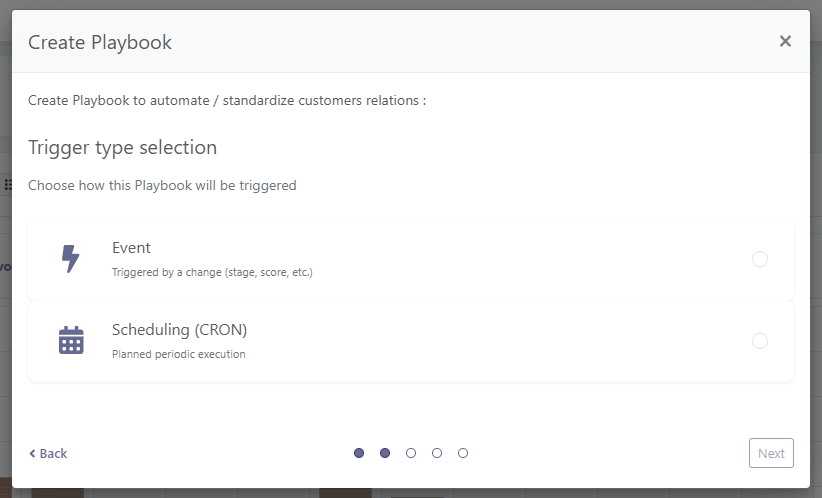
A Playbook necessarily starts with a trigger condition. Even if triggering is manual, this must be stipulated when a Playbook is started.
There are two categories of triggers: event-based triggers (property change, interaction, usage...), which react to something happening on a customer or contact, and scheduled playbooks, which run at a defined date or recurring schedule, regardless of any event.
Tip
A Playbook triggered by an automatic trigger can always be triggered manually (see the section on manual triggering).
A playbook with the ”Manual Trigger” is never launched automatically, unless it is triggered by another playbook using the ”Run new playbook” action.
Qualification playbooks
If you have defined a qualification playbook that is triggered when a customer is created and that applies tags, assigns the correct health score profile, etc., it will not automatically run on all existing customers. To trigger it for all those customers, you must launch it manually.
# Event-based triggers
# Conditions linked to customer property
Manual trigger: the Playbook can only be triggered manually, or by another Playbook (action > Run new Playbook).
New customer created: triggers when a new customer is created.
Customers' stage changed: triggers when a customer changes stage.
Customers' stage not changed: triggers when a customer stays in a given phase for more than X days/weeks/months.
Customers' profile changed: triggers when a customer's healthscore profile changes.
Customers' renewal: triggers when a customer's contract renewal date approaches (to be set before or after the renewal date). As a reminder, for a tacitly renewable contract, the renewal date corresponds to the contract end date minus the notice date (for a contract ending on 12/31 with 3 months' notice, the end date is 09/31). To know more about the specific date use case, click here.
Customers' agreement end date: triggers X days before or after the customer's end date. To know more about the specific date use case, click here.
Customer's agreement first start date reached: triggers when the start date of the customer's first agreement is reached or passed. To know more about the specific date use case, click here.
Use case: target customers based on their subscription start date
This trigger is ideal for orchestrating actions based on when a customer first subscribed. For example, customers onboarded before the launch of a new platform version can be targeted with specific messages to help them get up to speed, while newer customers will have gone through an onboarding journey already tailored to the latest version.
Customer's CSM Pulse score changed: triggers when a CSM changes its CSM Pulse score on a customer.
Customer's CSM owner changed: triggers when a new account owner is assigned.
Customer became ghost: triggers when a customer becomes "ghost", i.e. no longer interacting with your company or using your solution. By default, this parameter is set to 30 days without incoming interactions and 30 days in connection. These settings can be changed in Settings > General (opens new window).
Customer leaves ghost: triggers when a customer reactivates, either through a recent interaction with your services, or by connecting to your solution.
Customer's tags added: triggers when one or more tags are added to a customer. This only concerns custom tags, excluding system tags. If a customer is created with tags already assigned, the playbook will also be triggered, as the tags are considered added immediately after the customer is created.
Customer's MRR changed: triggered whenever a customer's MRR changes (increase, decrease, threshold exceeded, percentage change). Note: If the MRR is empty, the value is not equal to 0. You must select “value exists” in the branches of a split & merge applied to the MRR.
Property name_of_your_custom_field changed: triggered when the selected custom field gets a defined value
# Conditions linked to contact property
- Manual link with contact: the Playbook can only be triggered manually, or by another Playbook (action > Run new Playbook). It is directly associated with a contact, unlike the "Manual link with customer" trigger, which relates to the customer.
- New contact created: triggers when a new contact is created.
- Contact's NPS changed: triggers when the NPS given by a contact is added for the first time or modified.
- Contact's tags added: triggers when one or more tags are added to a contact. This only concerns custom tags, excluding system tags.
- Contact's job title changed
# Conditions linked to customer healthscore
- Healthscore enters danger zone: triggers when the health score drops from 4 or more to 3 or less (the score is now color-coded red).
- Healthscore leaves danger zone: triggers when the health score changes from 3 or less to 4 or more (the score is now color-coded yellow or green).
- Healthscore enters healthy zone: triggers when the health score changes from 6 or less to 7 or more (the score is now color-coded green).
- Healthscore leaves healthy zone: triggers when the health score drops from 7 or more to 6 or less (the score is now color-coded yellow or red).
- Healthscore changed: triggers when the health score changes. Trigger conditions can be refined in the advanced criteria.
# Conditions linked to interactions
- New interaction created: triggers when a defined interaction is created, provided that its type (email, note, call, meet, ticket), direction (in or out) and status are defined
- Interaction date arrived or reached: triggers X days/weeks/months after a defined interaction occurred (for instance 2 weeks after the last meeting with a Confirmed status occurred) To know more about the specific date use case, click here.
- Interaction's tags added: triggers when one or several defined tags are added to a defined interaction.
- Interaction title modified: triggers when the title of an interaction is modified. You can now specify a condition on the title: equal to, matches, contains, starts with, or ends with the string you enter in the associated field.
Use case: automatically detect QBRs and training sessions
This trigger is especially useful for identifying when a QBR or training session has taken place, and automatically adding the corresponding tag to the interaction. This is particularly valuable for users who rely on interaction goals: by tagging the right interactions automatically, goals are updated without any manual action.
- No customer touch: triggers when you have no exchange with a single contact within an account (note: unanswered emails are not counted as a point of contact).
- No contact touch: triggers when you have no contact with a given contact (note: unanswered emails are not counted as a point of contact).
You can define the no-contact period as soon as you've selected your trigger:

- Average sentiment score evolution: triggers when the sentiment score globally increases or decreases, or increases or decreases of more than X% or is greater or lower than X, on a given timespan.
Tip
Advanced filters give you access to additional criteria. For example, you can filter the "No contact touch" trigger by using contact Tags to specifically target your "Champions", for example.

When setting up a new interaction playbook…
it is important to know that a playbook which triggers when a user had no interaction for the past 15 days will not trigger on the 16th or 17th day without interaction with that same customer, it sticks to the defined number of days.
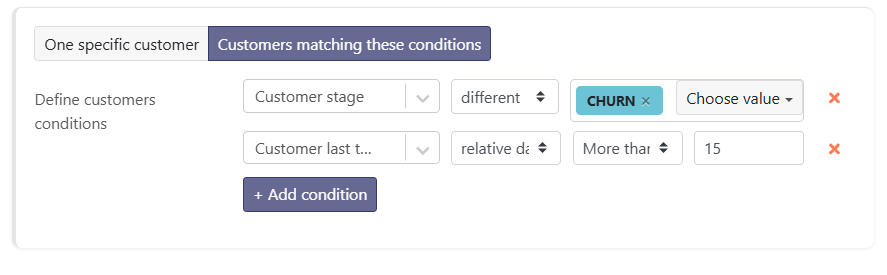
The same way, it will not trigger on all customers with who you didn't have interactions for more than 15 days. So after you activated it, you might want to apply it manually to all those customers :
Manually launch it, choosing the following conditions: Customer last touch + relative date + More than N days ago + 15 AND add all your initial playbook's conditions as well (for instance, phase = run AND healthscore profile = Tier 1 etc.)
# Conditions linked to usages
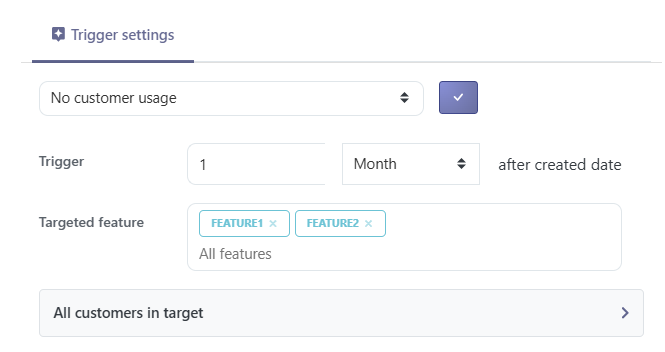
- No customer usage: triggers when a customer has never used your tool. You then define the delay between the creation of the customer and the triggering of the Playbook.
- No contact usage: triggers when a contact has never used your tool. You then define the delay between the creation of the contact and the triggering of the Playbook.
- No customer usage since: triggers when a customer has not used your tool for a certain period of time, defined in the parameters.
- No contact usage since: triggers when a contact has not used your tool for a certain period of time, to be defined in the parameters.
- New customer usage since: triggers when a customer uses your tool again following a period of no usage, to be defined in the parameters.
- New contact usage since: triggers when a contact uses your tool again following a period of no usage, a period to be defined in the parameters.
- First customer usage: triggers when a customer uses your product for the first time.
- First contact usage: triggers when a contact uses your product for the first time.
When setting up a new usage playbook…
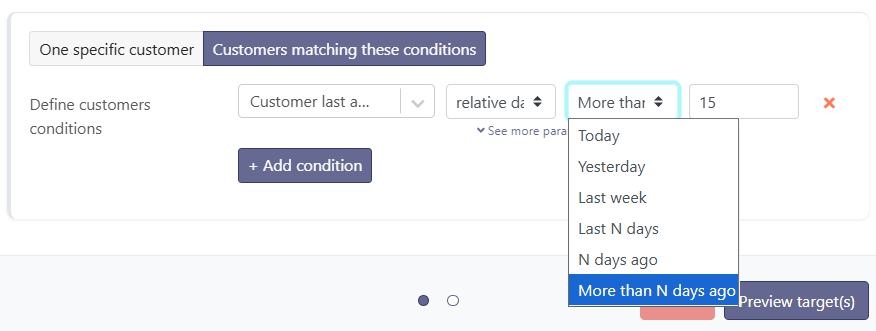
It is important to know that a playbook which triggers when a user has not used your product for the past 15 days will not trigger on the 16th or 17th day without using the product, it sticks to the defined number of days. The same way, it will not trigger on all customers who didn't use the product for more than 15 days. So after you activated it, you might want to apply it manually to all those customers : Manually launch it, choosing the following conditions: Customer last activity + relative date + More than N days ago + 15 AND add all your initial playbook's conditions as well (for instance, phase = run AND healthscore profile = Tier 1 etc.)
The following triggers monitor changes in usage volume rather than the absence of usage.
Setup help
Not sure which configuration to choose? Answer a few questions and the assistant suggests a starting setting to test.
What counts as an event
For the usage drop, increase and variation triggers, it is the events that are counted. A visit counts as a standard event: the sum of the number of visits and the number of features used is what gets compared from one period to the next.
- Customer usage drop: the playbook triggers when a customer's usage falls by at least a defined variation threshold, measured over a sliding comparison window. For example, with a one-month window, Skalin compares the sum of events over the last 30 days to the previous 30 days; if the drop reaches the chosen threshold (e.g. 20%), the playbook triggers. Default thresholds are 10, 20, 30 and 50%, but any value up to 200% can be selected.
- Customer usage increase: works exactly like the usage drop, but triggers when the latest period's usage exceeds the previous period by at least the defined threshold.
- Contact usage drop / Contact usage increase: the contact-level equivalents of the two triggers above. Particularly useful when only the usage of specific users matters.
Sliding window and threshold calibration
The comparison window is always sliding: it compares the latest period to the immediately preceding period of the same length. There is no minimum event threshold. So if a customer has only two equally active users and one of them takes two weeks off, a 2-week comparison window will trigger the playbook on a drop of at least 50%.
Calibrate the threshold and window according to your average number of users per account and the usage frequency of your solution: a tool used daily doesn't call for the same window as one used once every two weeks.
For these triggers, the detection preview is mainly indicative: in practice, only the current point and the previous period's point actually matter.
Nightly computation and sliding periods
The usage drop, increase and variation triggers are recomputed every night, always on sliding periods: the latest analysed period ends the day before, not at the end of a calendar week.
This is why a trigger's values don't appear as-is in the Product Adoption report, which shows usage calendar week by calendar week. Both measure the same thing, but not on the same split: a 2-week sliding window ending on a Wednesday doesn't line up with the last two Monday-to-Sunday weeks in the chart.
Filtering by feature
Usage triggers can be filtered by a specific feature — both the no-usage triggers and the usage drop, increase and variation triggers (at customer and contact level). Enter the feature name in the box provided (copy it from the feature list visible in the Product Adoption report). You can add multiple features by pressing Enter between each name; an OR filter then applies, and the playbook triggers as soon as any one of them matches.
Only the weekly and monthly active users triggers cannot be filtered by feature.
Use case: focus on key features. If you primarily track the features that carry the value and should be used regularly, filter on those key features rather than on setup ones. Early in the account's life, the administrator configures the platform, which inflates usage: including this setup in the normal would make the return to everyday usage look like a drop. For the same reason, consider restricting the playbook to customers in the run phase using the advanced filters, so it doesn't fire during onboarding.
- Weekly active users drop: triggers when the number of weekly active users (the Weekly Active Users indicator) falls by at least a defined threshold (10, 20, 30, 50% or a custom value).
- Weekly active users increase: the same, for an increase.
- Monthly active users drop / Monthly active users increase: the same principles applied to the Monthly Active Users indicator.
The following trigger works differently: instead of comparing the latest period to the single preceding period, it compares recent usage to a longer reference period to spot statistically abnormal swings.
Usage drop or usage variation: which to choose?
The usage drop applies a fixed threshold: simple and predictable, it fits when you have a clear expectation and fairly stable usage. But a single rule quickly shows its limits:
- Customers of different sizes: with a 30% threshold, a customer with one or two users triggers as soon as someone goes on holiday, while a customer with thirty users almost never does. The same percentage doesn't mean the same thing depending on account size.
- Slow erosion: the usage drop only compares two consecutive periods. A loss of a few percent each week never crosses the threshold at once, yet it can halve usage over a few months without ever triggering.
- Irregular usage: a customer who uses the platform in bursts triggers on every normal dip, which multiplies false alerts.
In these cases, prefer the usage variation: it learns each customer's own normal and adapts automatically to their size, rhythm and regularity. A single trigger then covers your whole portfolio, without multiplying scenarios.
- Customer usage variation: detects abnormal usage swings relative to the customer's normal. The options are set in this order:
- Direction: Both (spikes up as well as down), Increase or Collapse.
- Detection mode and sensitivity: Sensitive, Recommended or Strict; the mode sets the threshold in σ, which the sensitivity slider lets you fine-tune (see box).
- Comparison window: the length of the analysed period (day, week(s) or month(s)).
- Reference: the number of preceding periods used as the basis for comparison. Example: a one-month window with 6 reference periods compares the last month to the previous 6 months; a 2-week window with 10 periods compares it to the previous 20 weeks.
- Minimum gap: the minimum number of events of deviation required to trigger (see box).
- Contact usage variation: the contact-level equivalent of the trigger above.
Visualise the impact of the window and the reference
To see concretely how the comparison window and the number of reference periods act on regular or irregular usage, open the interactive simulator.
Minimum gap and detection preview
The minimum gap is an absolute filter, expressed in number of events: the latest window must deviate from normal by at least this number of events to trigger. This is useful when a customer has very little usage, where the slightest event would otherwise be enough to trigger the playbook. A value of 0 disables this filter (purely statistical detection).
In the detection preview, each point represents a period (one or more weeks, or one or more months depending on your choice) and the total number of points matches the reference period.
Understanding the normal and standard deviations
Skalin first establishes a normal: the average usage over the reference period (for example the last 6 months). The standard deviation — written σ (sigma) — measures the usual spread around that average, i.e. the size of the variations considered "normal" from one period to the next.
The trigger reacts when the latest window's usage moves away from the normal by more than a given number of standard deviations:
- Sensitive: from 1.5 σ — reacts to moderate deviations (more alerts, more false positives).
- Recommended: from 2 σ — detects clear anomalies.
- Strict: from 2.5–3 σ — only pronounced anomalies.
The higher the σ threshold, the larger the deviation from normal has to be before it counts as abnormal.
Take a customer whose usage over the 6 reference periods hovers around 40 events: 40, 42, 38, 41, 39, 40. Its normal (average) is 40 and its standard deviation about 1.3: from one period to the next, usage typically varies by a little over one event. In Recommended mode (2 σ), the latest period would have to fall outside the ~37 to 43 range to trigger; in Sensitive mode (1.5 σ), that range tightens to about 38 to 42.
So the regularity of usage plays a central role:
- Very regular usage gives a small standard deviation: the slightest variation looks abnormal and triggers quickly. This helps catch a change early, but can multiply false positives — hence the value of the minimum gap in number of events.
- Erratic usage gives a large standard deviation: a substantial variation is needed to trigger, which avoids reacting to every minor fluctuation.
Regime change or seasonality: choosing the reference period
A long reference period gives a stable normal, but only if the past still resembles the present. Before extending it, ask whether the period contains a regime change, that is a lasting shift in level or rhythm.
- In case of a regime change (for example a customer who has become more regular but at a lower level), a reference reaching back before the change mixes two normals. It inflates the standard deviation and makes the trigger blind to genuine drops in the new regime. Anchor the reference on the current regime only.
- In case of seasonality (a pattern that repeats every year), a reference of about 52 weeks is instead relevant: a seasonal trough won't be mistaken for an anomaly.
In short, a long reference is only an asset if the distant past is still representative. Otherwise, prefer a shorter reference, anchored on the customer's current rhythm.
# Setup assistant
Answer a few questions to get a starting configuration to test, then adjust it based on your results.
1. Your accounts' size (number of users) is…
2. Your customers' usage is mostly…
3. How often is your tool meant to be used?
4. What do you want to detect?
Multiple choices allowed. Each need may call for a separate trigger.
5. Has there been a recent break on this scope?
6. How much usage history do you have on these customers?
7. Do you track specific key features?
# Conditions linked to Opportunities
For each of the following triggers, don't forget to Show advanced filters to see all configuration possibilities.
- New opportunity created: triggers as soon as a new opportunity is created on a given pipeline.
- Opportunity assigned to user: triggers when a new user is assigned to an opportunity from a defined pipeline, whether this is the first assignment or a modification.
- Opportunity won: triggers when an opportunity from a defined pipeline is won.
- Opportunity lost: triggers when an opportunity from a defined pipeline is lost.
- Opportunity's stage changed: triggers when the stage of an opportunity from a defined pipeline changes.
- Opportunity's stage not changed: triggers when the stage of an opportunity from a defined pipeline has not changed for the past X days/weeks/months.
- Opportunity close date arrives: triggers X hours/days/weeks before or after an opportunity's close date To know more about the specific date use case, click here.
# Scheduled Playbooks
Scheduled playbooks are an alternative to event-based playbooks. Rather than waiting for something to happen to a customer or contact, they trigger automatically at a specific date or on a recurring schedule — weekly, monthly, quarterly, or annually — on a specific day of the week or month. This is a powerful way to structure recurring actions without relying on an event trigger, making them ideal for regular touchpoints like QBRs, NPS surveys, or communications tied to your product calendar.
Availability and retroactivity
Available on all plans. An existing playbook can be edited to replace its trigger with a scheduled one.
A scheduled playbook can target a customer or a contact.
# Use cases
- Quarterly NPS survey: automatically send an NPS survey email at the start of each quarter to a defined category of customers who have never received it.
- Quarterly QBR: schedule a QBR outreach once a quarter for each customer in the run phase.
- Product update communication: if a new version of your platform is planned for a specific date, you can notify all your customers on the day of the release using a scheduled playbook.
# Configuration
# Timezone
Start by selecting the timezone for execution. This is especially important when the exact trigger time matters (for example, sending an email at 9am in your customers' timezone).
# Frequency
Then choose the frequency:
- One-time: the playbook triggers once on a specific date.
- Daily: simply choose the trigger time.
- Weekly: choose the day of the week and the time.
- Monthly: choose from a predefined list of days (1st, 5th, 10th, 15th, 25th, or last day of the month), and the trigger time.
- Quarterly: triggers on the 1st of the month at the start of each quarter by default.
- Custom: enter a CRON expression to define exactly when the playbook should run.
# Custom mode (CRON expression)
Custom mode uses a CRON expression in the format minute hour day month weekday. Each field can contain a specific value, * (all), or ranges.
| Field | Values |
|---|---|
| Minute | 0–59 |
| Hour | 0–23 |
| Day of month | 1–31 |
| Month | 1–12 |
| Day of week | 0–6 (0 = Sunday) |
Common examples:
0 9 * * *→ every day at 9:00am0 9 * * 1→ every Monday at 9:00am0 9 1 * *→ the 1st of every month at 9:00am0 9 1 1 *→ January 1st every year at 9:00am0 9 5 1,4,7,10 *→ the 5th of January, April, July and October at 9:00am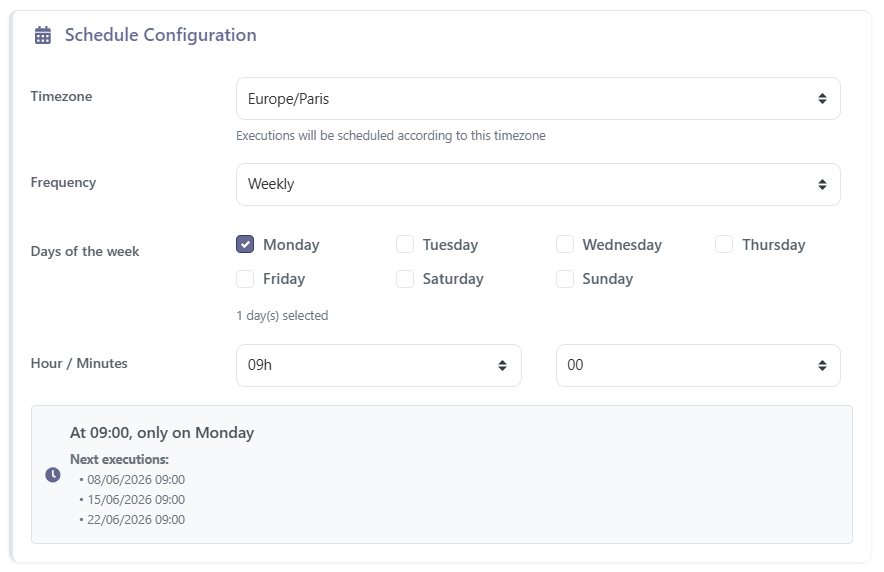
# Execution limits
Below the recurrence settings, you can define execution limits:
- End date: the recurrence stops at a given date.
- Maximum executions: the playbook stops after a defined number of runs.
# Frequency limit per customer or contact
Important
For recurring scheduled playbooks, always ask yourself: could my customer be targeted multiple times by this recurrence? And if so, is that intentional?
If not, enable the Frequency limit per customer in the playbook's Settings tab, and define the maximum number of allowed activations per customer over the chosen period (once per week, month, quarter, or year).
Do not confuse this with the concurrent activations setting (none, 1 per customer, or 1 per contact), which only controls how many instances of the playbook can run in parallel on the same customer. A playbook that completes quickly can still trigger again the next day on the same customer without ever hitting that limit — the frequency limit is what prevents this.
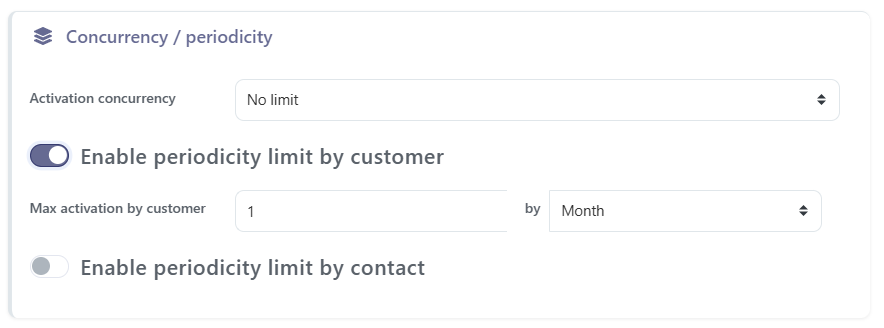
This setting is available in the playbook's Settings tab.