Action types
Action types
# Duplicating and moving actions
When hovering over an action in the editor, two buttons appear:
- Duplicate (duplication icon): creates a copy of the action right below it. A split & merge block can also be duplicated in full, including all its branches and the actions they contain.
- Move (three-bar icon, next to the action title): lets you drag and drop the action to a new position, including across branches within a split & merge.

Limitation
It is not possible to move an entire split & merge block. Only individual actions can be moved.
# Action steps
# Changing customer properties
- Change customer stage: to change the customer's life-cycle stage.
- Change customer profile: to change the health score profile.
- Change customer goal profile: to change the goal profile.
- Change customer owner: to change the account owner.
- Modify customer tag: assign or delete customer tags.
- Change customer custom user field: to change a user linked to a custom field, if you've created one.
- Change customer custom score field: to change a custom score on a given customer
# Changing contact properties
- Modify contact tag: to modify or delete tags linked to a contact.
# Assigning tasks or projects
- Create simple task: allows assigning a single task to one or more users, customizable field, or to a team.
- Instantiate project task template: assigns a set of tasks according to a pre-existing template. The tasks contained in the template can concern several people and have different deadlines (to create a template, refer to the Projects section).
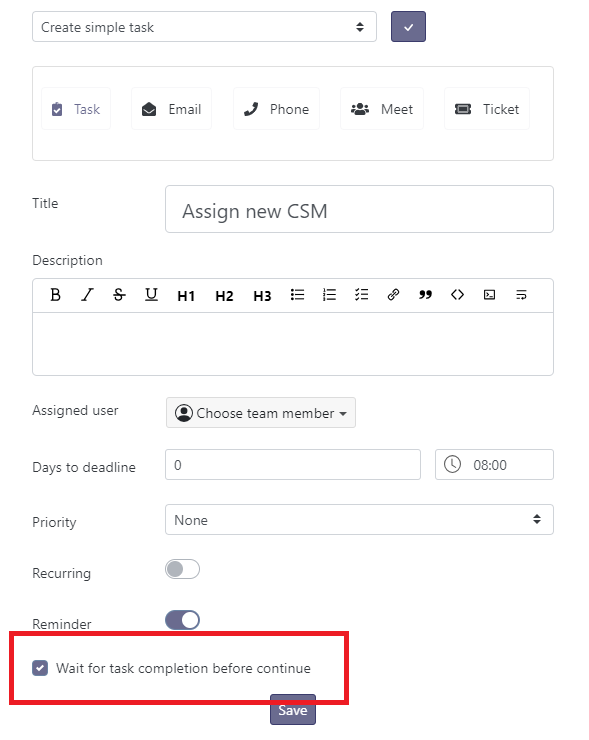
For **Task-type steps**: you can select the **Wait for task completion before continue** action: the Playbook continues only after the task or project validation.This option is located in the task you are creating.
# Sending Notifications
Skalin allows you to automate notifications through various actions:
- Create draft in owner's mailbox: creates a draft email directly in the user's mailbox (Gmail or Outlook 365). The email can then be edited and sent from the mailbox concerned. Please note: this action has been replaced by "send email after manual validation", which allows everything to be controlled from Skalin. It will be removed in the future.
- Send an automatic email: automatically sends an email from a Gmail or Outlook 365 account.
- Send email after manual validation: generates an email from a defined template and submits it for CSM validation. The CSM can send as-is, edit, or cancel. Controlled from My Actions > Playbooks pending actions. The message is sent from the user's usual email account.
- Send email (internal): sends emails or alerts to internal addresses, including non-Skalin users.
- Call webhook: allows you to call a third-party application capable of receiving a webhook call, thanks to a specific URL provided by said application.
- Notify Slack channel: sends a notification to a default or specific Slack channel, or directly to a Slack user in your organization.
# Set Parameters for Sending an Email
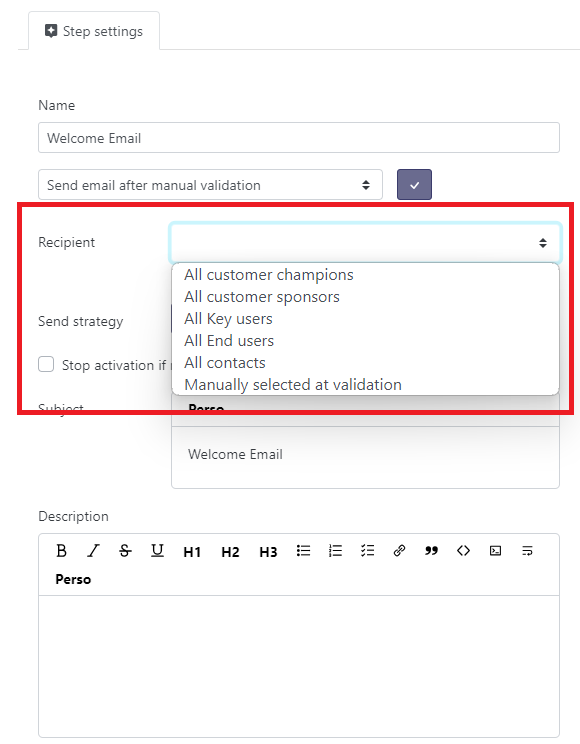
When configuring email parameters, select recipients:
All customer champions: contacts tagged as "champions" within the account
All customer sponsors: contacts tagged as "sponsors" within the account
All key users: contacts tagged as "key users" within the account
All end users: contacts tagged as "end users" within the account
All contacts: all contacts of the account
Manually selected at validation: choose recipients when validating the email (My Actions > Playbooks pending actions)
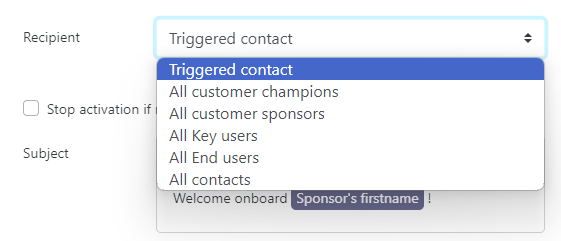
For Playbooks linked to a contact instead of a customer:
- Triggered contact: targets the contact that triggered the Playbook.
Additional options via "see more parameters":
Change the email sender: by default, the account owner is selected, but you can also define a specific user (static), or refer to a person designated in a custom field (dynamic).
Add people as copies or hidden copies. The hidden copy option is particularly useful for adding your CRM as a systematic copy.

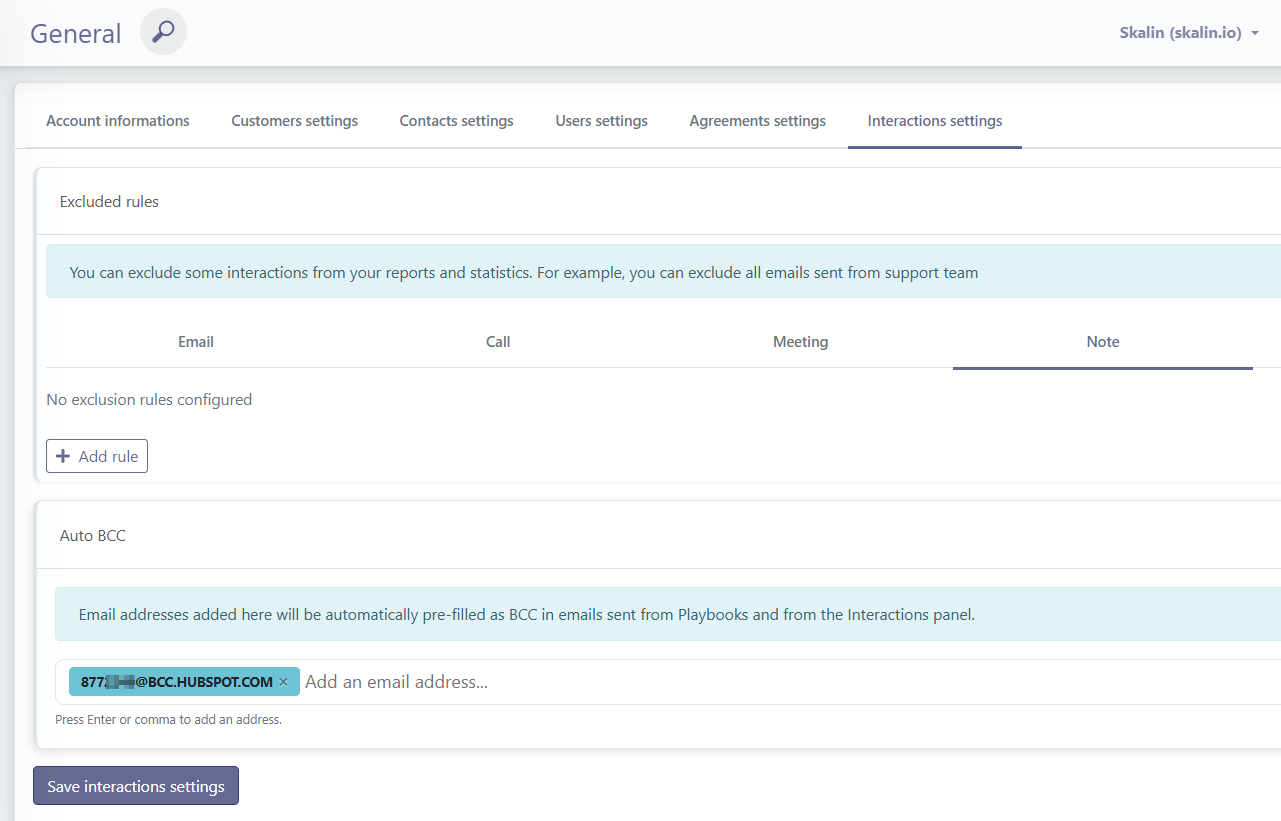
Always adding your CRM in copy
If you want to add your CRM in BCC on all emails sent via playbooks, you can add this email in the "Settings > General > Interaction settings > Auto BCC" section.
To read more about sending bulk emails, the risks and advantages of using Skalin for large volume sends, directly go here.
# Sending Strategy
- Individualized: each eligible contact (from the same account) receives a separate email from the email sender
- Grouped: all eligible contacts of a customer receive the same email

You can also check the Group into the previous email's thread option to send this email in the same thread as a previous email in the playbook. This option only appears when a first email step is already present earlier in the playbook. For the grouping to work correctly, the second email must use the same subject as the first — or a subject starting with "Re:" followed by the first email's subject.
# Writing the Email
Define :
- Subject and Message body (green areas below)
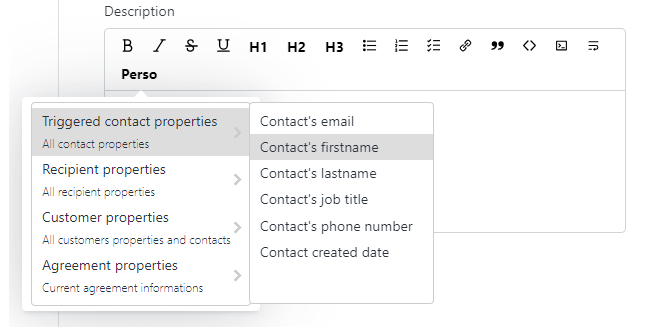
- Personalize with variables via the Perso button (red area)

Personalization can access numerous variables and values linked to custom fields.
You can also attach one or several files to the email, whether it is sent automatically or after manual validation. The maximum attachment size is 20 MB.
# Triggering a New Playbook
- Run new Playbook: triggers another Playbook of same type (client or contact) as your initial playbook, whatever its original trigger and filters, e.g., triggers the Adoption Playbook after the Onboarding Playbook.

Warning
When triggering Playbook #2 from Playbook #1, ensure it does not duplicate Playbook #2's normal trigger.
Playbook Types
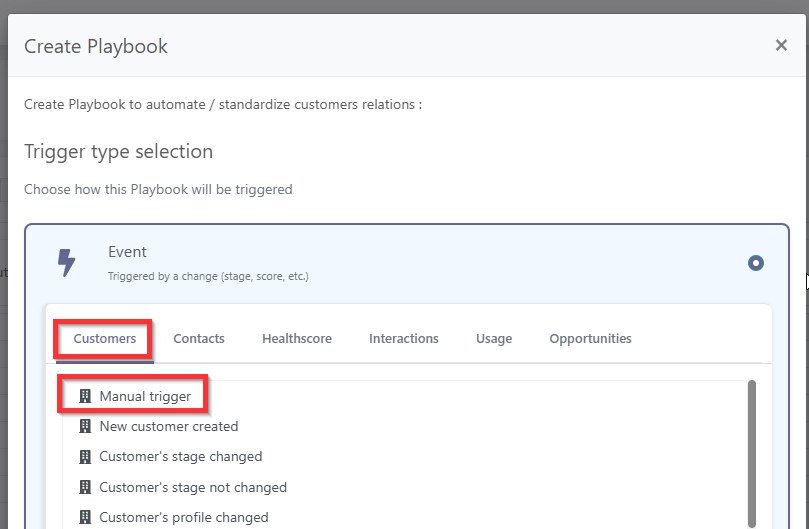
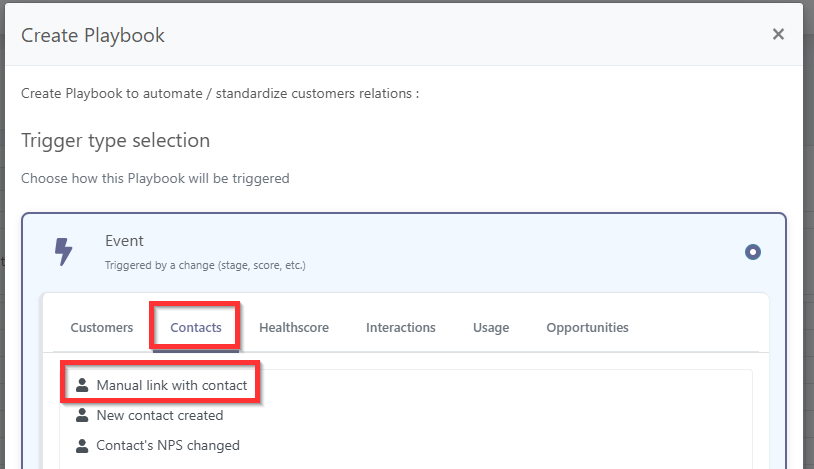
If your playbook has a customer-level trigger, it can launch another playbook with a customer-type trigger (under the customer section). Conversely, if your playbook has a contact-level trigger, it can only launch other playbooks with a contact-type trigger. This is the main difference between manual customer activations and manual contact activations.
# Creating an opportunity
- Create opportunity: creates an opportunity in the pipeline you select.